Editing content
Understand the content list, editor controls, markdown behavior, validation, save behavior, and read-only fields.
Content list
The content list shows mapped posts or content items for a project. It uses bounded reads, search, filters, and pagination instead of loading the entire table at once.
On large projects, exact counts may be approximate, cached, deferred, or projection-backed. The goal is to keep the editor usable without making expensive database reads part of every page load.
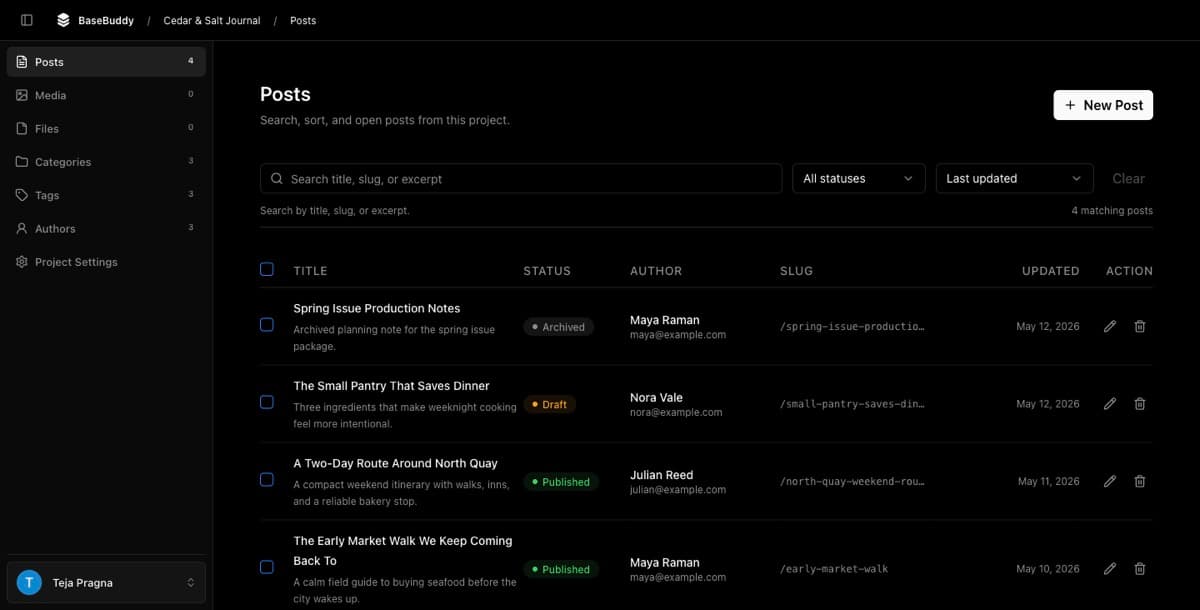
Caps and rate limits explains why BaseBuddy keeps normal reads bounded.
Opening content
Opening a content item loads the saved mapping, compiles field specs, reads mapped values, and renders controls from those specs.

Opening content does not write to your database.
Editing fields
Each field follows the mapping contract. Text fields render as text controls, boolean fields as toggles, enum fields as dropdowns, relation fields as selectors, and media/file fields as pickers.
If a field is read-only, check the mapping reason before trying to force it writable. It may be generated, view-derived, trigger-managed, or unsafe to patch.
The deeper control rules live in Storage contract and UI, and the field-specific troubleshooting flow is How to fix a field showing as read-only.
Markdown and rich text
BaseBuddy can provide a rich editor experience for content fields, but the saved storage shape still matters.
If the mapped field stores markdown, BaseBuddy saves markdown back. If the mapped field stores HTML, it saves HTML back. Don't rely on visual editing to imply a storage conversion.
Use How to map Markdown content safely before testing rich editing on a production Markdown field. For editor commands, keep How to use the editor toolbar, How to use slash commands, and How to use keyboard shortcuts nearby.
Save behavior
Save writes only the fields you changed.
| User action | What happens |
|---|---|
| Open content | No content write |
| Click Save with no changes | No content write |
| Edit title only | Patch title storage only |
| Edit relation only | Patch relation storage only |
| Edit markdown | Preserve mapped content format |
| Change status | Require publish permission |
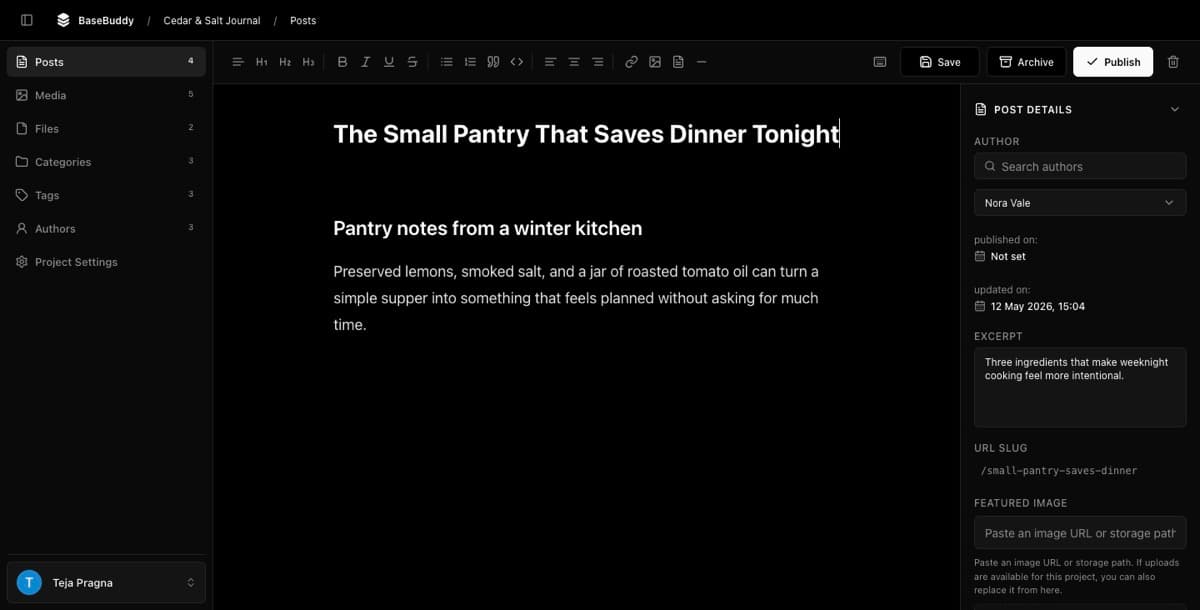
If a save fails, How to fix save failures walks through validation, mapping, permission, and database causes in order.
Validation errors
Validation errors explain what you can fix. Required fields, invalid dates, unsupported file types, relation mismatches, and missing permissions show up as clear messages, not raw database errors.
If the error says the field is unsupported or read-only, fix the mapping or schema expectation rather than clicking Save again.
For the first production test, follow How to safely edit your first post so the verification stays narrow.