How to fix a field showing as read-only
Understand why BaseBuddy marks fields read-only and when it is safe to update the mapping.
BaseBuddy shows read-only when it can read a value but should not write it yet.
Use this when a field appears in the editor but the control is disabled, marked read-only, or shown only as display text. The goal is to find out whether the field is intentionally protected, mapped to an unsafe write path, or blocked by permissions.

Why fields become read-only
The saved mapping is the runtime truth. BaseBuddy uses it to decide where a value is stored, what kind of value it is, and whether Save can patch only that storage target.
Read-only is often the safest correct result. It protects generated fields, unsupported shapes, incomplete relations, broad JSON paths, view-derived values, and fields the current member is not allowed to change.
| Cause | What to check |
|---|---|
| Unsupported storage shape | The column, JSON path, array item, or computed value can be displayed, but BaseBuddy does not have a supported write mode for it. |
| Missing write path | The mapping points at a value without enough information to patch the exact source, such as an incomplete JSON path or helper-row target. |
| Mapped as read-only | The field is intentionally configured as read-only in mapping. |
| Permissions | Your project role can view content but cannot edit that field, content type, author scope, or workflow state. |
| Unsafe mapping | BaseBuddy cannot prove that saving would only change the intended storage target. |
| Relation or media shape not writable | The relation, media, or file value can be shown, but the join table, foreign key, storage reference, or list shape is not mapped to a safe write operation. |
For more background, see How mapping works, Mapping fields and relations, and Safe editing model.
Do not force unsafe mapping
Do not make a field editable just to remove the read-only label.
If the source is generated, trigger-managed, view-derived, unsupported, missing write details, or part of a relation shape BaseBuddy cannot safely patch, keep it read-only until you know the correct write path.
Forcing an unsafe mapping can make Save update the wrong column, overwrite a larger JSON object, replace a list unexpectedly, or break assumptions in the app that owns the database.
Troubleshoot in order
Start with the field itself, then check mapping, then check permissions.
- Open the content item where the field is read-only.
- Note the field label and whether BaseBuddy says it is read-only or cannot be edited here yet.
- Open
Settings. - Open
Mapping. - Open the mapping section for the affected field, usually
Open Posts mapping. - Check the mapped source and write path.
- If the mapping looks safe, open
Permissions. - Check the affected member's role, explicit denies, author scope, and publish access if the field changes workflow status.
- Change only the smallest thing that explains the problem.
- Verify with one harmless edit before regular editing resumes.
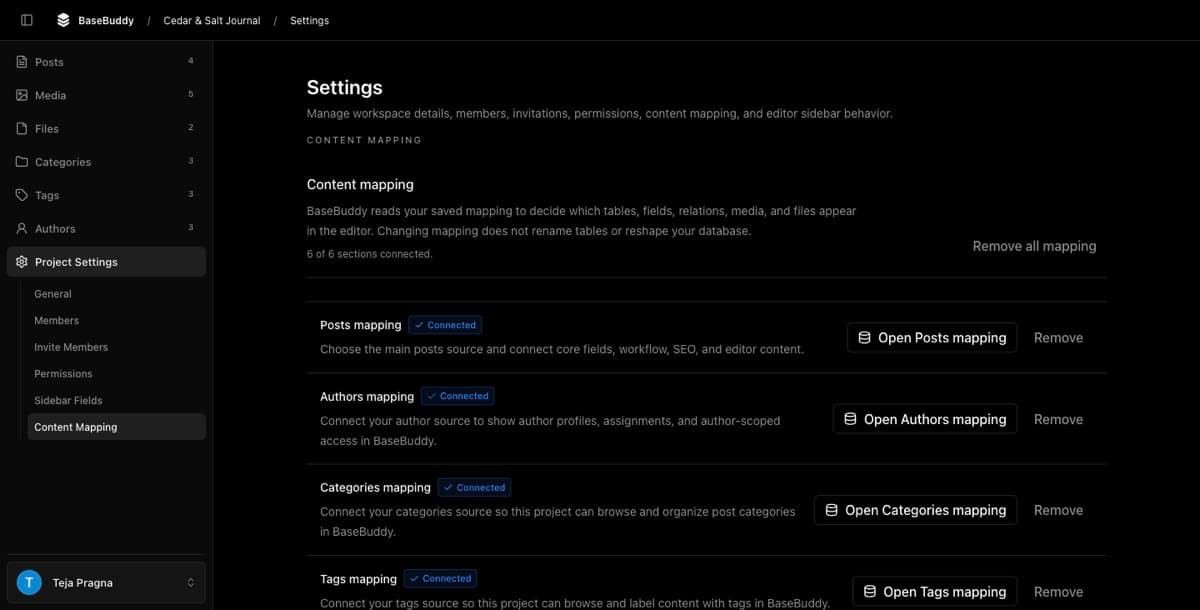
Check the mapping
- Open project settings.
- Open the mapping area for the content type.
- Find the field that is read-only in the editor.
- Check the mapped table, column, JSON path, relation, media, or file source.
- Check the storage type and value kind.
- Check whether the field is explicitly marked read-only or unsupported.
- For relations, media, and files, confirm the writable source is mapped, not only the display value.
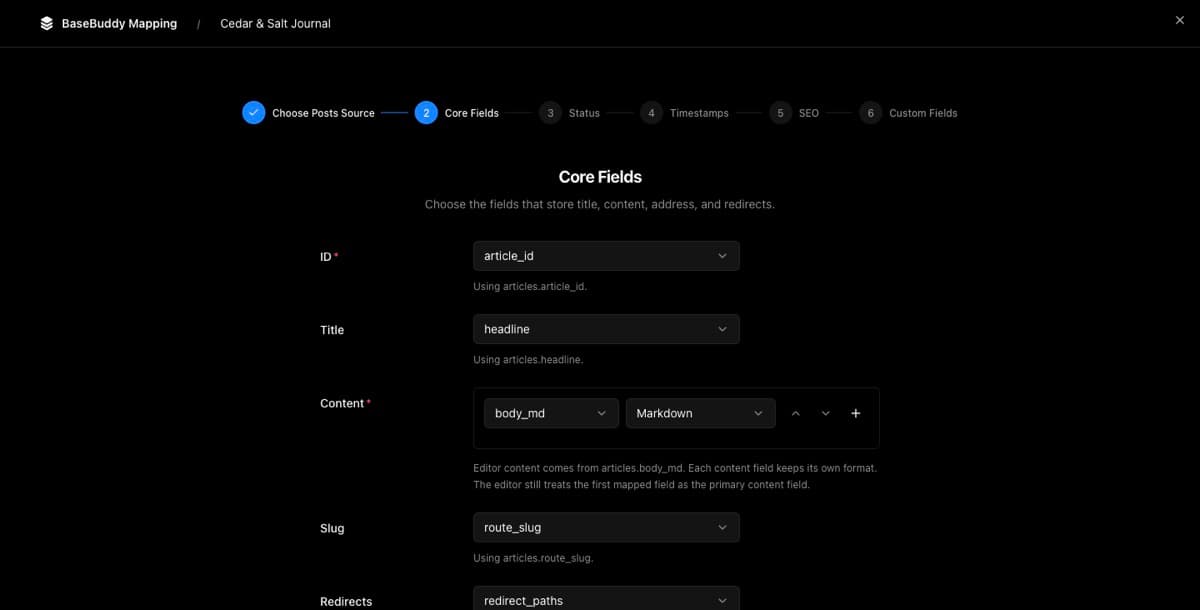
Use How to map a posts table, Projects and mappings, and Mapping fields and relations if you need to review what a safe source looks like.
Keep unsafe sources read-only
Leave the field read-only when the source is:
| Source | Why to avoid editing it |
|---|---|
| Generated column | The database owns the value. |
| View-derived field | BaseBuddy may not have a real table target to patch. |
| Trigger-managed value | Your database logic may be responsible for updates. |
| Unsupported type | BaseBuddy can display it but cannot safely write it yet. |
| Broad JSON or array source | Saving could replace more data than the one field. |
| Incomplete helper-row mapping | BaseBuddy may not know which helper row or value column to patch. |
| Ambiguous relation | Saving could change the wrong foreign key, join row, or selected value. |
Check permissions
If the mapping looks writable, check the member’s access next.
- Open project settings.
- Open the member’s permissions.
- Confirm the role or overrides allow editing content.
- If the field affects workflow status, confirm the member has publish access.
- If author scopes are enabled, confirm the member has access to this item’s assigned author.
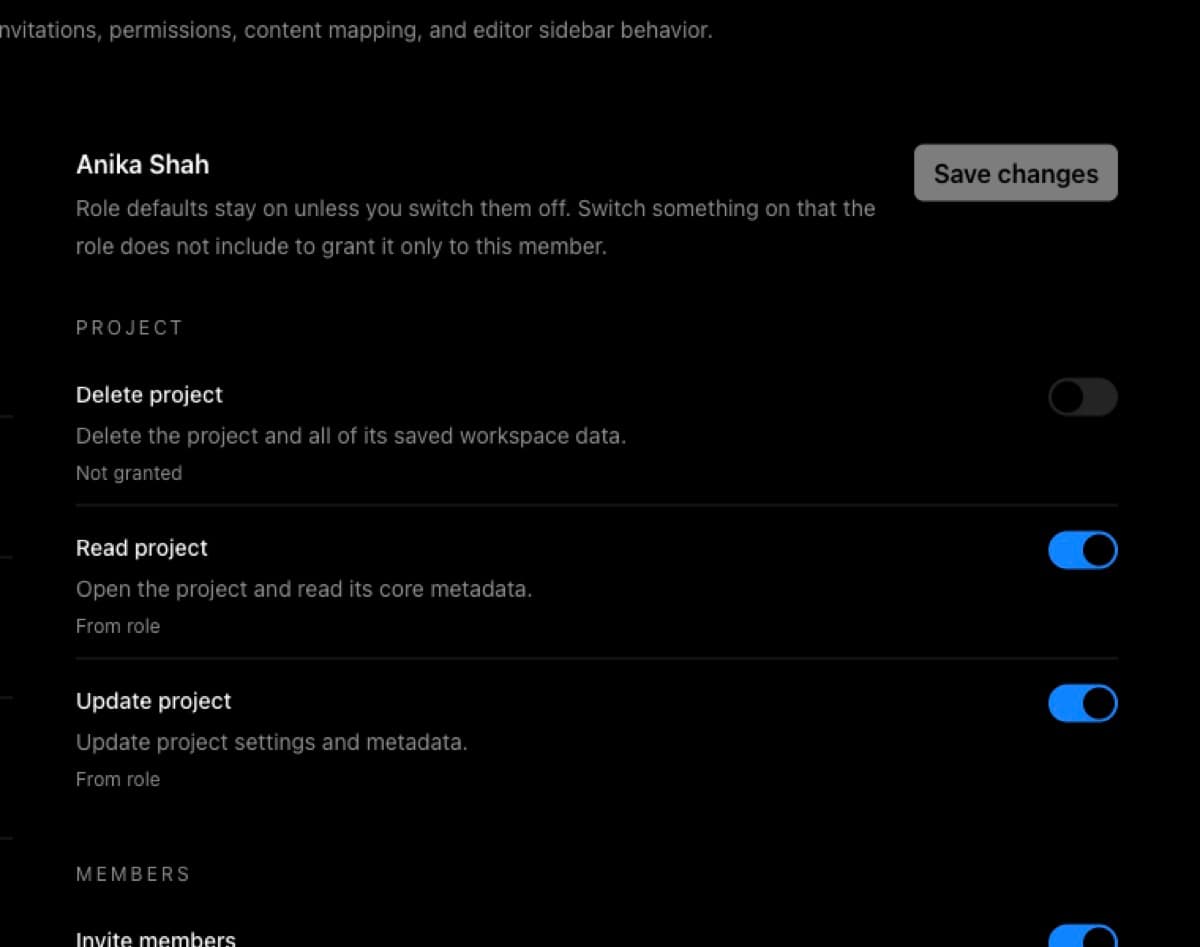
Use Permissions and roles, How to customize permissions, and Permissions and teams when the field is writable in mapping but blocked for one member.
Fix the safest cause first
| If you find | Safer fix |
|---|---|
| Field was intentionally read-only | Leave it read-only unless the database owner confirms it should be editable. |
| Wrong field source | Remap the field to the correct table column or JSON path. |
| Unsupported type | Choose a supported source for editing, or keep the value display-only. |
| Missing relation write target | Map the foreign key, join table, or list source BaseBuddy should patch. |
| Missing media or file write target | Map the stored reference BaseBuddy should save, not just the public URL or preview value. |
| Missing permission | Update the member role or permission override, then test only that action. |
Do not rename or reshape your existing content tables to make a field editable. BaseBuddy should follow your existing schema, not silently convert it into a different content model.
Verify after fixing
After changing mapping or permissions, test one harmless edit before regular editing resumes.
- Open one safe content item.
- Change one low-risk field, such as an excerpt, internal note, or draft-only text field.
- Click Save.
- Inspect the row in Supabase or your database client.
- Confirm only the expected mapped storage target changed.
- Reopen the item in BaseBuddy and confirm the value still displays correctly.
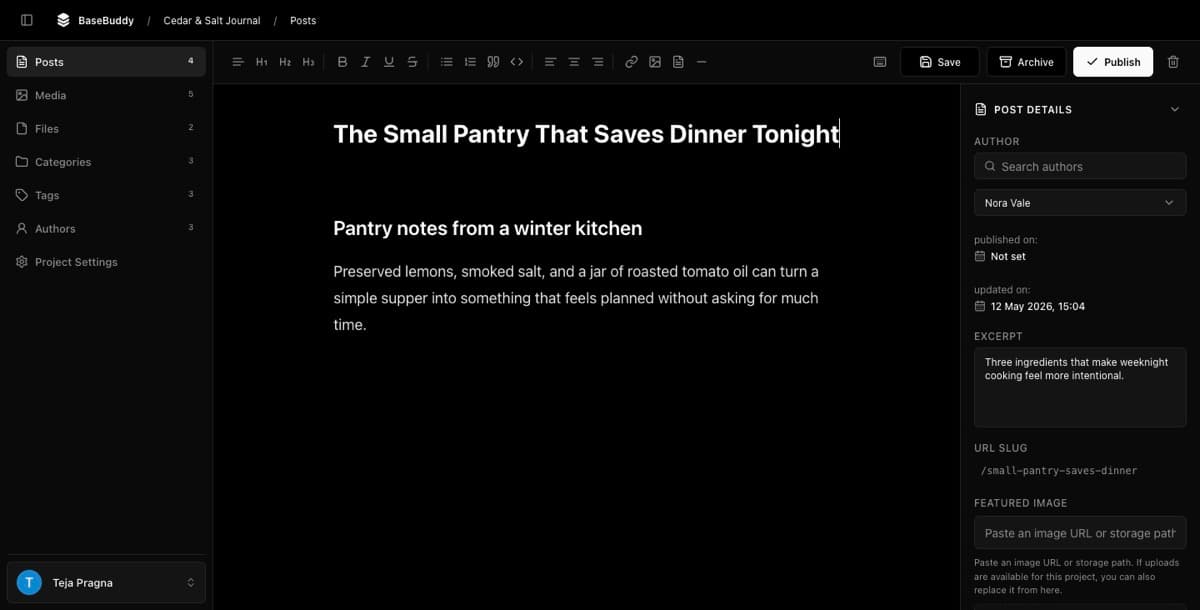
Avoid testing with publish status, archive actions, relation changes, media replacement, or large JSON fields until one simple dirty-field save works.
For the full first-edit checklist, see How to safely edit your first post.