How to use slash commands
Insert structure, links, images, and files from the post body with slash commands.
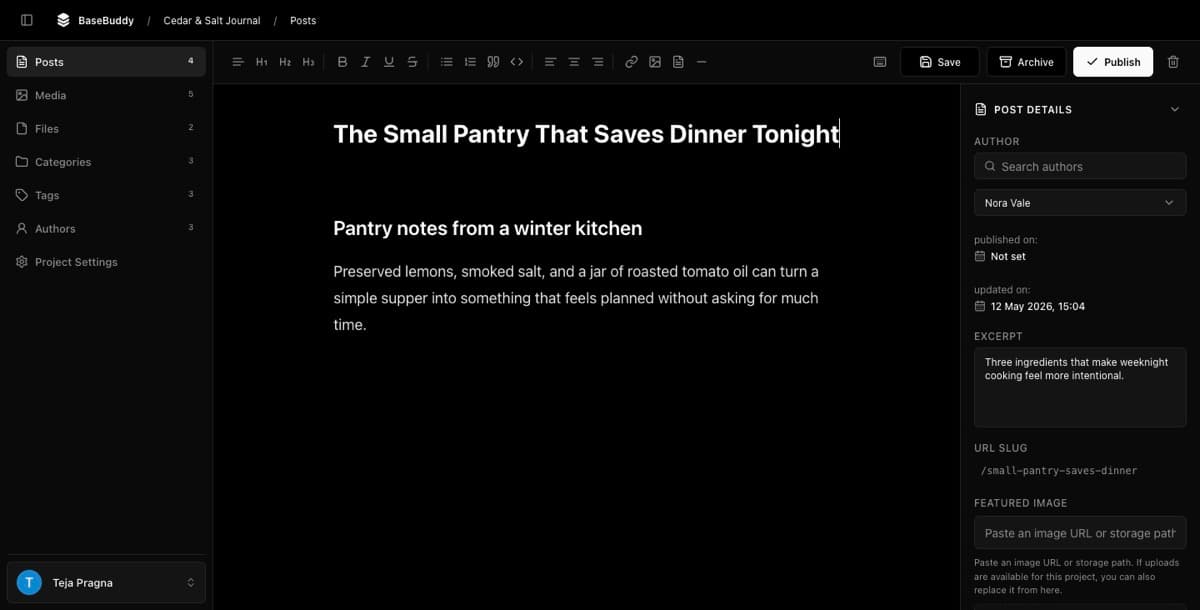
Use slash commands when you are writing in an editable post body and want to add structure or insert an asset without reaching for the toolbar.
Slash commands only open at the start of the current text block in an editable post body. They do not open in code blocks, read-only fields, title fields, side panel fields, project settings, mapping screens, or other parts of BaseBuddy.

Open the slash command menu
- Open a mapped post.
- Put the cursor in an editable post body field.
- Start a new text block, or move to the start of the current text block.
- Type
/. - Keep typing to filter the list, such as
/head,/image, or/file. - Use the arrow keys or pointer to choose a command.
- Press
Enteror select the command.
The menu appears only while the slash text is the whole current text block. For example, /image can open the Image command when it is typed at the start of an otherwise empty block. Intro /image will not open the menu because the slash is not the start of the block.
If the menu does not open, check where the cursor is before trying again. The most common cause is typing / inside existing paragraph text, inside a code block, or in a field that is not the editable post body.
Available commands
| Command | What it does |
|---|---|
| Paragraph | Changes the current block to normal paragraph text |
| Heading 1 | Changes the current block to Heading 1 |
| Heading 2 | Changes the current block to Heading 2 |
| Heading 3 | Changes the current block to Heading 3 |
| Bullet list | Starts or toggles a bullet list |
| Numbered list | Starts or toggles a numbered list |
| Quote | Starts or toggles a quote block |
| Code block | Starts or toggles a code block |
| Divider | Inserts a horizontal divider |
| Align left | Aligns the current paragraph or heading left |
| Align center | Centers the current paragraph or heading |
| Align right | Aligns the current paragraph or heading right |
| Link | Opens the link editor for the current selection or cursor |
| Image | Opens the media picker so you can insert an image |
| File | Opens the files picker so you can insert a file link |
| Bold | Toggles bold formatting |
| Italic | Toggles italic formatting |
| Underline | Toggles underline formatting |
| Strikethrough | Toggles strikethrough formatting |
| Clear formatting | Removes formatting from the current selection or block |
Insert links, images, and files
Use Link when you want to add or edit a link in the body. If text is selected, BaseBuddy applies the link to that text. If the cursor is in an empty block, add the link text after opening the link editor.
Use Image when the project has a managed media library. BaseBuddy opens the media picker, where you can search existing images, upload images, and insert the selected image into the body.
Use File when the project has a managed files library. BaseBuddy opens the files picker, where you can search existing files, upload files, and insert a file link into the body.
Image and file commands use the storage libraries configured for the project. If media or file storage is not mapped or is not available, BaseBuddy will not force an unsafe asset write path. Finish the storage mapping first, or leave that asset workflow out of the body until the mapping is safe.
Save after using slash commands
Slash commands change the editable body field you are working in. They do not publish, unpublish, archive, rename, or reshape your content tables.
After inserting structure, links, images, or files, click Save when you are ready to write the change. BaseBuddy still follows the normal safe editing model: Save writes dirty mapped fields only, and workflow actions stay separate.
Storage format safety still applies. If your body is mapped as Markdown, HTML, JSON, or another supported shape, BaseBuddy should preserve that mapped storage contract instead of silently converting unrelated fields or broad storage objects on normal save.
If the menu does not appear
| Symptom | What to check |
|---|---|
Typing / does nothing | Confirm the cursor is in an editable post body field |
| The slash appears as normal text | Confirm / is at the start of the current text block and the block has no other text before it |
| The menu does not open in a code block | This is expected; slash commands do not open inside code blocks |
| Image is unavailable | Confirm the project has a mapped media library |
| File is unavailable | Confirm the project has a mapped files library |
| Save does not write the change | Confirm the post has dirty changes and the body field is mapped as editable |
| A field is read-only | Review the mapping before editing; slash commands should not bypass read-only or unsupported fields |
If a field is read-only or unsupported, fix the mapping rather than trying to edit around it. BaseBuddy should only write when the saved mapping gives it a safe storage target.
Related guides
- How to use keyboard shortcuts
- How to safely edit your first post
- How to map markdown content safely
- How mapping works on BaseBuddy
- How to fix a field showing as read-only