Permissions and teams
Manage roles, effective permissions, owner boundaries, author scopes, invites, and access troubleshooting.
Permission model
Permissions are project-scoped. A user can be an owner in one project and a viewer in another.
BaseBuddy calculates effective access from the member role, explicit allow overrides, explicit deny overrides, and optional author scopes.
Roles
| Role | Typical access |
|---|---|
| Owner | Full project, member, mapping, content, publish, and delete access |
| Admin | Manage project settings, members below owner, mapping, content, and publish |
| Editor | Read, write, and publish content |
| Author | Work with assigned authored content |
| Viewer | Read content |
Use roles for the normal shape. Use overrides only when a member needs a narrow exception.
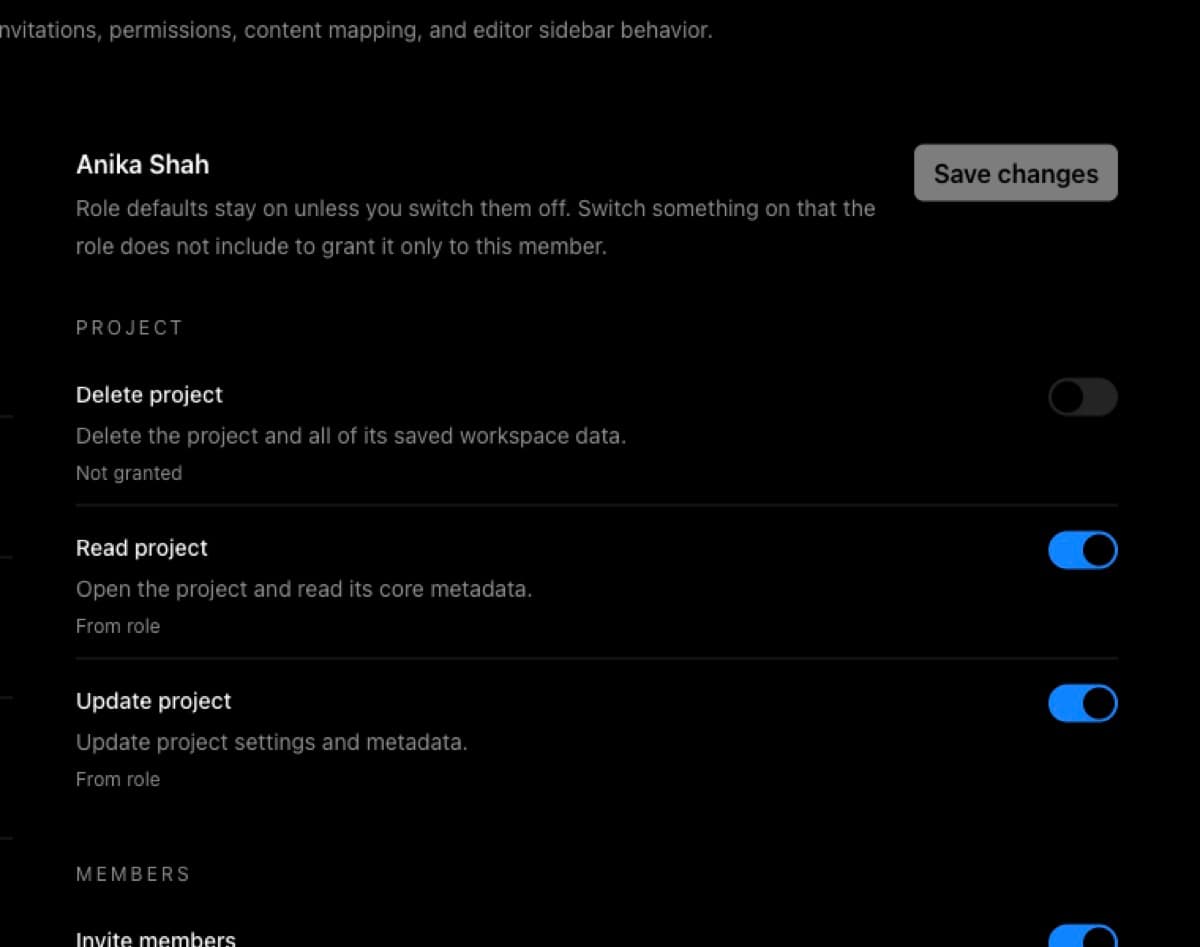
Permissions and roles: how BaseBuddy handles them is the task-oriented version of this model, and How to customize permissions on BaseBuddy covers overrides.
Owner boundaries
Only owners may assign owner, remove owner, change owner members, or grant/remove delete permission.
This protects the project from an admin accidentally locking out the people responsible for it.
Author scopes
Author scopes limit a member or invite to content connected to specific authors. They only work when the author mapping is clear enough for BaseBuddy to know which content belongs to which author.
If authored access feels wrong, check the author relation first, then the role, then explicit denies.
Author scopes depend on saved author mapping. Use How to set up authors on BaseBuddy, How to map authors to posts on BaseBuddy, and How to assign author scope to a member in that order.
Invites
Self-host installs don't require BaseBuddy to send email. A project manager can create an invite link and share it through the team's normal channel.
Invite links should still be treated as sensitive. Revoke old or unused invites, especially after changing roles or author scopes.
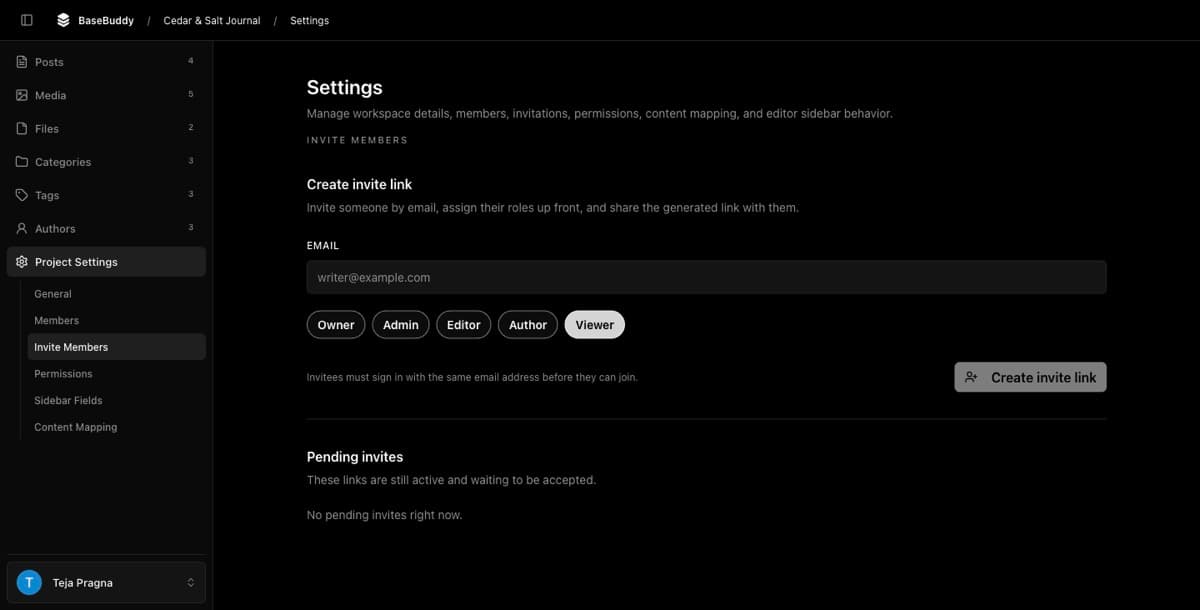
The normal invite path is How to invite users to your BaseBuddy project. If someone opens the invite with the wrong account, use How to fix an invite opened with the wrong account.
Troubleshooting access
Check access in this order:
- Is the user a project member?
- Did they accept the invite with the right email?
- Is the invite expired, revoked, malformed, or already used?
- Does the role include the action?
- Does an explicit deny remove the action?
- If authored access is required, is the author mapping valid and assigned?
How to check a member's access follows this same order on a real project.