How to use the editor toolbar
Format content, add links, insert media/files, use Save safely, and run explicit workflow actions from the editor toolbar.
Use the editor toolbar when you are writing or updating a mapped post in BaseBuddy.
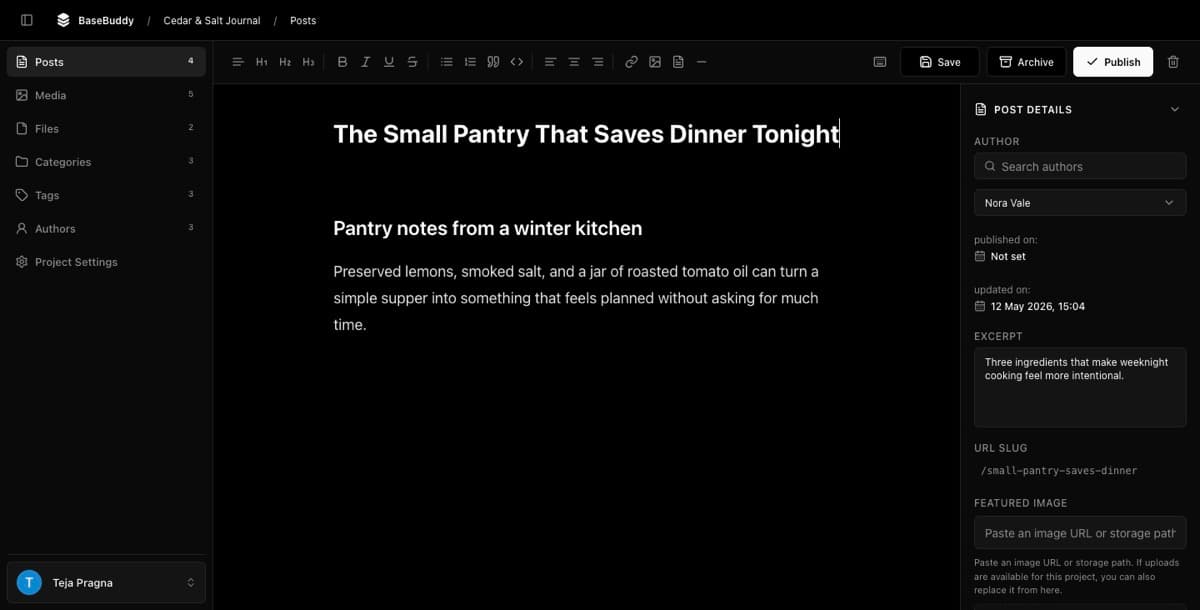
The toolbar changes the content field you are editing. It does not change your database until you click Save or Update, and workflow actions such as Publish, Unpublish, and Archive only run when you click those actions.
If this is your first real edit in a project, start with How to safely edit your first post. This article assumes the posts mapping is already saved and the editor can open a post.

Format text
- Open a post.
- Click inside the content field you want to edit.
- Select the text you want to change, or place the cursor where the next text should use the format.
- Use the toolbar action you need.
The structure tools are Paragraph, H1, H2, and H3. Use them for the current block.
The inline formatting tools are Bold, Italic, Underline, and Strikethrough. Use them for selected text or for text you type next.
The block tools are Bullet List, Numbered List, Quote, Code, and Divider. The alignment tools are Left, Center, and Right.
You can also type / at the start of a block to open the same command list. The slash menu uses longer labels such as Heading 1, Heading 2, Heading 3, Bullet list, Numbered list, Code block, Align left, Align center, Align right, and Clear formatting.
Add or edit a link
- Select the text that should become a link.
- Click Link.
- Enter the URL.
- Leave Open in new tab on if the link should open separately.
- Add Nofollow, UGC, or Sponsored only when those attributes match the link.
- Click Apply.
If your cursor is already inside a link, Link opens Edit link instead. Change the URL and click Update, or click Unlink to remove the link.
Insert an image or file
Use Image for images from the mapped media library. Use File for downloads or attachments from the mapped files library.
- Place the cursor where the image or file should appear.
- Click Image or File.
- In Add image or Add file, search or browse the current library.
- Select the item.
- Click Insert image or Insert file.
If the asset is not in the library yet, click Upload, choose the file, then insert it after the upload finishes. Images are managed from Media. Non-image files are managed from Files.
For storage setup details, see Media and files. If a mapped content field stores Markdown, HTML, JSON, or another specific shape, review How to map Markdown content safely before relying on rich formatting.
Save content edits
After you make a toolbar change, BaseBuddy marks the post as dirty and enables Save. On published posts with workflow actions, the same button may read Update.
Click Save or Update to write the dirty mapped fields.
Normal Save writes dirty mapped fields only. It should not publish, unpublish, archive, rewrite unrelated JSON, replace unrelated relation rows, or silently convert Markdown, HTML, arrays, files, media, or other storage shapes. The saved mapping decides exactly which storage target each field writes.
If you open a post and do not change anything, Save stays disabled. If you change one field and save, only that field's mapped storage target should change, aside from database-managed triggers your own schema controls.
Use workflow actions separately
The right side of the toolbar may show workflow actions depending on the current post state and saved mapping.
| Action | What it does |
|---|---|
| Publish | Moves the post to the mapped published state |
| Unpublish | Moves a published post back to the mapped draft state |
| Archive | Moves the post to the mapped archived state |
| Move to Draft | Restores an archived post to the mapped draft state when supported |
These actions are explicit. Formatting text and clicking Save should not publish or archive content by accident.
For a full workflow test, use How to publish, unpublish, and archive content.
If a toolbar action is disabled
Check the simplest causes first:
| Symptom | What to check |
|---|---|
| Formatting buttons are disabled | Open a post and click inside an editable content field |
| Save is disabled | Make sure you changed a mapped editable field |
| Image or File cannot insert | Confirm the project has mapped media or files storage and the selected asset is supported |
| Publish, Unpublish, or Archive is missing | Confirm workflow status is mapped and the current post state supports that action |
| A button is visible but disabled | Check edit access, publish access, required fields, and whether another save or workflow action is already running |
If a field is read-only, do not try to force a normal save path. Read-only usually means BaseBuddy can read the value but cannot patch that storage target safely. Use How to fix a field showing as read-only to decide whether the mapping or permissions should change.
Verify the edit
After saving:
- Reopen the post and confirm the formatted content still appears.
- Inspect the row in Supabase or your database client if this is a new mapping.
- Confirm only the dirty mapped field changed.
- Confirm workflow fields changed only if you clicked Publish, Unpublish, Archive, or Move to Draft.
For the mapping model behind this behavior, read How mapping works on BaseBuddy and Safe editing model.