How to map markdown content safely
Map markdown fields so BaseBuddy preserves the stored format instead of silently converting content.
If your app expects Markdown, the mapping must keep Markdown as Markdown. A rich editor can make Markdown content easier to write, but normal Save should not turn that stored value into HTML, convert HTML back to Markdown, flatten JSON into text, or rewrite unrelated fields.
Use this guide when your content body lives in a Markdown column such as body_md or content_markdown, or inside a JSON path your frontend already reads.
Confirm the stored format
Before changing the mapping, check the field your app uses today. Markdown is plain text with markers such as ## Heading, [link text](https://example.com), and **bold text**. HTML stores formatting as tags such as <h2>Heading</h2> and <a href="https://example.com">link text</a>.
Both can render as rich content on your site, but they are not the same storage shape. If your frontend expects Markdown and BaseBuddy writes HTML, readers may see raw tags or broken formatting. If your frontend expects HTML and BaseBuddy writes Markdown, readers may see formatting markers instead of formatted content.
If you are not sure what the table stores, inspect one row in Supabase Table Editor or your database client before saving the mapping. Supabase documents the dashboard table workflow in Tables and Data.
Map the content field
- Open the project in BaseBuddy.
- Open project settings, then the mapping area for Posts or your content type.
- Select the existing table that stores the content.
- Find the exact body field your frontend already reads.
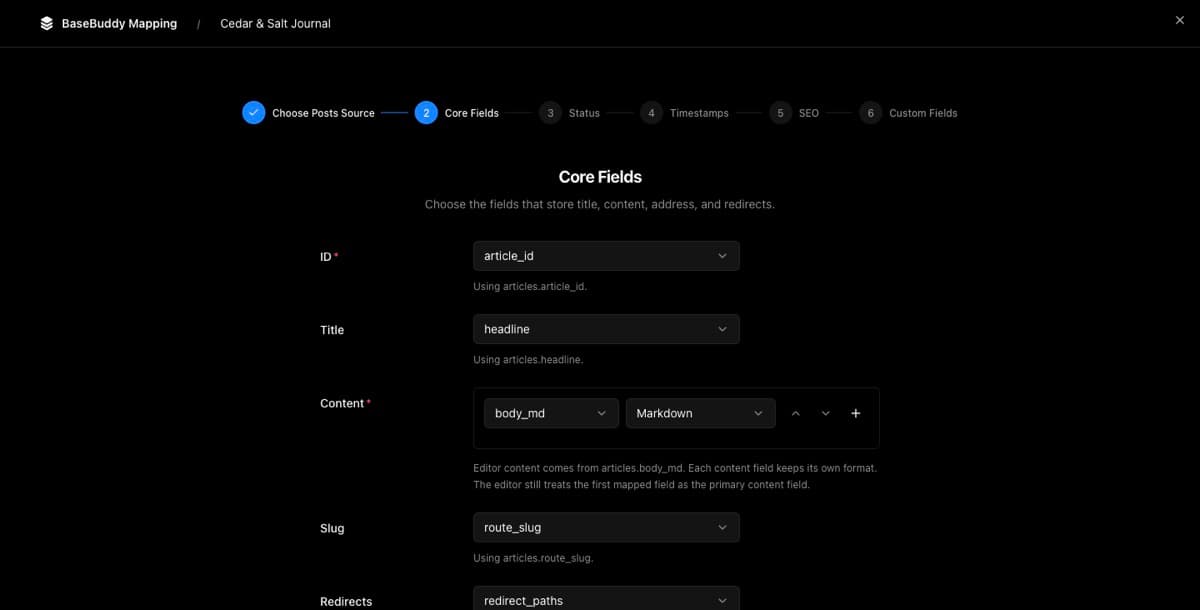
- Choose the Markdown column or JSON path as the mapped content source.
- Set the content format to
Markdown. UseHTML,Plain Text, orLegacy JSONonly when the source really stores that shape. - Save the mapping.
The saved mapping becomes the runtime truth. BaseBuddy uses it to decide how to read the field, which editor control to show, and exactly where a later Save should write.
For more background on the mapping contract, see How mapping works on BaseBuddy, How to map a posts table, and Storage contract and UI.
Verify one safe save
Start with one harmless draft, test page, or old unpublished post that is easy to inspect and restore.
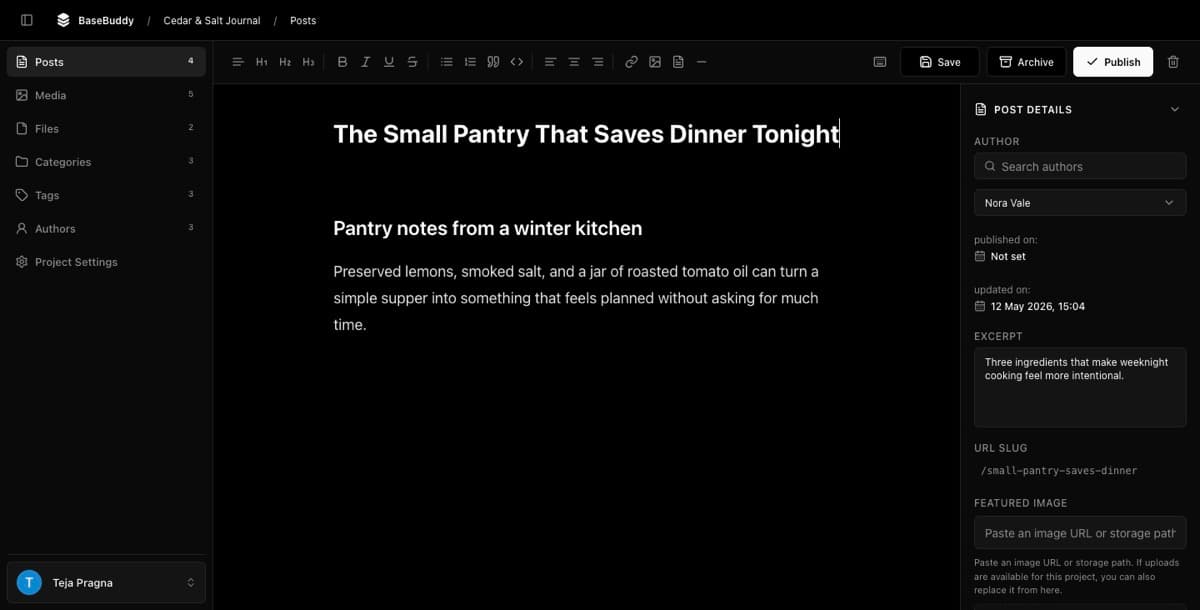
- Open the post in BaseBuddy.
- Do not edit anything.
- Inspect the row in Supabase or your database client and confirm opening the post did not change it.
- Make one small Markdown-safe edit, such as adding one sentence or changing one word.
- Click
Save. - Inspect the same row again.
- Confirm the content field still contains Markdown, not generated HTML.
- Confirm only the dirty mapped storage target changed. Unrelated columns, JSON paths, helper-row values, relations, status, publish dates, and archive state should stay unchanged unless your own database triggers update audit fields.

For the broader first-edit checklist, use How to safely edit your first post. For the underlying save rules, see Safe editing model.
What should happen
| Action | Expected result |
|---|---|
| Open the post | No database write |
| Save with no visible edit | No database write |
| Save one Markdown edit | Stored value remains Markdown |
| Save a Markdown JSON path | Only that path changes, not the whole JSON object |
| Save an HTML field | Stored value remains HTML |
| Save a JSON field | Stored value remains JSON |
| Use workflow buttons | Publish, Unpublish, and Archive stay explicit actions |
Stop if the format changes
Stop testing and review mapping if you see any of these:
- A Markdown field is saved with tags like
<p>,<h2>, or<a>. - An HTML field is saved with markdown markers like
##,**bold**, or[text](url). - A JSON value becomes plain text, or sibling JSON keys disappear.
- Saving with no visible changes still updates the database row.
- Editing the body changes unrelated fields, relations, status, publish dates, or archive state.
- Links, images, headings, or lists render correctly in BaseBuddy but break on your public site.
- The editor shows the field as editable even though the mapped source is generated, unsafe, or unsupported.
Do not keep editing production posts with that mapping. Re-check the field source, content format, JSON path, and the storage expectation your frontend uses.
If BaseBuddy cannot prove a safe write path, the field should stay read-only or unsupported until the storage contract is clear. Use How to fix a field showing as read-only when you need to review that state.