How to fix failed Save or Update in the post editor
Recover safely after a post Save or Update fails, keep your draft, and check sessions, permissions, mapping, setup, and logs in the right order.
Use this when a post editor Save or Update fails after you changed content in BaseBuddy.
This guide is only about failed normal saves in the post editor. If edit buttons are missing, a screen is read-only before you type, or workflow buttons are the main problem, start with How to troubleshoot missing edit buttons or read-only screens or How to publish, unpublish, and archive content.
Do this first
Do not close the editor tab yet.
- Leave the post open.
- Write down the exact toast, banner, or browser error.
- Do not click
Publish,Unpublish,Archive, orMove to Draft. - Check whether you are still signed in and still have the editing session for this post.
- Retry
SaveorUpdateonce only after the session looks valid.
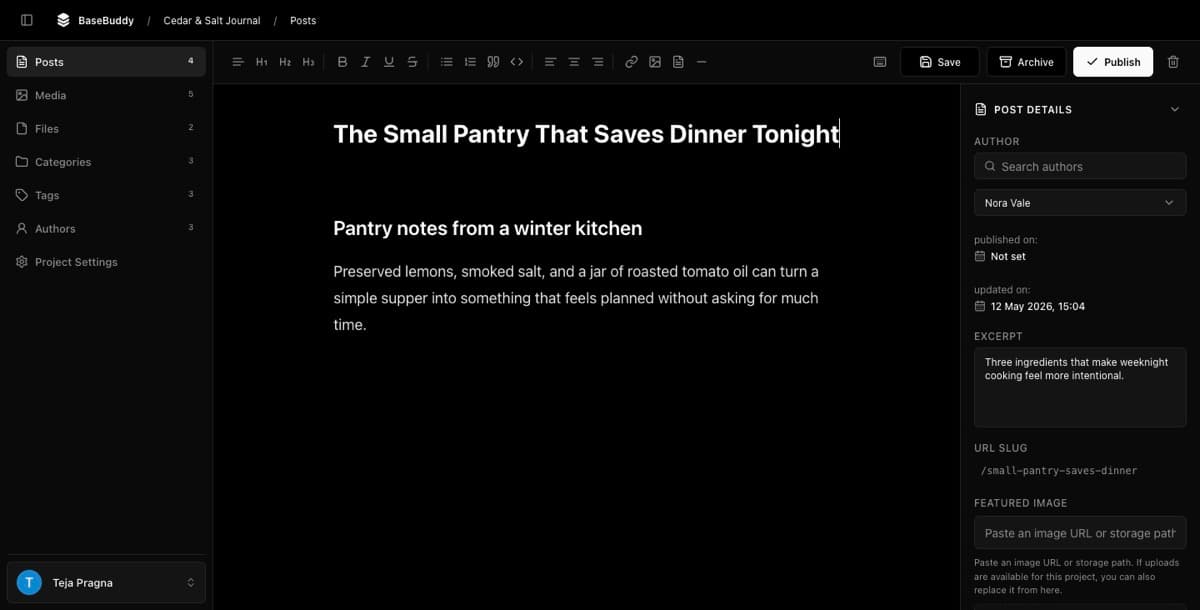
A failed save should keep your edited draft visible in the editor. BaseBuddy keeps the post dirty and leaves Save or Update enabled so you can fix the cause and try again. A successful save clears the dirty state and clears the local draft for that post.
Normal Save or Update sends the post ID, the dirty mapped fields, and the updatedAt concurrency token. It should write only the dirty mapped fields. It should not publish, unpublish, archive, move a post to draft, reshape storage, or convert Markdown, HTML, JSON, arrays, or relations as a hidden side effect.
If the draft is still visible
Keep working from the open tab if the edited value is still on screen.
- Copy any long body text, JSON, or complex field value into a private temporary note if losing it would be costly.
- Do not refresh until you know whether the failed save kept a local draft.
- If BaseBuddy shows
Unsaved draft availableafter a reload, choose the draft only when it matches the edit you meant to keep. - After recovery, save one small harmless text change before testing larger edits again.
If another member takes over the post, BaseBuddy may show Editing moved to another member. When possible, it keeps your unsaved changes locally in this browser. Ask the other editor or a project owner before taking over again so you do not overwrite each other's work.
Check session and edit ownership
Start here because a good mapping cannot save if the browser no longer has a valid session or edit lock.
| What you see | What to do |
|---|---|
| You were signed out or redirected to login | Sign in again, return to the post, and confirm the draft is still visible before saving. |
Post already in use | Another member has the active editing session. Use Go back, or ask an owner, admin, or editor to Take over only when that is intentional. |
Editing moved to another member | Your edit session ended. Save any visible draft text privately, then coordinate before editing the post again. |
Could not save the post right now. after a long idle period | Reload only after copying important unsaved text. Then reopen the post and try one small edit. |

Check permissions and author scope
If the session is valid, check the member's access next.
BaseBuddy needs edit permission for a normal save. If the post is controlled by author scope, the member also needs access to the author assigned to that post. If the dirty edit changes a mapped status field, BaseBuddy requires publish permission because status changes are workflow state changes even when the button says Save.
- Open the project as an owner or admin.
- Open Project Settings.
- Open Permissions.
- Check the affected member's role, permission overrides, author scope, and publish access.
- Change only the permission that explains this save failure.
- Ask the member to reload the project and try one harmless text save.
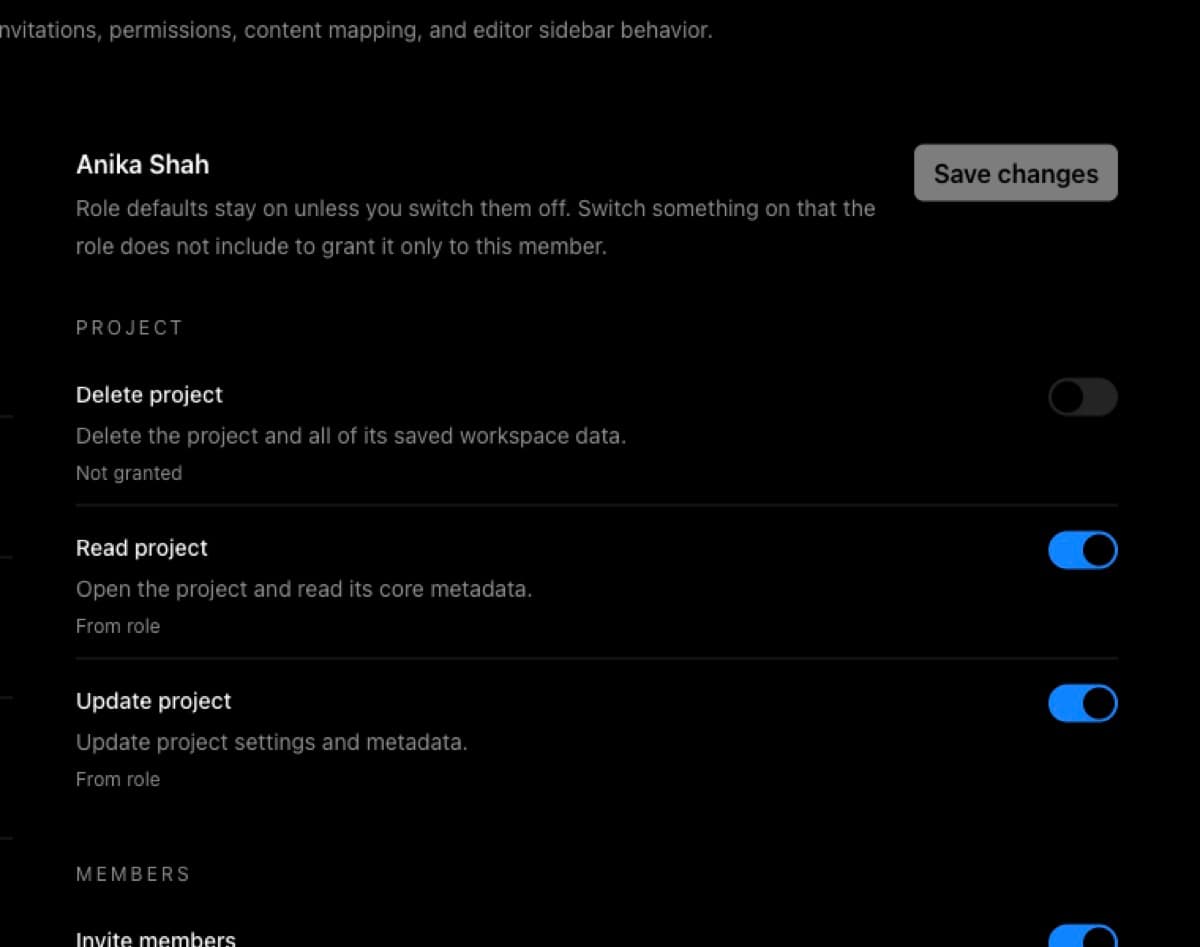
For a full access check, use How to check a member's access.
Check for stale content
If you see This post has changed since you loaded it. Reload and try again., BaseBuddy refused the save because the open post no longer matches the latest stored version.
That message protects another save from being overwritten. BaseBuddy compares the updatedAt token from the post you loaded with the current stored value before writing.
- Copy your unsaved edit to a private temporary note.
- Open the same post in a new tab or reload after your draft is safe.
- Compare the latest content with your draft.
- Reapply only the intended changes.
- Click
SaveorUpdateagain.
Do not work around a stale-content message by changing mapping, broadening permissions, or using a workflow button. The fix is to reload, compare, and save against the latest post.
Check required, invalid, or too-long values
Some save failures are field validation, not connection failures.
Check the field named in the message first. Common examples include a required custom field, an empty title before publishing, an invalid date, an invalid URL, a value that is too long for the mapped column, or JSON that is not valid for the mapped storage.
Use the smallest safe correction:
| Problem | Safer fix |
|---|---|
| Required field is empty | Fill only that field, then save again. |
| Date or time is invalid | Choose a valid date/time value in the editor. |
| URL or slug is invalid | Use the same format your existing content table already stores. |
| Text is too long | Shorten the value or ask the database owner whether the column limit is intentional. |
| JSON-like field fails | Confirm the field is mapped to the exact supported JSON path or editor shape. |
If the field affects workflow state, save ordinary content edits first. Then test Publish, Unpublish, Archive, or Move to Draft separately.
Check mapping and read-only storage
If one field fails repeatedly, review its saved mapping.
BaseBuddy reads your saved mapping to decide what can be written. Unsafe or unsupported storage should stay read-only or unsupported. Do not force a field writable just to make the error go away.
- Open Project Settings.
- Open Mapping.
- Open the posts mapping area.
- Find the field you changed before the save failed.
- Confirm it points to the intended table, column, JSON path, relation, media reference, or file reference.
- Confirm the field is writable and supported.
- If the mapped storage is unsafe, leave it read-only and choose a safer mapped source.
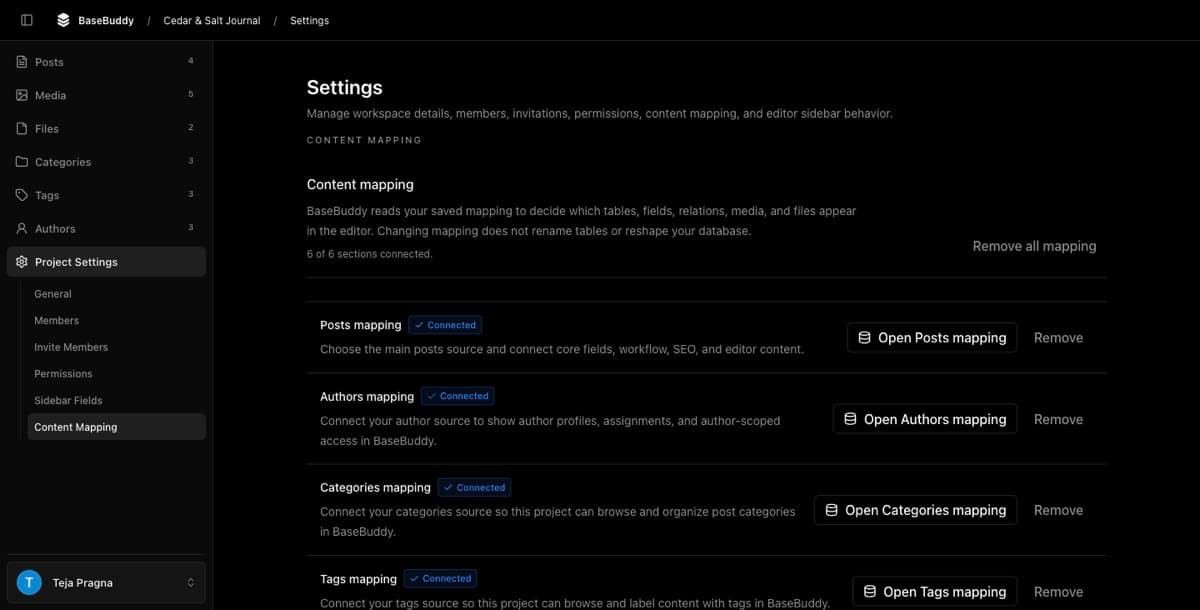
Use How to fix a field showing as read-only for the field-level repair path, and How mapping works on BaseBuddy for the storage-first model behind saves.
Check setup and the database connection
If saves fail across many posts or many users, check setup before changing mapping.
Open:
texthttp://localhost:8080/onboarding?diagnostics=1Fix the first failed setup section, restart BaseBuddy if you changed env values, then run the checks again.
Pay close attention to database connection failures. BaseBuddy can load the app shell while the database, database user, or mapped table access is no longer ready for writes.
Use How to fix failed setup checks for the setup flow.
Check rate limits, body size, origin, and proxy settings
If the save works for small edits but fails for large bodies, repeated clicks, or only behind a deployment proxy, check the request layer.
| Signal | Likely cause | First fix |
|---|---|---|
413 | The request body is too large | Reduce the edit size or raise the host/proxy body limit intentionally. |
429 | Too many repeated requests | Stop retrying, wait for the limit to clear, then retry once. |
403 after deployment | Same-origin or proxy headers may not match the public app URL | Check the deployed URL, forwarded headers, and proxy configuration. |
| Browser network failure | The app, proxy, or database connection may have dropped | Check deployment status and server logs at the failure time. |
Do not keep clicking Save while diagnosing these. Repeated retries can make rate-limit and concurrency symptoms harder to read.
Read the logs
When the browser message is generic, match it to the server log entry from the same timestamp.
Collect:
- the project and post you were editing, without private content;
- the action, usually
SaveorUpdate; - the exact visible message;
- the HTTP status if the browser Network tab shows one;
- the timestamp;
- the nearby BaseBuddy server log excerpt with secrets removed.
Use How to read BaseBuddy logs when something fails to find the right log and redact it safely.
Fix common messages
| Message or symptom | What it usually means | Next step |
|---|---|---|
Could not save the post right now. | Generic save failure from the app, runtime, database, or deployment layer | Keep the tab open, check session, then read logs for the same timestamp. |
This post has changed since you loaded it. Reload and try again. | The updatedAt concurrency token is stale | Copy your draft, reload, compare, and reapply the edit. |
Editing access is required before you can save changes. | The current member cannot edit this post | Check role, overrides, author scope, and edit session. |
Save changes before publishing. | A workflow action was clicked while dirty edits exist | Save ordinary edits first, then use the workflow action separately. |
Save changes before archiving. | Archive was clicked while dirty edits exist | Save ordinary edits first, then archive separately. |
Save changes before moving the post to draft. | Move to Draft was clicked while dirty edits exist | Save ordinary edits first, then move to draft separately. |
| Required custom field message | A mapped required field is empty or invalid | Fix that field, then save again. |
| Field is read-only or unsupported | The saved mapping does not have a safe write path | Review mapping and keep unsafe storage read-only. |
Verify the fix safely
After the likely cause is fixed, prove the normal save path before resuming regular editing.
- Open one safe draft or low-risk post.
- Change one harmless text field.
- Do not change status, authors, categories, tags, media, files, redirects, or large JSON in the same test.
- Click
SaveorUpdate. - Confirm the success message appears and the dirty state clears.
- Reopen the post and confirm the value is still there.
- Inspect the database row if this was a production incident.
Only after that passes should you test Publish, Unpublish, Archive, or Move to Draft. Workflow actions are explicit actions and should be verified separately from normal dirty-field saves.
For the full first-edit checklist, use How to safely edit your first post. For the editing model behind this behavior, read Safe editing model and Editing content.
Related guides
- How to safely edit your first post
- How to fix a field showing as read-only
- How to troubleshoot missing edit buttons or read-only screens
- How to check what a member can access
- How mapping works on BaseBuddy
- How to fix failed setup checks
- How to read BaseBuddy logs when something fails
- How to publish, unpublish, and archive content