How to safely edit your first post
Test BaseBuddy editing with one harmless field before allowing regular production content changes.
Use this guide after you save a posts mapping and before editors start making regular production changes.
You will prove one small edit end to end: BaseBuddy opens the right record without writing to the database, Save writes only the field you changed, and workflow actions only happen when you click them.
If you have not mapped posts yet, start with How to map a posts table. If you want the deeper model behind this test, read Safe editing model.
Choose a safe record
Pick one record where a small temporary edit will not affect public pages, customer data, billing, legal content, redirects, or automated jobs.
Good choices:
| Choice | Why it is safer |
|---|---|
| Draft post | Usually not visible on the public site |
| Internal test page | Easy to recognize and restore |
| Old unpublished article | Lower risk than a current homepage or campaign |
| Record with a harmless text field | Lets you test one direct write path |
Avoid starting with published homepage content, status fields, relation changes, media replacement, redirects, or large JSON fields. Those are useful tests later. The first test should be boring and easy to undo.
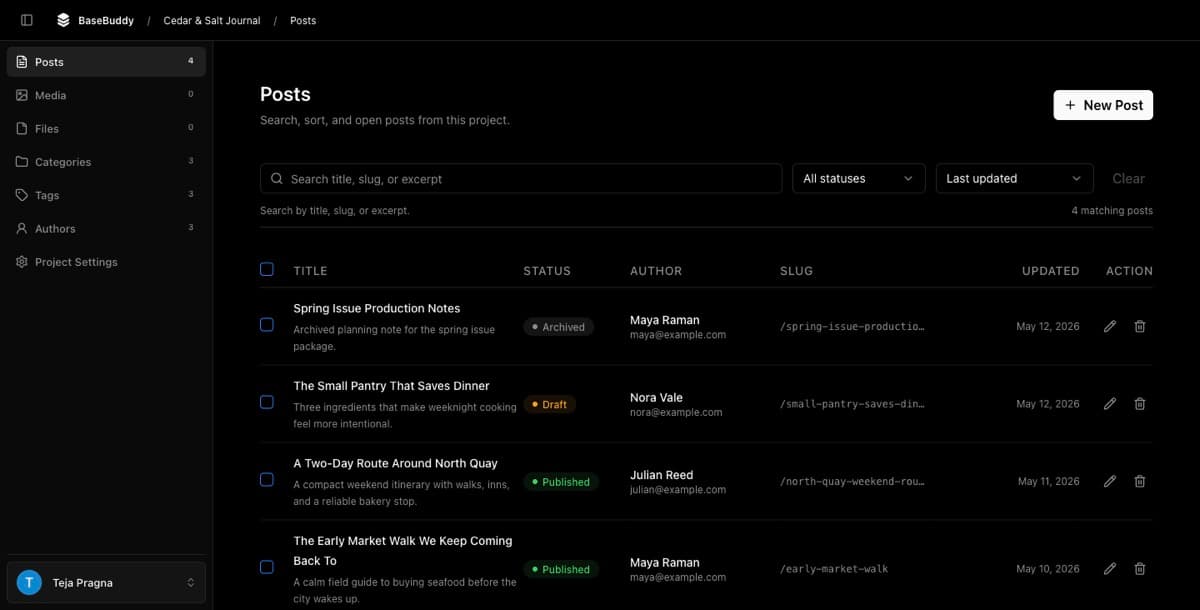
Open the record without editing
- Open the project in BaseBuddy.
- Open the posts list.
- Select the harmless record.
- Review the title, status, dates, and editable fields.
- Do not change anything yet.
Opening a record is a read action. It should not update updated_at, workflow status, publish dates, helper rows, relation tables, or JSON values just because the editor loaded.

Save one dirty field
BaseBuddy Save writes dirty mapped fields only. A field becomes dirty when you change its value in the editor during the current editing session.
- Pick one harmless field, such as excerpt, summary, internal note, SEO description, or draft-only body text.
- Make a small obvious edit, such as adding
BaseBuddy testto the end of the field. - Do not change workflow status, authors, categories, tags, files, or media in the same test.
- Confirm the editor shows a pending change.
- Click
Save.
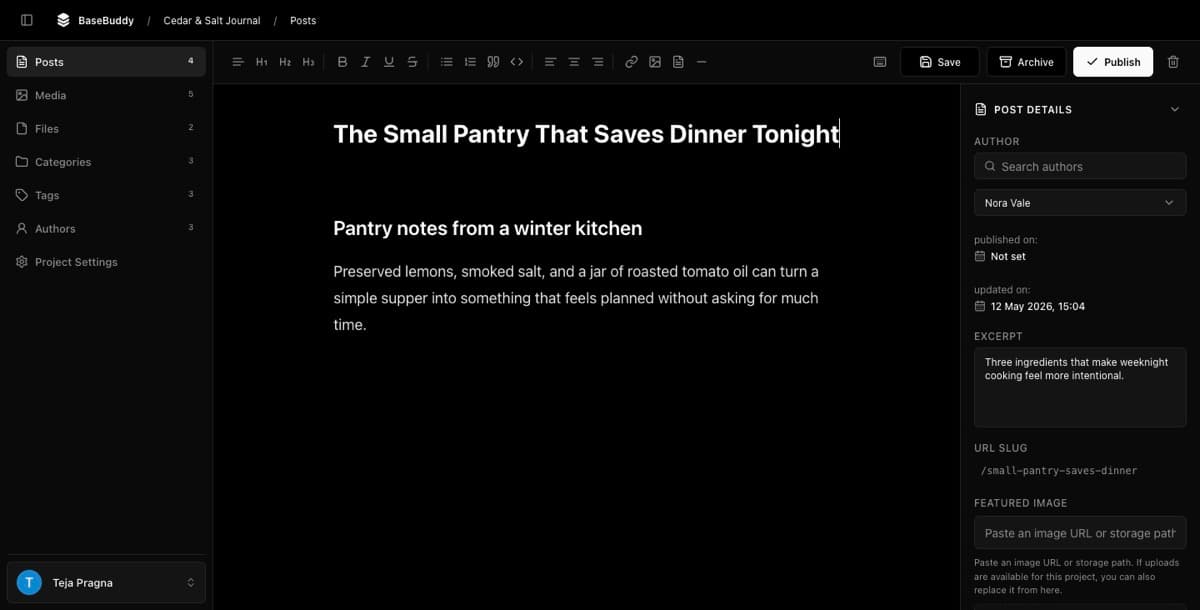
If you open a record and leave without changing anything, BaseBuddy should not save a new value. If you change one mapped text field and click Save, only that field's mapped storage target should change.
BaseBuddy should not silently convert storage shapes during a normal save. Markdown stays markdown, HTML stays HTML, JSON paths stay scoped to the mapped path, and relation or array shapes should not be reshaped just because one text field changed.
Keep workflow actions separate
Save is for normal field edits. It should not publish, unpublish, or archive content as a hidden side effect.
Publish, Unpublish, and Archive are separate explicit actions. They may update mapped workflow fields such as status, published date, unpublished state, or archived state, but only when you intentionally use that action.
| Action | What to expect |
|---|---|
| Open record | No database write |
| Save with no edits | No database write |
| Save one edited text field | Only that mapped field changes |
| Publish | Mapped publish workflow fields change |
| Unpublish | Mapped unpublish workflow fields change |
| Archive | Mapped archive workflow fields change |
Test workflow buttons later, one action at a time, after the first normal save passes. Use How to publish, unpublish, and archive content when you are ready to test those actions.
Verify in BaseBuddy
After saving the test edit:
- Stay on the record and confirm the edited value remains visible.
- Return to the posts list.
- Reopen the same record.
- Confirm the edited value still appears.
- Confirm the status did not change unless you clicked a workflow action.
This checks that the saved mapping can read back the same storage target it wrote.
Verify in the database
Open Supabase or your database client and inspect the same row before inviting editors.
Check:
| Check | Good result |
|---|---|
| Primary row | Same record ID you edited in BaseBuddy |
| Edited field | Contains only the small test change |
| Unedited mapped fields | Values are unchanged |
| Workflow fields | Unchanged unless you clicked Publish, Unpublish, or Archive |
| Relation or helper rows | Unchanged unless the edited field is intentionally stored there |
| JSON or array values | Only the intended path or item changed |
If your database has triggers that update updated_at or audit tables, account for those separately. BaseBuddy should still only send the dirty mapped field or the explicit workflow action it was asked to write.
Restore the test value
Once verification passes, either keep the harmless edit if it is acceptable or restore the original value with one more normal Save.
Verify the restore the same way: BaseBuddy should show the restored value, and the database should show only the expected field change plus any normal trigger-owned audit values.
If more changed than expected
Stop before inviting editors or making broader changes.
- Do not run another save on the same record until you understand the cause.
- Restore the row from your database backup, audit log, or the original value you recorded before testing.
- Review the saved mapping for the edited field.
- Confirm the field points at the intended table, column, JSON path, relation, or helper row.
- Check whether a broad JSON object, array, relation, or helper-row mapping should be read-only instead.
- Confirm you did not click
Publish,Unpublish, orArchiveduring the save test. - Re-test with one harmless field after adjusting mapping.
Common causes:
| Symptom | Likely cause |
|---|---|
| Wrong column changed | Field mapped to the wrong source |
| Whole JSON object changed | Mapping patches too broad a JSON target |
| Sibling helper-row values changed | Helper-row mapping is too broad or unsafe |
| Status changed during Save | Workflow field was edited directly or mapped incorrectly |
| Relation rows changed | Relation mapping is being written during a basic field test |
| Public page changed | The test record was not harmless enough |
When in doubt, make the risky field read-only and use manual mapping to point BaseBuddy at a safer write path. See How mapping works on BaseBuddy for how saved mapping controls the editor, and How to fix a field showing as read-only when a field needs a safer write path.
Related guides
- How mapping works on BaseBuddy
- How to map a posts table
- How to publish, unpublish, and archive content
- How to fix a field showing as read-only
- Safe editing model