Permissions and roles: how BaseBuddy handles them
Understand BaseBuddy roles, effective permissions, owner boundaries, and author-scoped access before changing project access.
Permissions in BaseBuddy are project-scoped. A person can be an owner in one project, an author in another, and have no access to a third project.
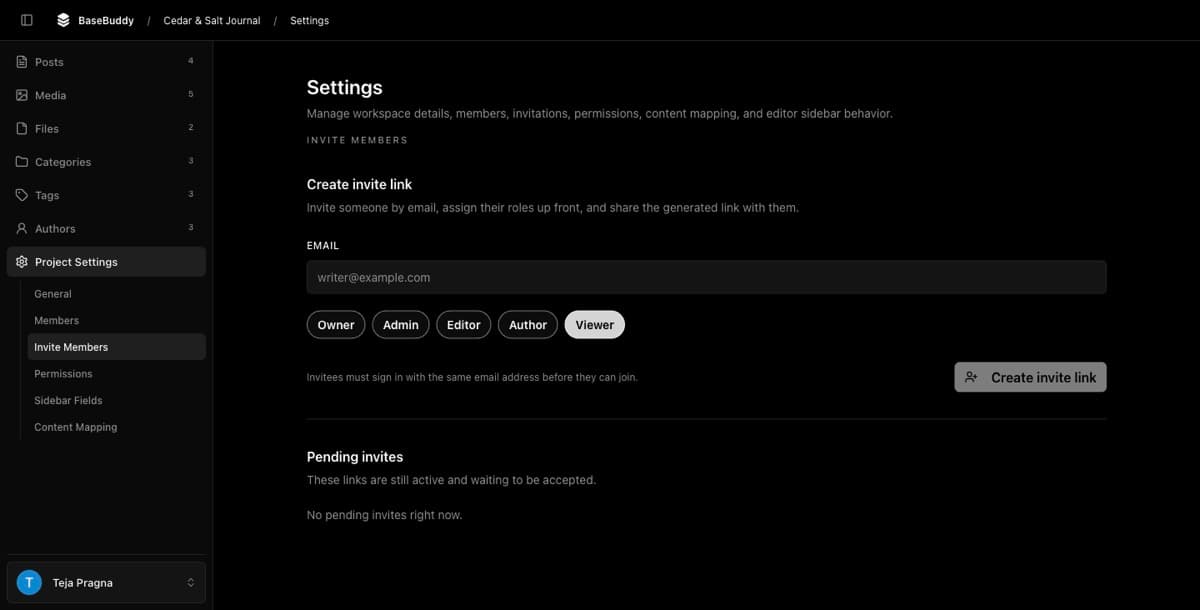
Use this page before you change a member's role, assign author scopes, add permission overrides, or troubleshoot why someone can see too much or too little.
Start with the closest role
Roles give each member the normal shape of access. Choose the closest role first, then use permission overrides only for narrow exceptions.
A member can have more than one role. BaseBuddy combines the permissions from all assigned roles, then applies any explicit allow or deny overrides.
| Role | Project settings | Members, invites, and permissions | Mapping | Content access | Publish access | Project delete |
|---|---|---|---|---|---|---|
| Owner | Manage | Manage owners and all other members | View and update | Read and edit all content | Publish all content | Yes |
| Admin | Manage | Manage members below owner, invite members, and fine-tune non-owner permissions | View and update | Read and edit all content | Publish all content | No |
| Editor | No | No | No | Read and edit all content | Publish all content | No |
| Author | No | No | No | Read and edit assigned authored content | Assigned authored content, when the author scope allows publishing | No |
| Viewer | No | No | No | Read all content | No | No |
Effective permissions are what BaseBuddy checks
The role label is not always the whole answer. BaseBuddy checks the member's effective permissions before it opens settings, updates mapping, invites members, saves content, publishes content, archives content, or deletes a project.
Effective permissions come from four places:
| Source | What it does |
|---|---|
| Role permissions | The default permissions from Owner, Admin, Editor, Author, Viewer, or any combination of assigned roles |
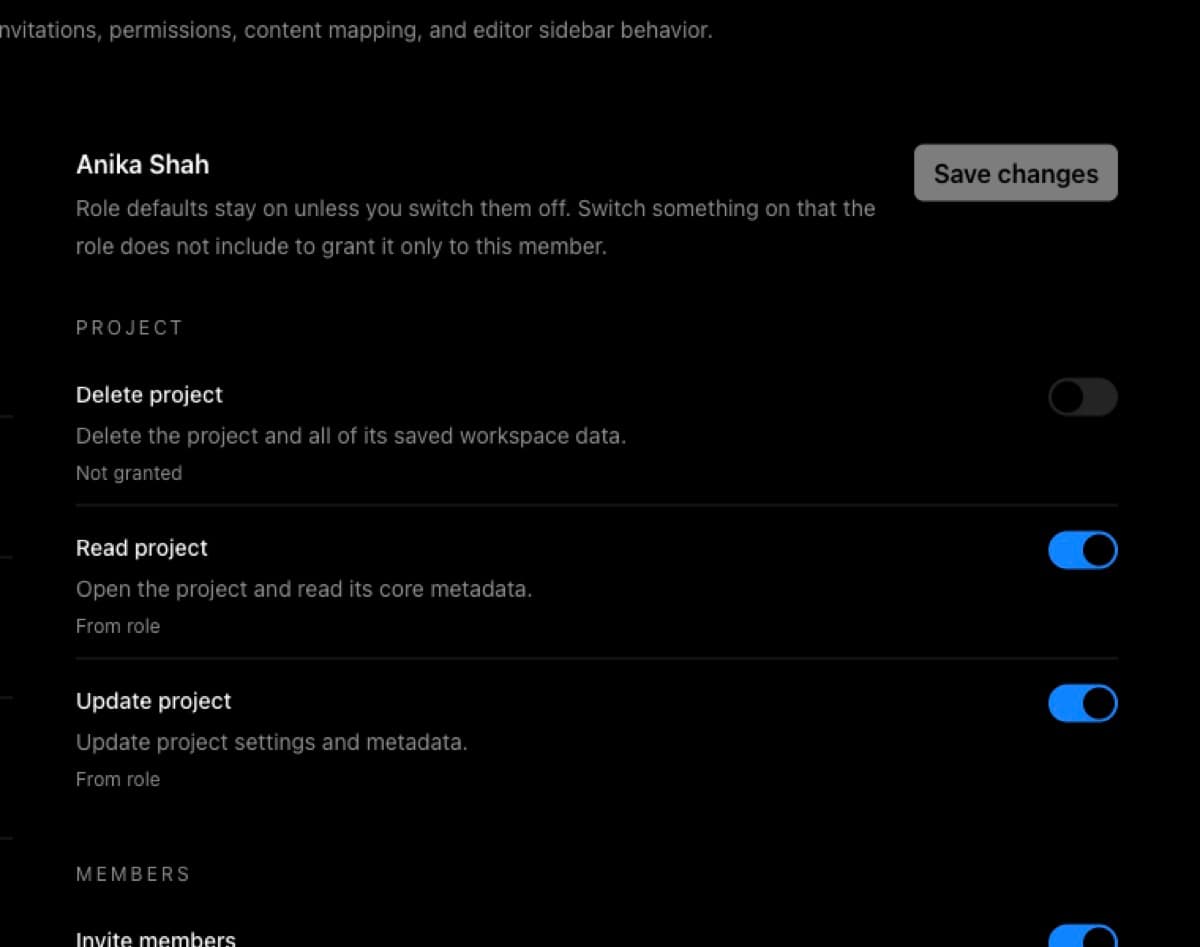
| Explicit allow | Adds a permission for one member when their role does not include it |
| Explicit deny | Removes a permission for one member, even when their role includes it |
| Author scope | Limits authored content access to selected mapped author records |
Explicit deny wins. If a role allows publishing but that member has an explicit deny for publish access, BaseBuddy treats publishing as blocked for that member.
Use allows and denies carefully
Use an explicit allow when the role is almost right but the member needs one extra action. Use an explicit deny when the role is almost right but one action should be blocked.
For example, an Editor normally has publish access across the project. If that editor should keep editing all content but should not publish, leave the Editor role in place and add an explicit deny for publish access.
Avoid building hidden custom roles from many overrides. If several people need the same access pattern, choose a role strategy the team can explain later. For the step-by-step override flow, use How to customize permissions on BaseBuddy.
Owner, delete, and member-management safety rules
Owner is a protected role. Only project owners can:
- Assign the Owner role.
- Remove the Owner role.
- Change owner members.
- Grant or remove project delete permission.
Admins can manage normal project members, invite members, update mapping, and fine-tune non-owner permissions. They cannot change owner members, assign Owner, remove Owner, or grant project delete access.
BaseBuddy also keeps two safety rails in place:
- Every project must keep at least one owner.
- Permission override changes cannot leave the project with no member who has member management permission.
These rules prevent routine access changes from locking everyone out of project ownership or member management. For removing access safely, use How to remove a member from a project.
All-content access and authored access are different
Content permissions come in two shapes.
| Access shape | What it means |
|---|---|
| All content | The member can act across the whole project, subject to mapping, field safety, and the specific read, edit, or publish permission |
| Authored content | The member can act only on content connected to assigned author records |
Editors and admins normally use all-content access. Authors normally use authored access.
Authored access depends on your saved author mapping. BaseBuddy needs to know which author records exist and which posts belong to them. If the author relation is missing or wrong, author-scoped access cannot reliably limit content. Start with Authors vs members: what is the difference?, then map authors with How to map authors to posts on BaseBuddy or How to set up authors on BaseBuddy.
How author scopes and Publish work
Author scopes are only assigned when the member or invite includes the Author role. Each selected author scope connects that BaseBuddy member to one mapped author record from your content database.
For authored content, BaseBuddy checks both the permission and the selected author scope:
| Action | What BaseBuddy checks |
|---|---|
| Read | The member has authored read access, and the content belongs to one of their assigned author scopes |
| Edit | The member has authored edit access, and the content belongs to one of their assigned author scopes |
| Publish | The member has authored publish access, the content belongs to one of their assigned author scopes, and that scope's Publish switch is enabled |
The Publish switch is per author scope. If it is off for one selected author, the member may still read or edit that author's content, but they cannot publish, unpublish, archive, or save a mapped status change that requires publish access for that author.
For the exact member flow, use How to assign author scope to a member. For inviting a new author-scoped contributor, use How to invite users to your BaseBuddy project.
Troubleshoot access in the order BaseBuddy uses it
When access looks wrong, check the member's effective access instead of only checking the role name.
- Confirm the person is a member of the right project.
- Check their assigned role or roles.
- Check explicit denies before explicit allows.
- Check whether the action needs all-content or authored access.
- For authored access, confirm the author mapping is saved and the right author scopes are selected.
- For publishing, test Publish, Unpublish, Archive, and a normal save that changes mapped status.
For a shorter conceptual reference, see Permissions and teams. For member and author concepts, see Authors vs members: what is the difference?.