How to check what a member can access
Review a BaseBuddy member's roles, author scopes, permission overrides, and real project access before or after changing permissions.
Use this when you need to answer a practical access question: can this member open the project, edit content, publish, manage members, change mapping, or delete the project?
BaseBuddy calculates access from roles, author scopes, and permission overrides. The role label is the starting point, but the final answer is the member's effective access.
BaseBuddy does not currently provide full impersonation or a one-click audit button. The settings screens help you review the access model, but final verification still means signing in as that member, or as a matching test account, and trying the exact action you care about.
Before you start
You need access to manage the project settings. In the default roles, owners and admins can review members, roles, author scopes, and permission overrides.
Admins cannot change owner members, assign or remove the Owner role, or grant/remove project delete access. Owners can manage those owner-only boundaries.
For the full model, see Permissions and roles: how BaseBuddy handles them.
Check the member's roles and author scopes
- Open the project.
- Select Project Settings in the sidebar.
- Open Members.
- Find the member under Current members.
- Review the role badges beside the member's name.
- Select Manage access.
- Review the selected roles under Roles.
- If the member has the Author role, review Author scopes and the Publish switch for each selected author.
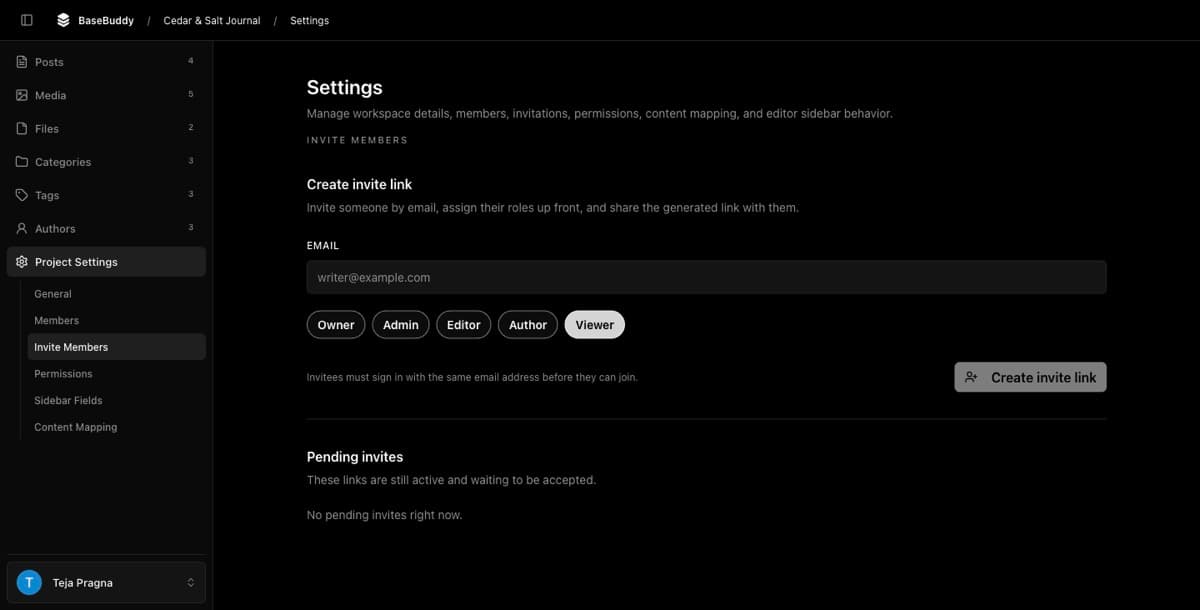
The Author role requires at least one author scope. Author scopes connect the member to mapped author records from your content database. If no authors are available, BaseBuddy shows a message to create project authors before assigning the author role.
Author scopes do not replace permissions. They narrow authored access after the member has authored read, edit, or publish permission.
| What to review | What it means |
|---|---|
| Roles | The default access this member inherits. |
| Author scopes | Which mapped author records this member can work with when using authored access. |
| Publish on an author scope | Whether the member can publish, unpublish, archive, or save mapped status changes for that assigned author. |
Changes on the Members screen apply only after Save access. If you are only checking access, do not save changes.
Check effective permissions
After checking roles and author scopes, review the member's effective permissions.
- Stay in Project Settings.
- Open Permissions.
- Select the member from the Members list.
- Review each permission group: Project, Members, Mapping, Content, and Authors.
- Read the status text under each permission.
- Check whether each switch is on or off.
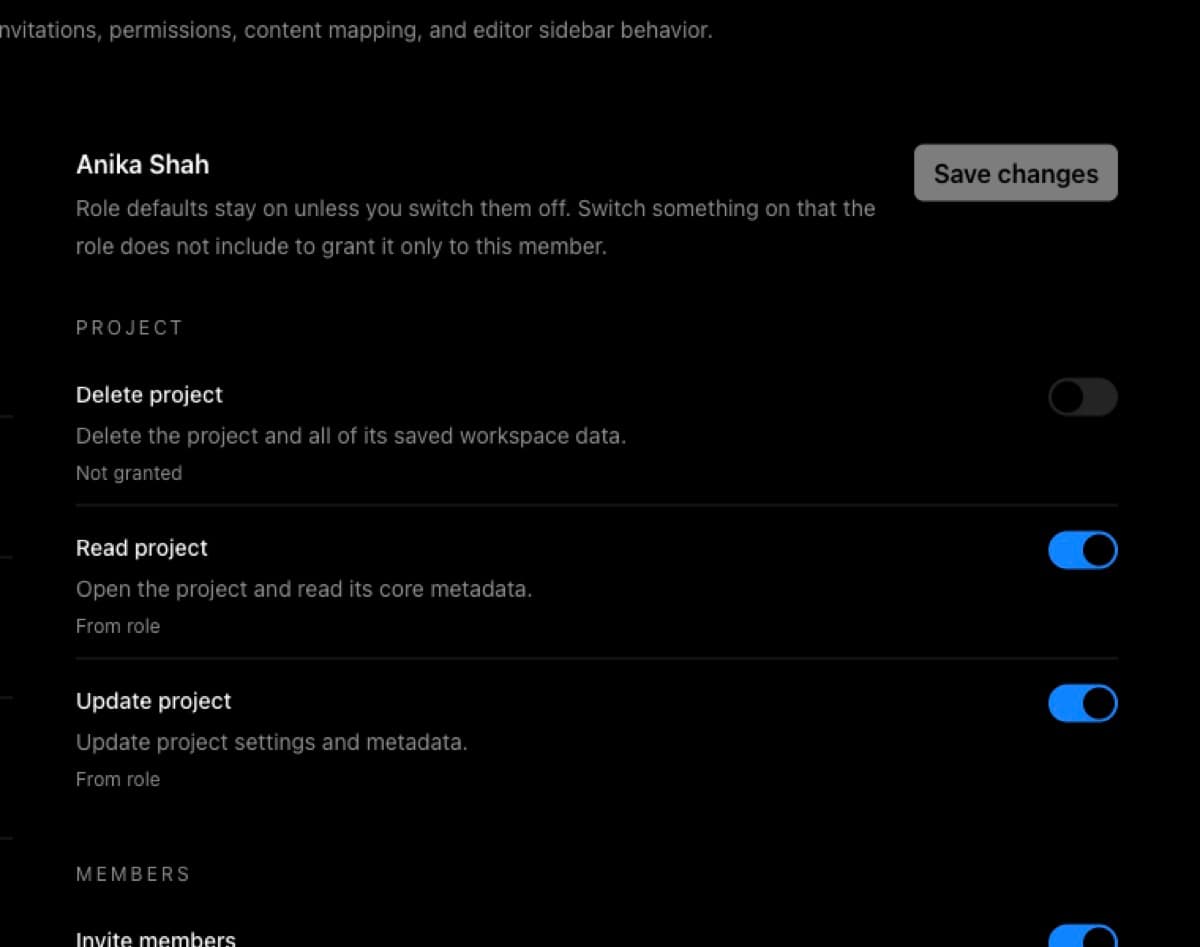
The status text tells you why the permission is in that state.
| Status text | Meaning |
|---|---|
| From role | The member inherits this permission from one of their roles. |
| Extra permission for this member | The permission was explicitly added for this member. |
| Removed for this member | The permission was explicitly denied for this member. |
| Not granted | The member does not inherit this permission and has no explicit allow for it. |
The switch shows the effective result. An explicit deny wins over role access. For example, an editor may inherit publish access, but Removed for this member on publish access means BaseBuddy should block publishing for that member.
Review owner locks and safety rules
Owner access has extra protection.
Only project owners can:
- Assign the Owner role.
- Remove the Owner role.
- Change owner members.
- Grant or remove project delete access.
Admins can manage normal members and many project settings, but they cannot cross owner boundaries. If an admin selects an owner member, BaseBuddy shows that only project owners can change owner permissions or owner members.
BaseBuddy also protects member-management access. A project must keep at least one owner, and at least one member must keep permission to manage members. This helps prevent a project from being left without someone who can repair access later.
Check authored access carefully
Authored access has two parts:
| Access piece | What to check |
|---|---|
| Permission | On Permissions, confirm the member has the authored read, edit, or publish permission they need. |
| Author scope | On Members, confirm the member is assigned to the right mapped author records. |
For authored publishing, both parts must be present. The member needs authored publish permission, and the matching author scope's Publish switch must be enabled.
If Publish is off for an author scope, the member may still read or edit that author's content if their access allows it, but they cannot publish, unpublish, archive, or save a mapped status change for that author.
If the wrong posts appear for an author-scoped member, check your author mapping before adding more overrides. Use How to map authors to posts on BaseBuddy or How to set up authors on BaseBuddy.
Verify with a real sign-in
The settings screens show how BaseBuddy should calculate access, but they do not prove every workflow from the member's point of view.
To verify, sign in as the affected member or use a test account with the same roles, author scopes, and permission overrides.
- Open the project as that account.
- Try the exact area you reviewed, such as content editing, publishing, member management, mapping, or project deletion.
- For author-scoped access, open content assigned to the selected author scope.
- Then check unrelated authored content and confirm it is hidden or blocked as expected.
- For publishing access, test Publish, Unpublish, Archive, and one normal save that changes mapped status.

Use a test account when you do not want to ask a real member to test access. Match the test account's role, author scopes, and permission overrides to the real member before testing.
If the result does not match
If the member can do too much or too little, check in this order:
- Confirm you selected the right member on Members and Permissions.
- Check whether the member has more than one role.
- Look for Removed for this member or Extra permission for this member on the Permissions screen.
- For authored access, check author scopes and the per-author Publish switches.
- Confirm author mapping is saved and the post shows the expected author in the editor.
- Save any intentional access changes, then test again as the member or matching test account.
Use How to customize permissions on BaseBuddy when a role is close but one permission needs to change. Use How to assign author scope to a member when the member should work only on selected author records.
Related guides
- Permissions and roles: how BaseBuddy handles them
- How to customize permissions on BaseBuddy
- How to assign author scope to a member
- Authors vs members: what is the difference?
- How to invite users to your BaseBuddy project
- How to remove a member from a project
- How to map authors to posts on BaseBuddy
- How to set up authors on BaseBuddy