How to fix an invite opened with the wrong account
Switch from the current signed-in account to the invited email so a BaseBuddy project invite can be accepted.
Use this when someone opens a BaseBuddy project invite and sees Wrong account instead of the option to join.
BaseBuddy invite links are reserved for one email address. The invite page shows both Invited Email and Current Account so the recipient can check whether they are signed in as the right person. Backend acceptance is blocked unless the signed-in email matches the invited email, so trying to accept with another account will not add that user to the project.
Check the account on the invite page
Open the invite link and compare these fields:
| Field | What to check |
|---|---|
| Invited Email | The email address the project owner or admin invited |
| Current Account | The BaseBuddy account currently signed in on this browser |
If the addresses do not match, BaseBuddy shows Wrong account. The page also says which email the invite is for and which account is currently signed in.
Do not ask for a new invite yet if the invited email is correct. First switch out of the current account and sign in with the invited email.
Switch to the invited email
- On the invite page, select Switch account.
- Wait for BaseBuddy to sign out of the current account.
- When the login page opens, use the email shown as Invited Email on the invite.
- Sign in with the local password account for that email.
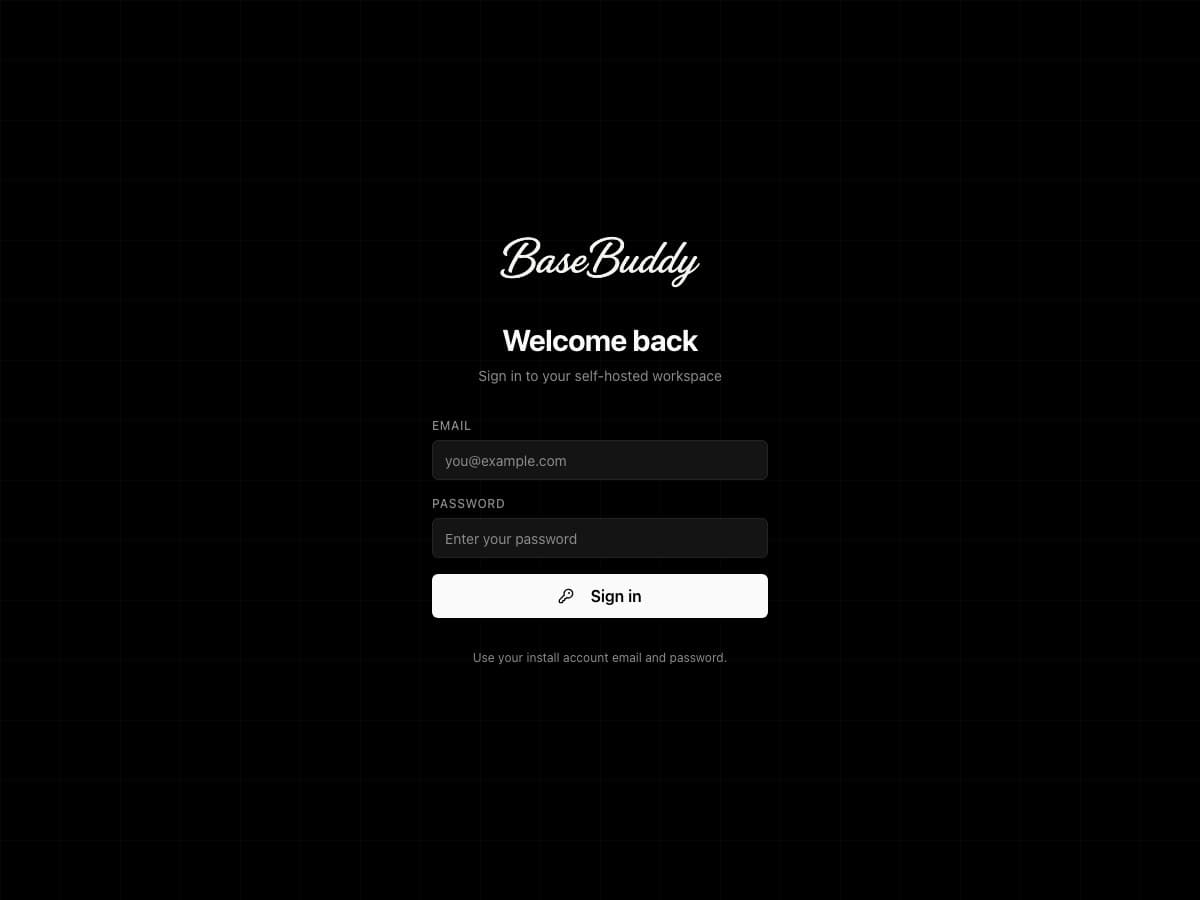
Use Email, Password, and Sign in. If the invited person does not have a local user yet, an owner can invite them from project settings or create a local user from the CLI.
The invite sign-in link uses Sign in with invited email when you are not signed in or when an already accepted invite needs the invited account again.
Accept the invite
After sign-in returns you to the invite page, check the account fields again.
When Current Account matches Invited Email, the invite page shows Ready to join. Select Accept invitation to join the project.
BaseBuddy then opens the project. If the account already had access, BaseBuddy may simply open the project instead of creating a duplicate membership.
When to ask for a fresh invite
Ask a project owner or admin to create a new invite only when the current invite cannot be used.
| What you see | What it means | What to do |
|---|---|---|
| This invite expired | The invite is past its expiry date | Ask an owner or admin to create a fresh invite |
| This invite was revoked | Someone with invite access revoked the link | Ask an owner or admin whether you should receive a new invite |
| Invitation not found | The link is invalid, missing, or no longer available | Ask for the invite link again or request a new invite |
| Wrong account after switching | The signed-in provider account still does not match the invited email | Sign out of that provider account, then sign in with the invited email |
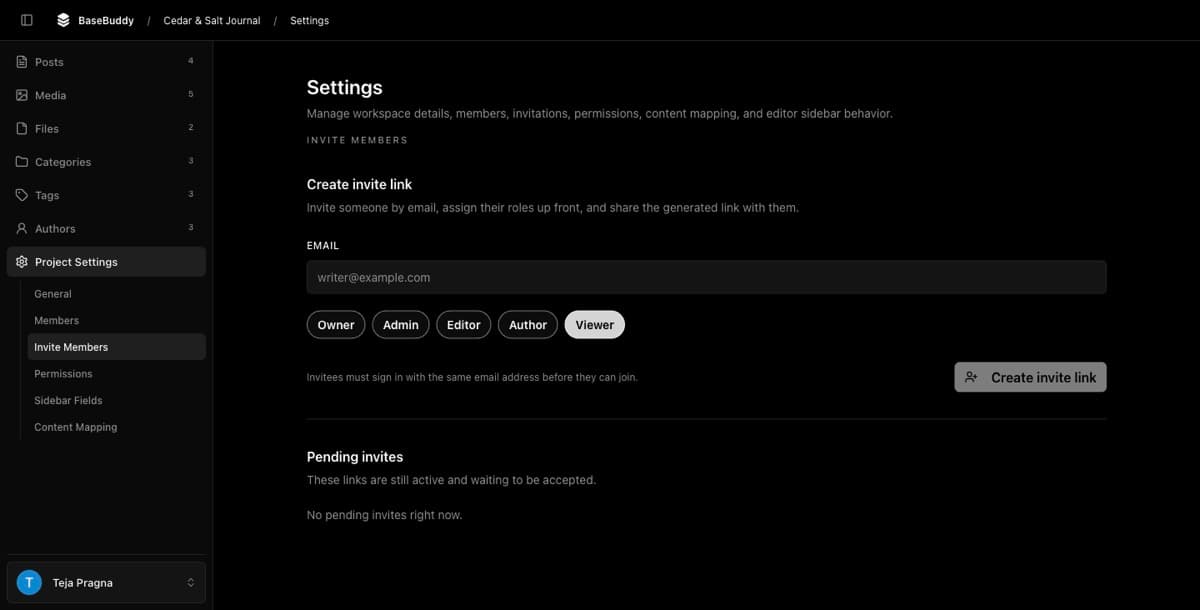
| The Invited Email is wrong | The invite was created for the wrong address | Ask an owner or admin to revoke it and create a new invite |
Owners and admins can use the project settings invite screen to revoke a wrong invite and create a replacement.
If sign-in does not return to the invite
The sign-in flow should bring the recipient back to the same invite page. If it opens Projects or stays on login instead, check local sign-in setup for the self-hosted app.
BaseBuddy only accepts safe internal return paths such as /invite/<token>, so do not add arbitrary external redirect destinations as a workaround.