How to assign author scope to a member
Limit a BaseBuddy member to selected mapped author records and choose whether they can publish for each author.
Use this when someone is already a member of your BaseBuddy project and should work only on content connected to selected author records.
Author scopes connect a BaseBuddy member to mapped author records from your content database. They do not replace roles or permissions. The member still needs the Author role, and BaseBuddy still uses your saved author mapping to decide which posts belong to each author.
If you are not sure whether the person should be an author record, a member, or both, start with Authors vs members: what is the difference?.
Before you start
Make sure authors are mapped and at least one post shows the correct Author in the editor. Author-scoped access depends on that saved mapping.
If authors are not mapped yet, use How to map authors to posts on BaseBuddy or How to set up authors on BaseBuddy first.

You also need access to manage project members. In the default roles, owners and admins can update member access. For the full role behavior, see Permissions and roles: how BaseBuddy handles them.
Assign author scope to an existing member
- Open the BaseBuddy project.
- Select Project Settings in the sidebar.
- Open Members.
- Find the member you want to update.
- Select Manage access.
- Under Roles, select Author.
- Under Author scopes, select the author chips this member should manage.
- For each selected author chip, use Publish only when the member should publish for that author.
- Select Save access.
Changes apply only after you select Save access for that member.
How access works
The Author role grants authored access. Author scopes narrow that access to selected mapped author records.
| Access | What BaseBuddy checks |
|---|---|
| Read | The member has authored read access and the content is assigned to one of the selected author scopes. |
| Edit | The member has authored edit access and the content is assigned to one of the selected author scopes. |
| Publish | The member has authored publish access, the content is assigned to one of the selected author scopes, and that scope's Publish switch is enabled. |
If Publish is off for an author scope, the member may still read or edit that author's content, but they cannot publish, unpublish, archive, or save a mapped status change that requires publish access for that author.
If a member should work across all content instead of assigned authored content, use Editor or another all-content role instead of author scopes.
If no authors appear
If the Author scopes area says Create project authors before assigning the author role., BaseBuddy does not have author options available for this project.
Check these in order:
- Confirm author mapping is saved.
- Open a known post and verify the Author field shows the expected author.
- Confirm your mapped author source has author records.
- Return to Project Settings → Members and try Manage access again.
Do not assign author-scoped access until BaseBuddy can connect posts to the correct author records. If the wrong posts appear for an author-scoped member, fix the author mapping before changing permissions.
If the person is not a member yet
Use the invite flow instead of updating Members.
- Open Project Settings.
- Open Invite Members.
- Enter the person's email address.
- Select Author under Roles.
- Select at least one item under Author scopes.
- Use Publish for each selected author only when that person should publish for that author.
- Select Create invite link.
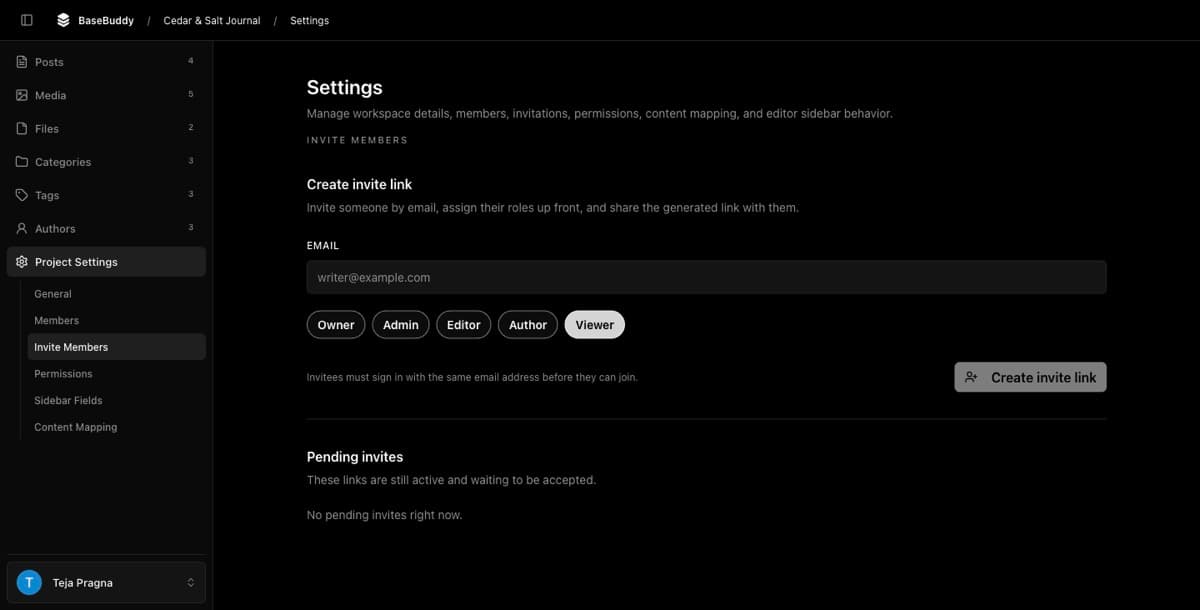
BaseBuddy creates an invite link for you to share through your team's normal channel. For the full flow, use How to invite users to your BaseBuddy project.
Verify the member's access
Test with the affected member or a test account that has the same role and author scopes.
- Sign in as that member.
- Open a post assigned to one of their selected author scopes.
- Confirm they can read and edit the post.
- If Publish is enabled for that author scope, test Publish, Unpublish, Archive, and one normal save that changes mapped status.
- Open a post assigned to a different author.
- Confirm unrelated authored content is not available or cannot be edited.
If the result is wrong, check the author mapping first, then review the member's role, author scopes, Publish switches, and any permission overrides. For narrow exceptions, use How to customize permissions on BaseBuddy.
Related guides
- How to set up authors on BaseBuddy
- Authors vs members: what is the difference?
- How to invite users to your BaseBuddy project
- How to map authors to posts on BaseBuddy
- Permissions and roles: how BaseBuddy handles them
- How to customize permissions on BaseBuddy