How to find or reset your Supabase database password
Find where the Supabase database password is used, reset it when needed, update BaseBuddy, and verify the new database URL.
BaseBuddy needs a Postgres database URL so it can run setup checks, inspect tables for mapping, read content, and save edits.
That URL includes a database password. This is not your Supabase login password, and it is not an API key. It is the password for the Postgres database user inside your connection string.
Treat the full database URL as a secret. Security explains what to redact before sharing setup output, screenshots, or logs.
Where the password goes
Supabase connection strings usually look like this:
txtpostgresql://USER:PASSWORD@HOST:PORT/postgresThe database password is the part after the username and before @.
txtpostgresql://postgres:PASSWORD@db.your-project-ref.supabase.co:5432/postgresThe finished URL is saved in .env for local testing or your production host env:
shBASEBUDDY_CONTENT_DATABASE_URL=postgresql://...If you are still collecting all Supabase values, start with How to connect your Supabase database to BaseBuddy.
Open the Supabase connection dialog
In Supabase, open your project and use the Connect button. Choose the connection mode you want to use, then copy the Postgres connection string.
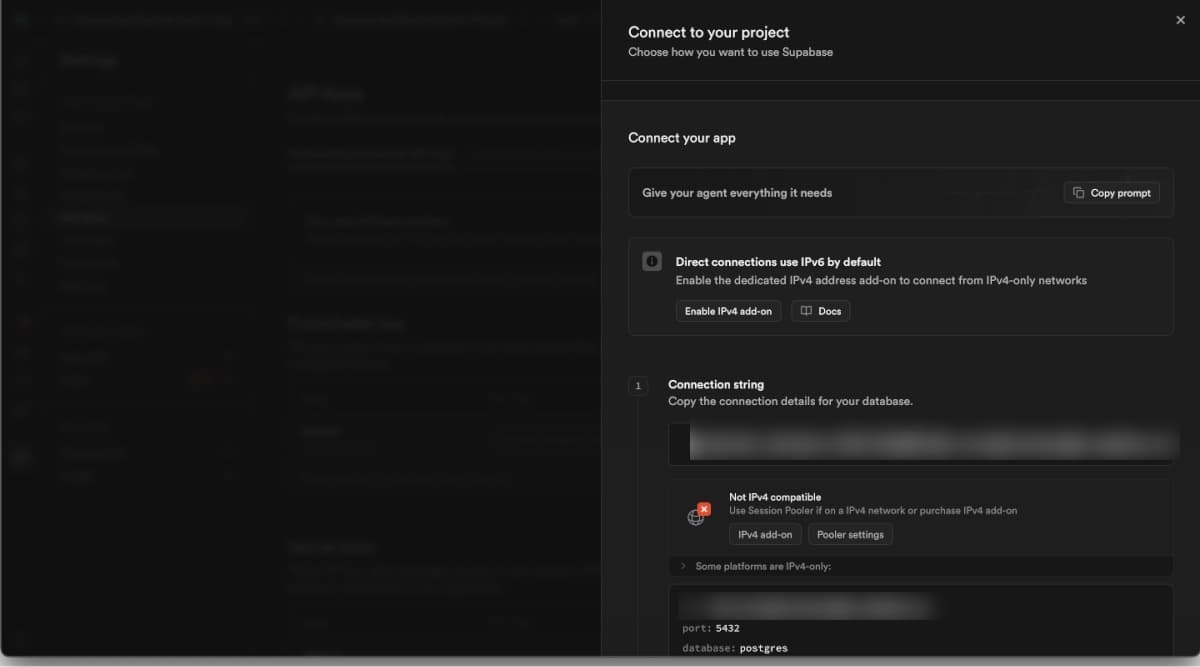
Supabase often shows [YOUR-PASSWORD] inside the connection string. That is only a placeholder. Replace it with your real database password before pasting the URL into BaseBuddy.
Choose direct or pooler connection
Use the connection string Supabase gives you for your hosting environment.
| Connection mode | Good fit | What to watch |
|---|---|---|
| Direct connection | Long-running servers where IPv6 works | Simple, but some VPS or networks cannot reach IPv6-only hosts |
| Session pooler | Long-running servers that need IPv4 support | Often useful for VPS and Docker deployments |
| Transaction pooler | Short-lived/serverless workloads | Can be less suitable for libraries that rely on session state |
Do not mix pieces from different connection modes. If you switch from direct to pooler, copy the whole pooler string again because the username, host, and port may change.
If you already know the password
Replace the password placeholder in the copied connection string.
If the password has special characters, URL-encode it before putting it in the URL.
| Character | Encoded value |
|---|---|
@ | %40 |
: | %3A |
/ | %2F |
? | %3F |
# | %23 |
% | %25 |
For example:
txtmy@db:passwordbecomes:
txtmy%40db%3ApasswordIf you do not know the password
Supabase usually does not show the existing database password after the project is created. If you do not have it saved, reset it from Database -> Settings.
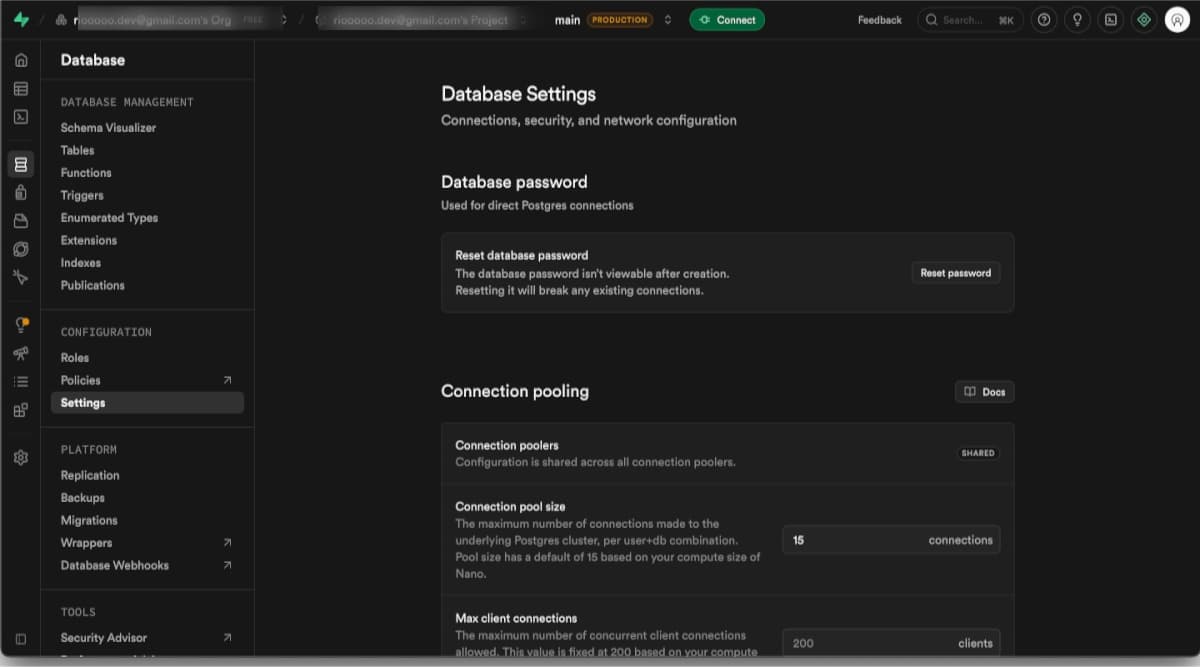
Before resetting, check what else uses the same password:
- Other apps connected to this Supabase database.
- Background jobs and workers.
- Local
.envfiles. - Deployment platform env values.
- Data tools such as TablePlus, DBeaver, psql, analytics jobs, or ETL tools.
After you reset the password, every old connection string that used the previous password must be updated. Anything still using the old password can stop connecting.
Update BaseBuddy
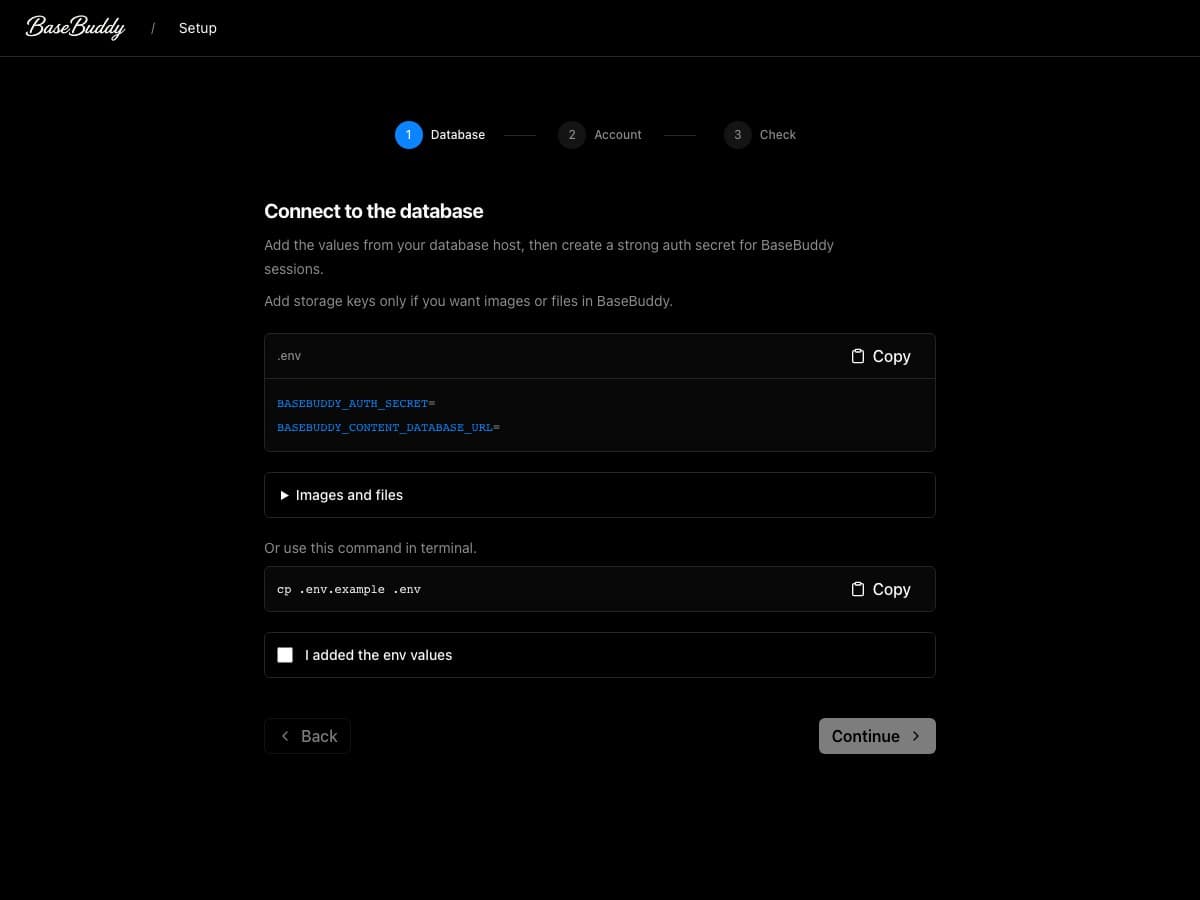
Save the finished Postgres URL in env:
shBASEBUDDY_CONTENT_DATABASE_URL=postgresql://...The database URL is a secret because it contains the password. Do not commit it, paste it into public issues, or include it in screenshots.
Restart BaseBuddy
Rerun checks after changing setup.
For local development:
shpnpm basebuddy doctorIf the database URL is valid and reachable from the machine running BaseBuddy, the database-related setup checks should be ready.
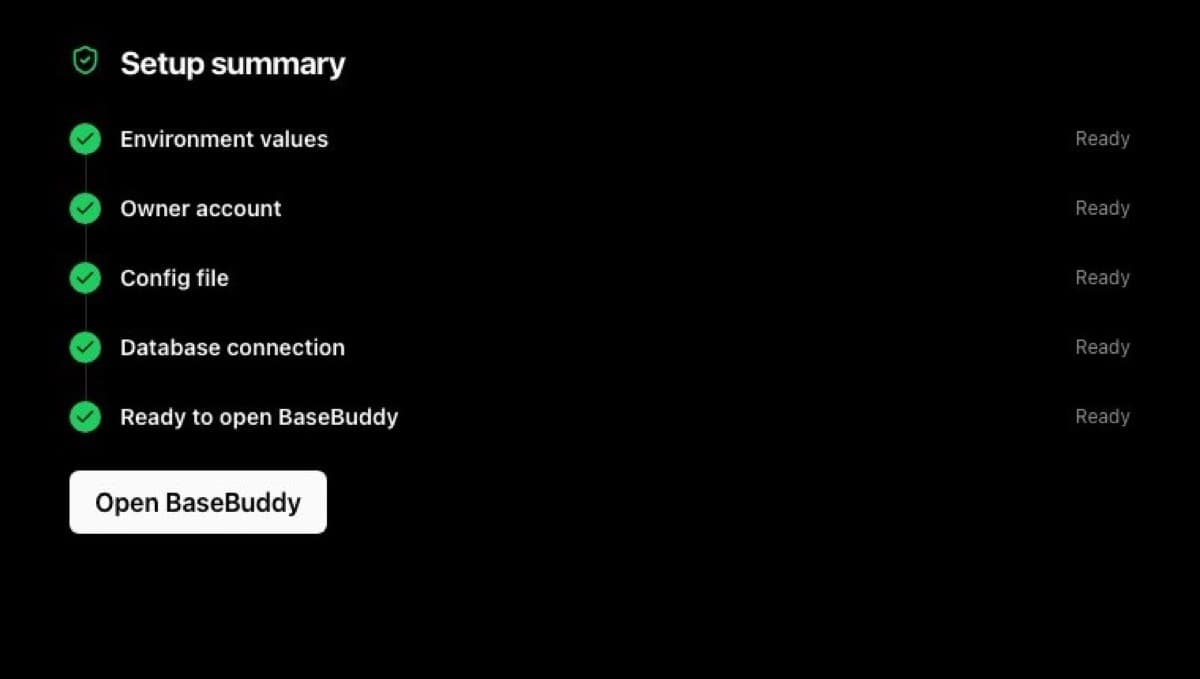
If this check fails, fix the database URL before changing mapping or permissions. A wrong password can make later parts of the app look broken even when they are fine.
Test one mapped table
After setup checks pass, confirm BaseBuddy can use the connection for real work.
- Open BaseBuddy.
- Open or create a project.
- Go to Project Settings -> Content Mapping.
- Confirm your schemas and tables appear.
- Open one safe content item.
- Save one harmless text field.
- Check the database row and confirm only that field changed.
If setup checks pass but mapping cannot see tables, the password is probably correct, but the database user may not have enough schema or table access. Use How to create a database user on Supabase to review grants.
Common problems
| Problem | What it usually means | What to do |
|---|---|---|
| Database connection fails | Wrong password, username, host, port, database name, or network path | Recopy the full Supabase connection string and replace only the password |
Password works elsewhere but not in .env | Special characters were not URL-encoded | Encode the password before placing it in the URL |
| Direct connection fails on a VPS | The server may not reach Supabase over IPv6 | Try the Supabase session pooler connection string |
| Pooler connection fails | Username, host, or port came from the wrong connection mode | Copy the full pooler URL again instead of mixing direct and pooler pieces |
| Setup passes but save fails | The database user can connect but lacks table permissions, sequence access, or RLS policy access | Review the dedicated database user grants |
Once the database URL works, continue with First-run setup and BaseBuddy sign-in setup.