How to insert files or downloads into a post
Insert file links from the Files library into a post body and save only the dirty body changes.
Use this guide when you want to add a PDF, document, spreadsheet, archive, or other downloadable file to an editable post body.
BaseBuddy inserts files as links from the project's mapped Files library. The link is written into the body field you are editing, and the database is not updated until you click Save or Update.

Before you start
The project needs a saved posts mapping and a mapped file storage library. If the File action is missing or disabled, check the files mapping before trying to edit around it.
Files accept common documents, spreadsheets, presentations, data files, and archives: doc, docx, pdf, rtf, txt, md, csv, xls, xlsx, ppt, pptx, json, xml, zip, gz, and tar.
The file library limit is 25 MB per file, with up to 10 files per batch. BaseBuddy prepares a signed upload URL, then the browser uploads bytes to Supabase Storage or the S3-compatible provider. Your provider, browser upload path, and any BaseBuddy multipart API path still need compatible limits. For the full storage reference, see Media and files and Caps and rate limits.
Open the Files library
- Open the project in BaseBuddy.
- Open Files.
- Search or browse to the file you want to insert.
- If the file is not there yet, click Upload or Choose Files, choose the file, and wait for the upload to finish.
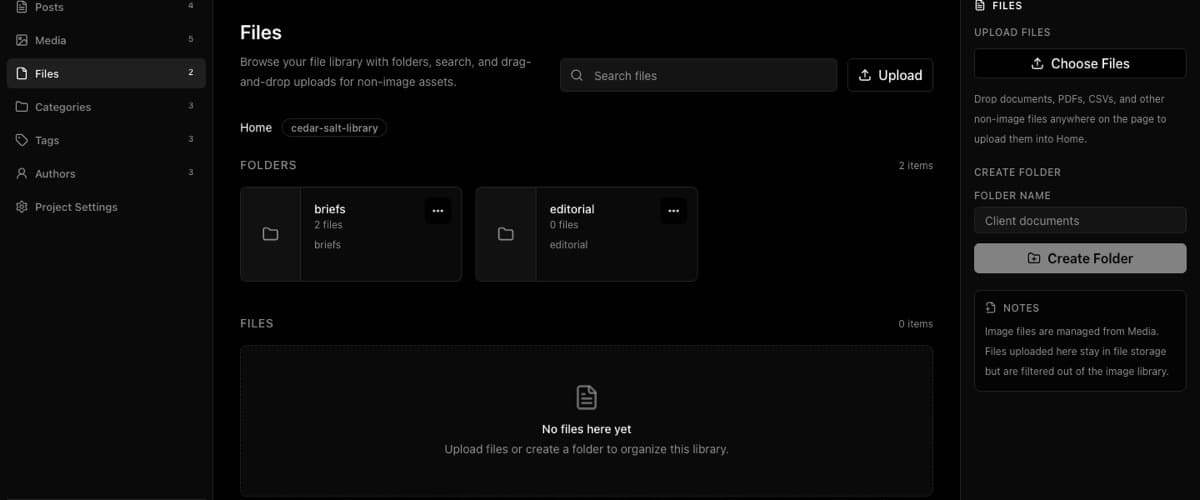
Image files are managed from Media. Files uploaded in Files stay in file storage and are filtered out of the image library.
Insert the file into a post
- Open the post you want to edit.
- Click inside the editable body field where the download link should appear.
- Place the cursor where the link should go.
- Click File in the toolbar, or type
/at the start of a blank block and choose File. - Search or browse the files picker.
- Select the file.
- Click Insert file.
BaseBuddy inserts a link in the body field. If you need custom link text, edit the visible text in the body after inserting the file.
Save the body change
Inserting a file link makes the body field dirty. It does not publish, unpublish, archive, rename, move, or delete the file.
Click Save or Update when you are ready to write the dirty body change.
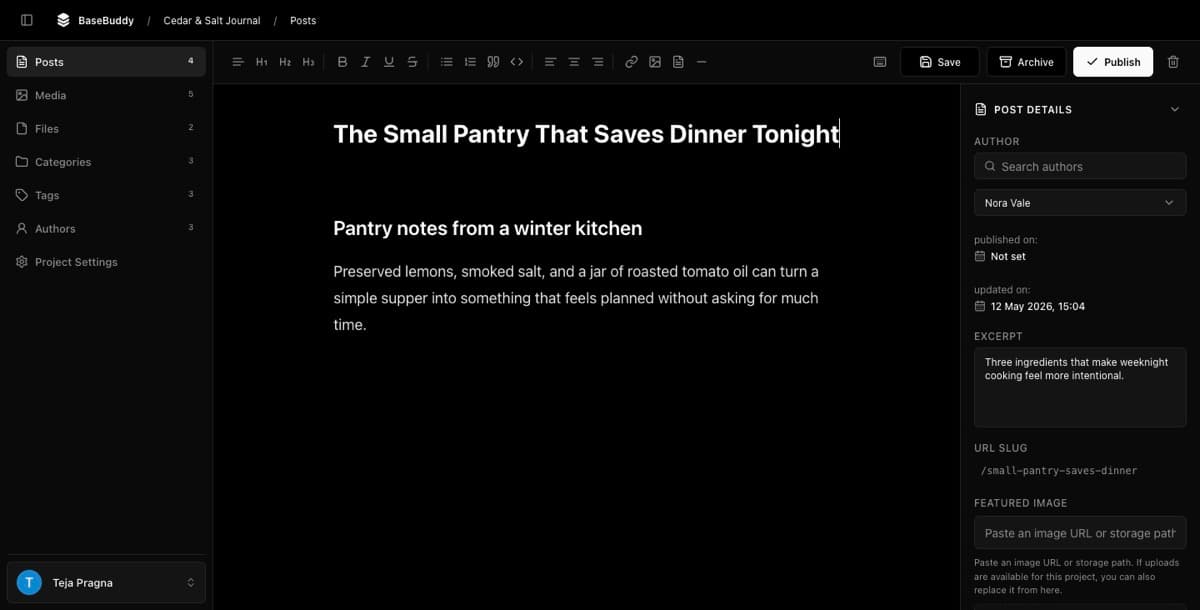
Normal Save and Update write dirty mapped fields only. If the only change you made was inserting a file link in the body, BaseBuddy should write the mapped body storage target and leave unrelated mapped fields alone. It should not convert Markdown, HTML, JSON, arrays, files, media, relations, or workflow status as a hidden side effect.
Verify the link
After saving:
- Reopen the same post.
- Confirm the file link still appears in the body.
- Open the link in the way your site or preview normally serves downloads.
- If this is a new mapping, inspect the row in Supabase or your database client and confirm only the body field changed, aside from trigger-owned audit fields your own schema controls.
If your files are private, treat generated URLs as temporary. Do not promise editors that a signed URL copied from the library or editor is permanent, and do not share screenshots that expose private object paths or signed query strings.
If file insertion does not work
| Symptom | What to check |
|---|---|
| File is missing | The project may not have a mapped files library |
| File is disabled | Click inside an editable post body field, not a title, sidebar field, code block, or read-only field |
| Upload fails | Check file type, file size, storage mapping, storage credentials, provider limits, and host request body limits |
| The inserted link does not save | Confirm the body field is mapped as editable and the post has dirty changes |
| The file URL later stops working | Private signed URLs are temporary; use your app's protected delivery route when downloads need stable private access |
| More than the body changed | Stop and review the saved mapping before editing more posts |
If the body field is read-only or unsupported, fix the mapping first. BaseBuddy should only write when the saved mapping gives it a safe storage target.
Related guides
- How to use the editor toolbar
- How to use slash commands
- How to safely edit your first post
- How to map markdown content safely
- Media and files
- Safe editing model