How to fix content not loading in a project
Troubleshoot a BaseBuddy project that opens but cannot load posts, mapped collections, or content from the saved mapping.
Use this when a BaseBuddy project opens, but content does not appear. You might see the posts list fail, a mapped collection stay unavailable, a setup or database connection message, or an editor screen that cannot load a post.
Work through the checks in this order. The goal is to find the first layer that is not ready, fix that layer safely, and verify with one low-risk content item before regular editing resumes.
BaseBuddy reads your latest saved mapping as the runtime truth. It does not rename or reshape your content tables to make a project load. If a table, column, JSON path, relation, or storage mapping is missing, fix setup or mapping instead of changing the database shape just for BaseBuddy.
Start with the screen message
Write down the exact screen, collection, and message before changing anything.
| What you see | What it usually means | Start here |
|---|---|---|
Project mapping is not ready yet | The project does not have a ready saved content mapping | Ask an owner or admin to map posts |
Map Posts or Map posts first | Posts are not mapped yet, so related collections cannot load | Open posts mapping |
Content connection failed | BaseBuddy can open the project shell, but cannot reach or query mapped content | Check setup diagnostics and the content database connection |
Unable to load this post | The list or route found a post ID, but the editor could not load that mapped row | Review mapping, database access, permissions, and logs |
No posts match this view | The posts list loaded, but the current search, status, or view filters hide every row | Clear filters before changing setup or mapping |
If the message includes a retry action, use it once after checking that the app is still online. A transient database failure can clear on retry. If the same error returns, continue with the next sections.
Check setup diagnostics
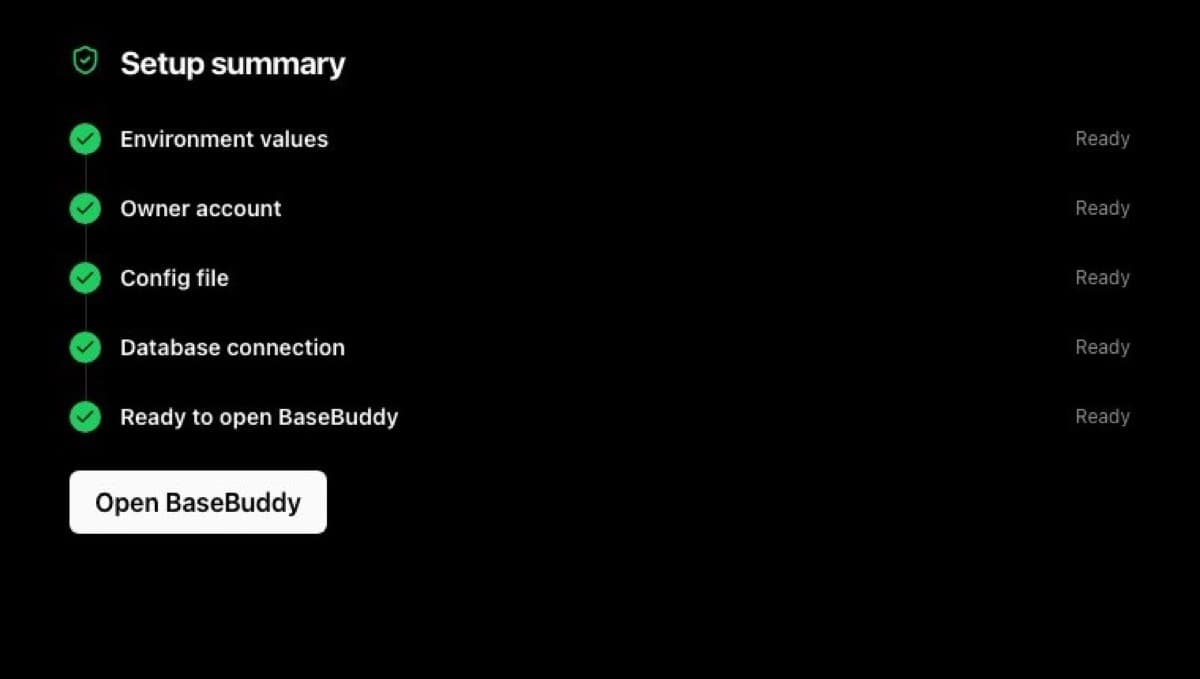
If the app was recently deployed, upgraded, restarted, or had env values changed, check setup before editing mapping.
Open:
texthttp://localhost:8080/onboarding?diagnostics=1Review the first failed section. For content loading, pay close attention to App data, Database connection, and optional media storage checks.
If browser diagnostics cannot load, run this from the BaseBuddy repo:
shpnpm setup:checkFix one failed setup layer at a time. If you changed .env, restart BaseBuddy before rerunning checks. Credentials come from environment variables, not per-project database rows, so changing project settings will not repair a bad database URL, Supabase URL, secret key, or install layout.
Use How to fix failed setup checks and How to run setup checks after a deployment or upgrade if any setup section is failing. Use How to connect your Supabase database to BaseBuddy if the content database connection is wrong or incomplete.
Map posts if the project is unmapped
If the project shows Map Posts, Map posts first, or Project mapping is not ready yet, the safe fix is posts mapping. Normal members should ask an owner or admin to do this.
- Open the project.
- Open Settings.
- Select Mapping.
- In Posts mapping, choose Open Posts mapping. If the main content screen shows Map Posts, that opens the same flow.
- Choose the table where one row is one post.
- Map the primary key, title, content, and any workflow fields you need.
- Save the mapping.
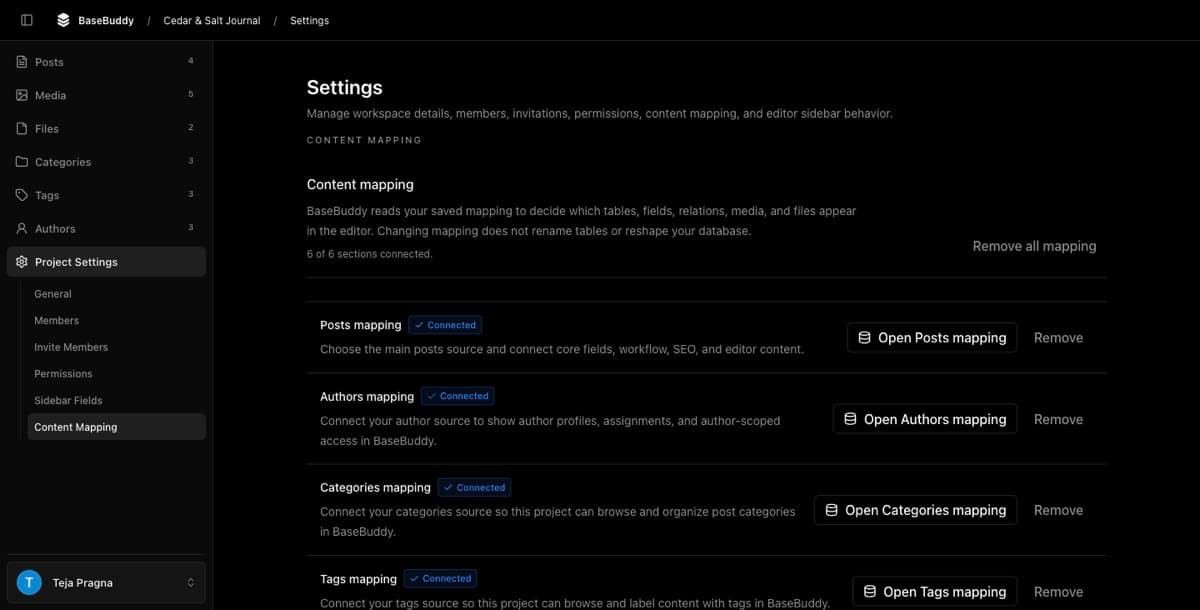
BaseBuddy cannot load a real posts list until posts have a ready saved mapping. Authors, categories, tags, media, files, and other collections depend on that content model, so map posts first.
For the full walkthrough, use How to map a posts table. For the model behind this, see How mapping works on BaseBuddy, Projects and mappings, and Storage contract and UI.
Review the saved mapping if content used to load
If this project loaded content before, do not start by remapping everything. Review the saved mapping and look for the smallest broken source.
Open Project Settings -> Content Mapping -> Open Posts mapping, then confirm:
| Mapping area | What to check |
|---|---|
| Source table | The mapped schema and table still exist and still contain one row per post |
| Primary key | The mapped ID column exists, is stable, and can identify one row |
| Title | The mapped title column or path still exists and can be read |
| Content | The mapped content column, JSON path, array item, or relation still points at the stored body |
| Status | The mapped draft, published, and archived values still match the database |
| JSON fields | JSON paths are exact enough to read and patch one value safely |
| Relations | Foreign keys, join tables, value columns, and target tables still match the saved mapping |
| Media and files | Bucket, path, URL, and stored-reference mappings still match the configured storage |
| Custom fields | Unsafe, generated, view-derived, or unsupported sources remain read-only or unsupported |
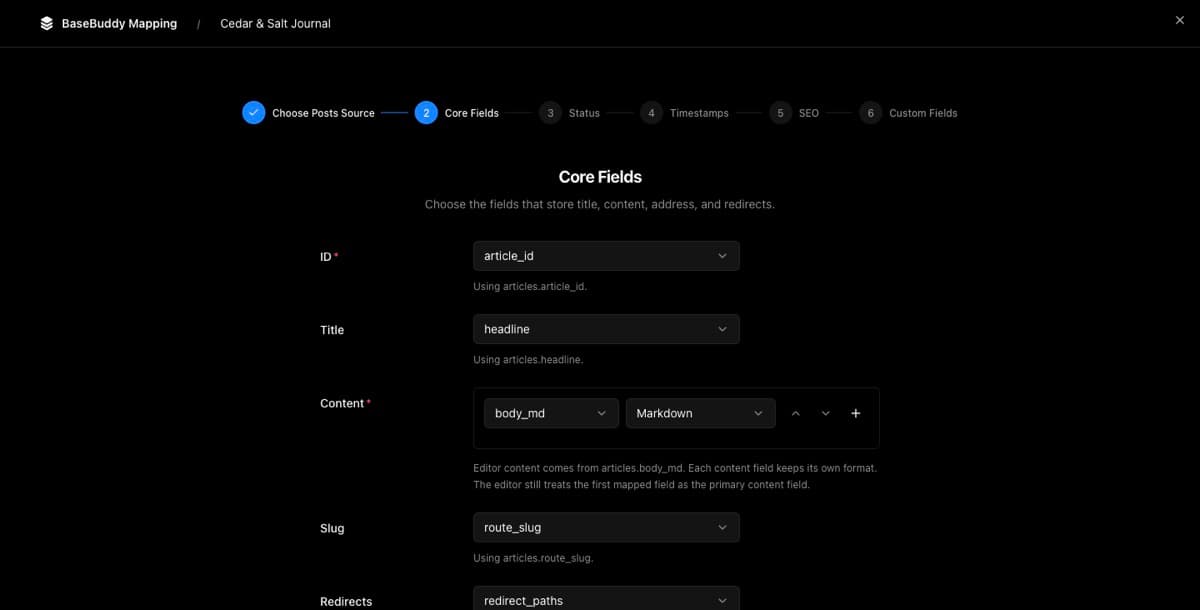
Missing mapped tables or columns are a setup or mapping problem. Do not rename or reshape user tables just to satisfy an old mapping. Either restore the intended database object, or update the BaseBuddy mapping so it matches the schema you actually use now.
Normal Save writes only dirty mapped fields. Publish, Unpublish, and Archive are explicit actions. BaseBuddy should not silently convert Markdown, HTML, JSON, arrays, relations, or workflow shape during normal save.
If a field loads but is read-only, use How to fix a field showing as read-only. If edit buttons or screens are unavailable even though content loads, use How to troubleshoot missing edit buttons or read-only screens.
Confirm database access to mapped content
When setup checks are ready and mapping looks right, confirm the database user in the BaseBuddy env can read the mapped sources.
Check these items:
- The content database URL points to the database that stores the mapped content.
- The configured database user can connect from the machine or host running BaseBuddy.
- The user can read the mapped schemas, tables, views, columns, JSON columns, relation tables, and storage reference columns.
- The user can read rows needed for the posts list, one open post, mapped authors, mapped categories, mapped tags, media, and files if those areas are mapped.
- The mapped primary key and relation target columns still use values that exist.
- Any row-level security, database role, view, or policy used by your setup still allows the content read BaseBuddy needs.
If the database password, user, connection mode, schema grants, or Supabase project changed, update env, restart BaseBuddy, and rerun setup diagnostics. Do not store install credentials in project rows.
Check permissions and author scopes
If content loads for one member but not another, check project access before changing mapping.
- Open the project as an owner or admin.
- Open Settings.
- Open Permissions.
- Check the affected member's role and overrides.
- If author-scoped access is enabled, confirm the member has an assigned author scope.
- Confirm the affected post is connected to an author the member can access.
- If workflow actions are missing, confirm publish access for that member and author scope.
A member may have project access but still see fewer posts because of author scope, role permissions, or publish access. Broaden permissions only when that is the intended fix.
Clear filters and retry transient failures
If the posts list loads but appears empty, clear the current view before changing setup or mapping.
- Open Posts.
- Clear search.
- Switch the status filter to a broader view.
- Use Reset View if it appears.
- Reload the project.
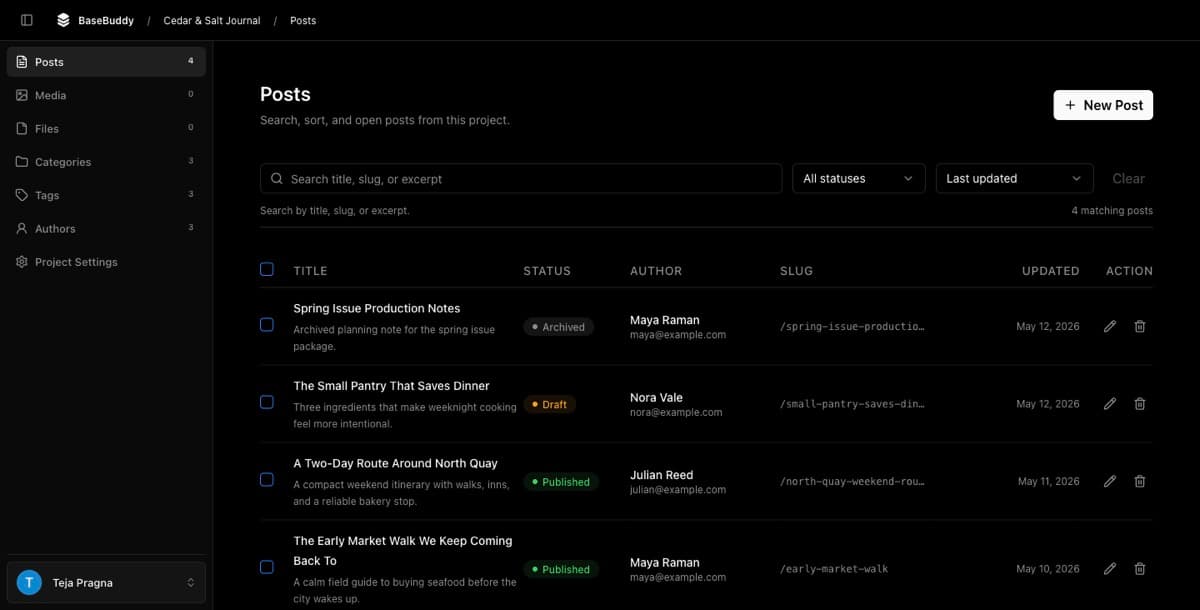
If the list or editor failed during a short database outage, retry after the database is reachable again. If the same failure repeats, collect logs for the exact timestamp.
Read the logs for the failing request
Use logs when setup diagnostics are ready, mapping appears correct, and the same load error repeats.
Check the server logs for the host running BaseBuddy near the time of the failed action. Look for the route, project, status code, and a content runtime error near the browser error.
Do not share full .env files, database URLs, keys, tokens, cookies, private content, private emails, or full request bodies. Redact before sending logs to anyone else.
Use How to read BaseBuddy logs when something fails to collect a safe support bundle.
Verify the fix safely
After changing setup, mapping, permissions, or database access, verify in this order:
- Rerun setup diagnostics if setup or env changed.
- Open the project.
- Open Posts and confirm the expected list appears.
- Open one safe draft or low-risk post.
- Confirm the title, content, status, relations, and sidebar fields are the values you expect.
- Change one harmless text field.
- Click Save.
- Inspect the database row and confirm only that mapped dirty field changed.

Do not test the fix first with publish status, archive actions, media replacement, relation changes, or broad JSON edits. After one harmless dirty-field save works, test workflow actions separately and intentionally.
Use How to safely edit your first post and Safe editing model for the complete first-edit checklist.
Related guides
- How to fix failed setup checks
- How to run setup checks after deployment or upgrade
- How to connect your content database to BaseBuddy
- How to map a posts table
- How mapping works on BaseBuddy
- How to fix a field showing as read-only
- How to troubleshoot missing edit buttons or read-only screens
- How to read BaseBuddy logs when something fails
- Projects and mappings
- Storage contract and UI
- Safe editing model