How to publish, unpublish, and archive content
Test BaseBuddy workflow actions against the status fields in your saved mapping.
Use this after your posts mapping is saved and one safe Save or Update has already worked.
You will test the workflow buttons on one safe post and confirm BaseBuddy writes only the mapped workflow fields for that action.
Before you start
Workflow actions appear only when the saved mapping supports them. BaseBuddy needs to know which existing field stores the post state and which stored values mean draft, published, or archived.
Common examples:
| Existing storage | Example values |
|---|---|
| Text or enum status column | draft, published, archived |
| Boolean published flag | false for draft, true for published |
| Nullable publish date | null for draft, timestamp for published |
| Separate archived state | Status value, archive flag, or archive timestamp |
The saved mapping is the runtime truth. If the status field is missing, read-only, unsupported, or mapped to the wrong values, BaseBuddy should not guess. It should hide the action, disable it, or leave the field read-only.
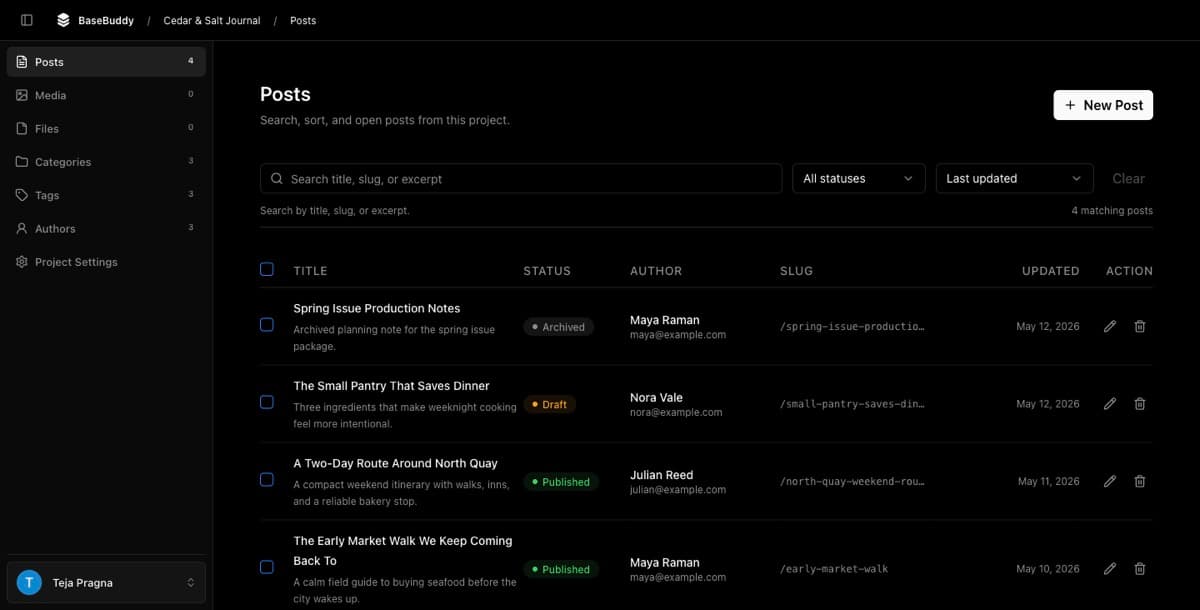
Pick one safe post
Choose one draft or internal post where a status change will not affect a public page, campaign, feed, redirect, or automated job.
Open the post in BaseBuddy and check the top-right actions:
| Current state | Usual actions |
|---|---|
| Draft | Save, Archive, Publish |
| Published | Update, Archive, Unpublish |
| Archived | Save, Move to Draft |
The exact buttons depend on mapping, permissions, and the current post state.

Save content edits first
If the post has unsaved content edits, finish those before testing workflow actions.
Save and Update write dirty mapped fields only. They should not publish, unpublish, archive, reshape JSON, rewrite relations, or convert storage formats as a hidden side effect.
Use Save for ordinary dirty fields on a draft. Use Update for ordinary dirty fields on a published post. Workflow actions are separate buttons.
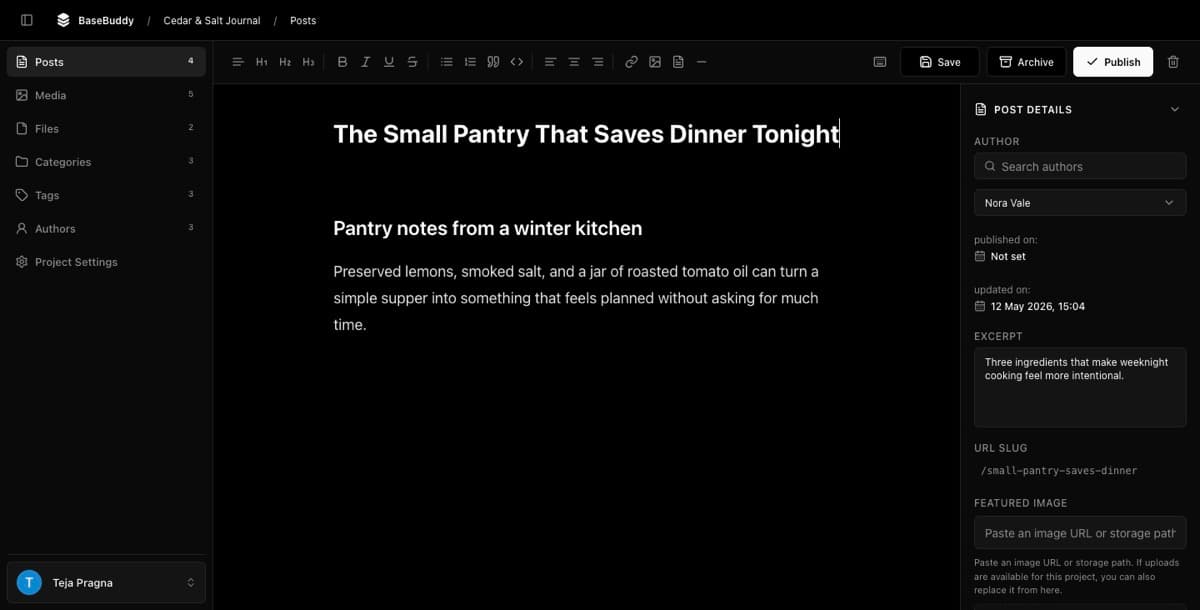
Publish a draft
- Open a safe draft post.
- Confirm there are no unsaved content edits.
- Click
Publish. - While the action runs, the button shows
Publishing.... - Inspect the row in Supabase or your database client.
- Confirm the mapped status, publish flag, or publish date now matches the published state in your mapping.
- Return to the posts list and confirm the status shown in BaseBuddy matches the database.
BaseBuddy writes your mapped workflow storage. It does not copy the post into a BaseBuddy-owned content table.
Unpublish a published post
- Open the same post after it is published.
- Confirm ordinary edits are already saved with
Update, if needed. - Click
Unpublish. - Inspect the same database row.
- Confirm the mapped status, flag, or publish date returns to the draft state configured in your mapping.
- Return to the posts list and confirm BaseBuddy shows the draft state.
If your app stores custom values, verify those exact values. For example, your mapping may use ready, live, and hidden instead of draft, published, and archived.
Archive a post
- Open a draft or published post that can safely be archived.
- Confirm any ordinary edits are already saved with
SaveorUpdate. - Click
Archive. - Inspect the same database row.
- Confirm the mapped archive status, flag, or timestamp matches the archived state in your mapping.
- Return to the posts list and confirm BaseBuddy shows the archived state.
To restore an archived post to draft, open it and click Move to Draft. Then verify the row returns to the mapped draft state.
What should change
The exact database change depends on your mapping:
| Action | Expected result |
|---|---|
Publish | Draft value becomes the mapped published value; a mapped publish date or flag may also change. |
Unpublish | Published value becomes the mapped draft value; a mapped publish date may clear if your mapping says so. |
Archive | Draft or published value becomes the mapped archived value; a mapped archive flag or date may also change. |
Move to Draft | Archived value becomes the mapped draft value. |
Unrelated content fields should not change. If database triggers update updated_at, audit tables, or cache fields, account for those separately from what BaseBuddy sends.
If buttons do not appear
Check the mapping first:
| Symptom | What to check |
|---|---|
| No Publish button | Status is not mapped, workflow values are incomplete, or the item is already published or archived |
| No Unpublish button | The item is not in the mapped published state, or unpublish is not supported by the current mapping |
| No Archive button | Archived value or archive storage is not configured, or the current item state cannot be archived |
| No Move to Draft button | The item is not archived, or restoring archived items is not supported by the current mapping |
| Button is disabled | Required fields are missing, the post is not editable, Save, Update, or Publishing... is already running, or the current user lacks permission |
| Action fails | The mapped status field is read-only, unsupported, trigger-owned, or no longer matches the database shape |
Workflow actions require publish access. If author-scoped access is enabled, the user also needs publish access for the post's assigned author scope.
If the result is wrong
Stop before testing more posts.
- Restore the row from your normal backup, audit log, or the values you recorded before testing.
- Review the saved posts mapping.
- Confirm the status values match the values stored in your database.
- Confirm publish and archive fields are writable storage, not generated, view-derived, trigger-owned, or unsupported.
- Check the current user's publish permission and author scope.
- Refresh the editor and test again with one safe post.
If the mapping is unclear, leave the workflow field read-only and map it manually. Manual mapping is safer than letting auto-detection guess the wrong public state.
Related guides
- How to safely edit your first post
- How mapping works on BaseBuddy
- How to map a posts table
- How to customize permissions on BaseBuddy
- Safe editing model