How to organize files with folders
Create, open, search, move, and delete folders in the BaseBuddy Files library without changing post content.
Use folders when your project's Files library has documents, PDFs, spreadsheets, archives, or other downloadable assets that editors need to browse by client, campaign, topic, or workflow stage.
Folders organize file storage objects. They do not save, publish, unpublish, archive, or rewrite post content.
Before you start
The project needs a mapped files library. If Files is missing from the project sidebar, review the file storage mapping first.
Files are separate from images. Use Files for non-image downloads and attachments. Image files are managed from Media instead.
For accepted file types, size limits, and storage behavior, see Media and files and Caps and rate limits.
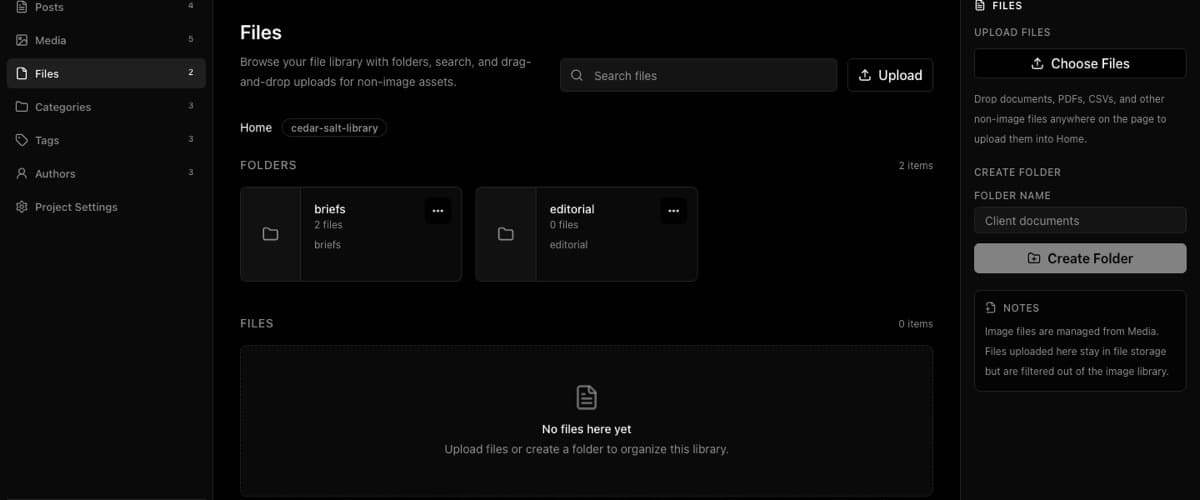
Create a folder
- Open the project in BaseBuddy.
- Open Files.
- Browse to the folder where the new folder should live. Stay in Home if it should be a top-level folder.
- In the right sidebar, find Create Folder.
- Enter a name in Folder Name.
- Click Create Folder.
BaseBuddy creates the folder inside the current folder. Folder names cannot contain slashes, because slashes are used to separate folder levels.
Open a folder
You can open a folder in either of these ways:
- Click the folder card.
- Open the folder menu and choose Open folder.
Use the breadcrumb at the top of the library to move back up to Home or another parent folder.
Upload files into a folder
Open the destination folder before uploading. Files uploaded from that view are stored in the current folder.
- Open Files.
- Open the folder where the files should go.
- Click Choose Files in the right sidebar, or use the Upload button near search.
- Choose the files and wait for the upload to finish.
You can also drag supported files onto the page. Drop them only after you have opened the folder where they should be stored.
For the broader file upload workflow, see How to upload and manage files in the Files library.
Search within the current location
Use Search files from Home. Inside a folder, the search field changes to Search this folder.
Search is scoped by the current location. If you search while you are inside a folder, BaseBuddy searches that folder. Results appear under Search Results.
If you cannot find a file, clear the search and move back to Home, or open the folder where the file is expected to live and search again.
Move or delete folders
When you are inside a folder, the right sidebar can show Move Folder and Delete Folder.
Use Move Folder to choose a new destination. Moving a folder changes where the storage objects live. It does not rewrite existing links that were already inserted into posts.
Use Delete Folder carefully. Deleting a folder deletes everything inside it from the file library.
For safer step-by-step file and folder cleanup, use How to move and delete files safely.
Keep post edits separate
Folder actions happen in the Files library. They do not save or publish post content.
If you insert a file into a post, BaseBuddy writes that link only when you click Save or Update on the post. Normal save still writes dirty mapped fields only. For that workflow, see How to insert files or downloads into a post.
If your files use private or signed URLs, treat those URLs as temporary. Do not share screenshots or pasted links that expose private object paths or signed query strings.
Verify the library
After organizing files:
- Open Files.
- Confirm the expected folders appear in Home or the parent folder where you created them.
- Open each folder and confirm the files are in the right place.
- Search from the current folder and confirm the expected files appear under Search Results.
- If posts already linked to moved files, check those posts or your site preview before removing the original location from your workflow.