How to remove a member from a project
Remove project access safely without deleting the user's account, content, authors, mapping, or database rows.
Remove a member when someone should no longer have access to one BaseBuddy project. This removes their project membership and access for that project only.
BaseBuddy currently does not show a confirmation dialog before Remove. Confirm you have the right person before you select it.
Who can remove members
Users need member management access for the project. In the default roles, owners and admins can remove members.
Owners can remove normal members and owner members. Admins can remove members below owner, but they cannot remove owner members. If an admin opens an owner member's access panel, BaseBuddy shows Only project owners can change owner members.
Every project must keep at least one owner. If you need to remove the only owner, add or promote another owner first.
For the full access model, see Permissions and roles: how BaseBuddy handles them.
Remove the member
- Open the project.
- Select Project Settings in the sidebar.
- Open Members.
- In Current members, find the person you want to remove.
- Select Manage access if you want to confirm their roles or author scopes first.
- Confirm the name and email are the right person.
- Select Remove.
- Wait while the button shows Removing....
- Confirm the member disappears from Current members and BaseBuddy shows Member removed.
When Manage access is open, the button changes to Close access. You do not need to open it before removing someone, but it is useful when two members have similar names or emails.
What removal changes
Removing a member removes their access to this BaseBuddy project. Their project roles, permission overrides, and author scopes for this project are removed with the membership.
After access refreshes, the removed person should no longer be able to open the project in BaseBuddy. They may still be able to sign in to the BaseBuddy install if they have access to another project.
What removal does not delete
Removing a project member does not delete:
| Not deleted | Why |
|---|---|
| The user's Auth account or profile | Membership is project-scoped. |
| Other project memberships | Access changes only for the current project. |
| Content authors | Authors are content records, not sign-in members. |
| Posts, pages, media, files, or mapped content | BaseBuddy does not delete content when member access changes. |
| Project mapping or sidebar settings | The saved project setup stays in place. |
| Database tables, columns, rows, or storage objects | BaseBuddy does not reshape or clean up your schema during member removal. |
If you meant to remove an author record from content instead, review Authors vs members: what is the difference? before changing member access.
When not to remove the member
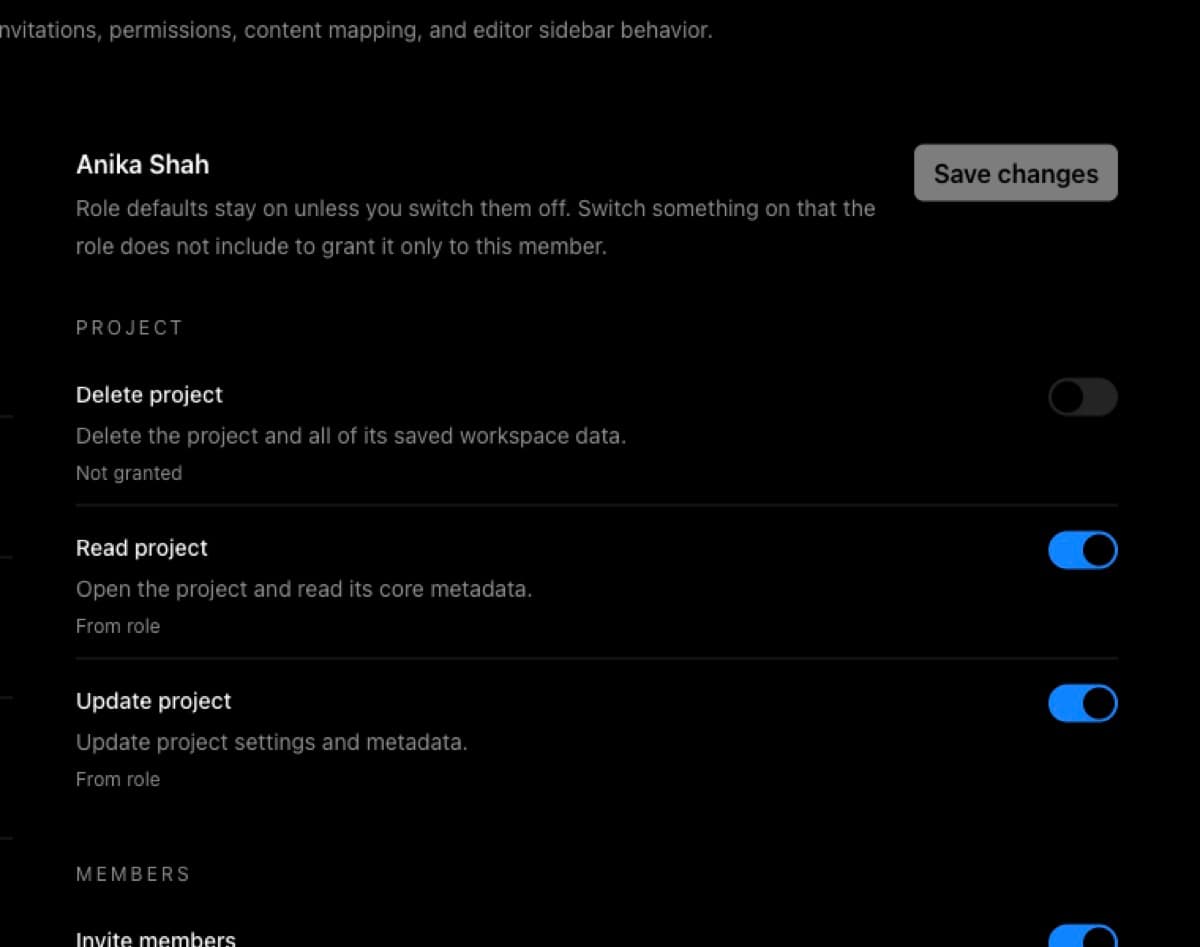
Do not remove the member if they still need the project but should have less access. Change their role or add a narrow permission override instead.
Use How to customize permissions on BaseBuddy when the role is close but one action should be allowed or denied. Use Permissions and roles: how BaseBuddy handles them when you need to choose between Owner, Admin, Editor, Author, and Viewer.
Add the person back later
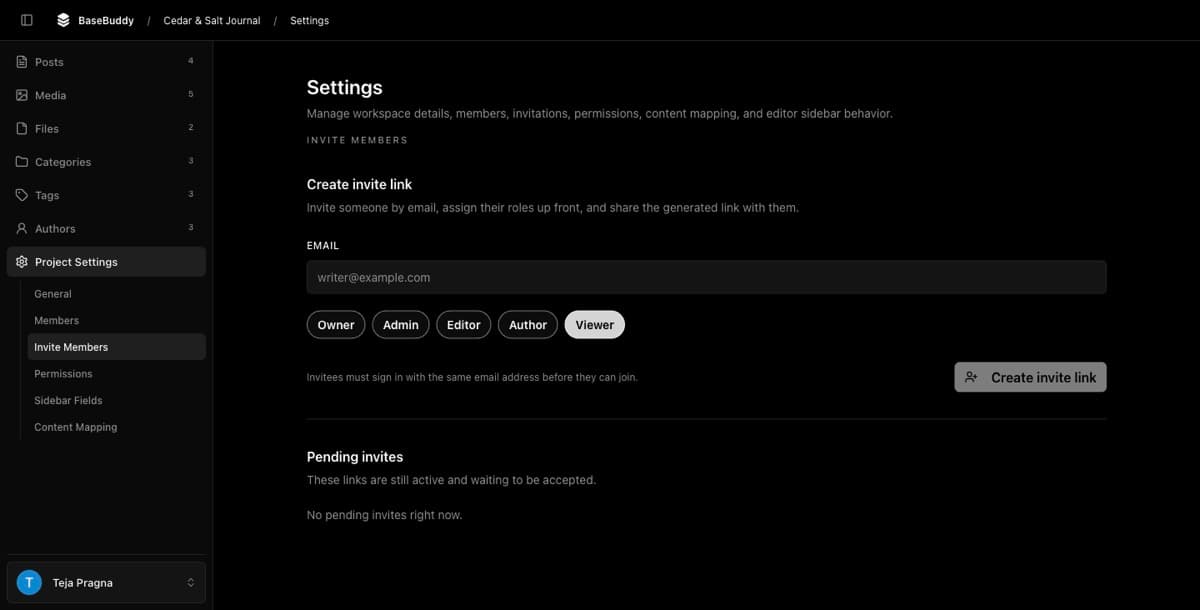
If the person needs access again, invite them back from Invite Members.
Create a new invite with the right roles and author scopes, then share the generated link through your team's trusted channel. See How to invite users to your BaseBuddy project for the full invite flow.
How to verify
After removing the member, check Current members and confirm the person is no longer listed.
If you can test with that user or a test account, sign in as them and open the project. They should no longer be able to access it. Then confirm any other projects they belong to still work as expected.