How to restore default sidebar fields
Return the post details sidebar to BaseBuddy's default field layout and save it for your project.
Use this when the fields beside an open post have been hidden, moved, or grouped in a way that no longer works for your editors.
This restores the post sidebar field layout under Project Settings -> Sidebar Fields. It does not change the left project navigation, your database schema, saved mapping, permissions, or post content.
Open Sidebar Fields
- Open your BaseBuddy project.
- Open Project Settings.
- Select Sidebar Fields.
You should see the current post sidebar field layout as an indented tree. The footer shows either Unsaved sidebar changes or Sidebar settings saved.
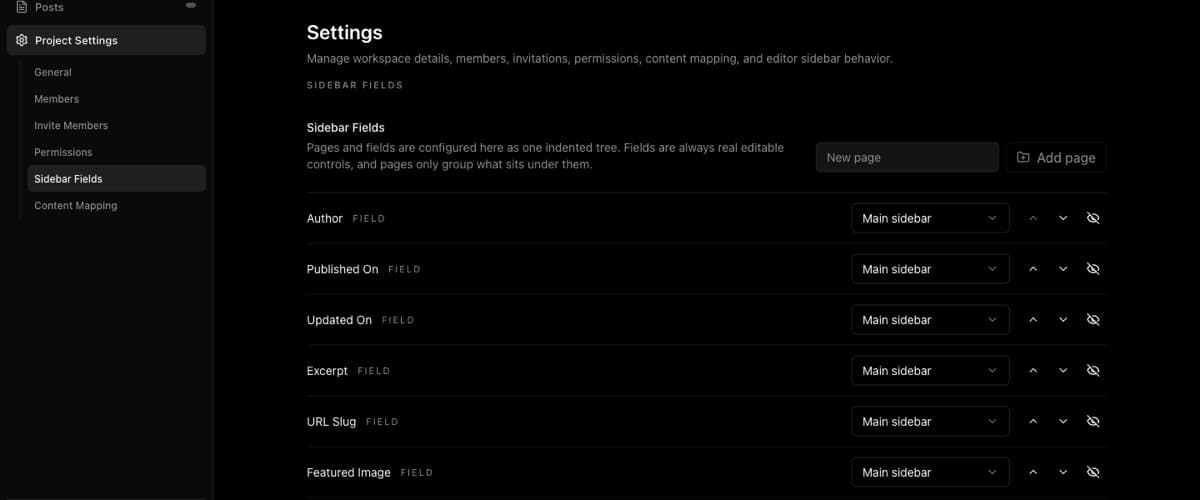
Choose the right reset action
Restore saved and Use default do different jobs.
| Button | What it does |
|---|---|
| Restore saved | Discards unsaved layout changes and returns the draft to the last saved layout. |
| Use default | Replaces the draft layout with BaseBuddy's default post sidebar field layout for the current project. |
| Save layout | Saves the current draft layout so editors see it when they open posts. |
If you only want to undo changes you made during this settings session, use Restore saved.
If you want to return to BaseBuddy's default field layout, use Use default, review the result, then click Save layout.
Use default only updates the draft layout on the settings screen. It is not persisted until you click Save layout.
Restore the default layout
- In Sidebar Fields, click Use default.
- Review the tree. Default pages such as
SEO FieldsandMeta Fieldsmay appear when the project has supported fields for them. - If the draft looks right, click Save layout.
- Wait for the save to finish. BaseBuddy shows Sidebar layout saved. when the layout is saved.
If you click Use default by mistake and have not saved yet, click Restore saved to return to the previously saved layout.
Verify in a post
- Open Posts.
- Open a post.
- Check the panel beside the post under Post Details.
- Open any page entries, such as SEO Fields or Meta Fields, and confirm the fields appear where you expect.
- Confirm fields that are still hidden, read-only, or missing match the saved mapping and field support for this project.

Restoring the layout does not make read-only or unsupported fields editable. If a field appears but cannot be edited, use How to fix a field showing as read-only.
For the broader editing model, including what Save writes when editors change post fields, see Editing content.
If the default layout is not what you expected
The default layout is based on the supported sidebar fields available to the current project. BaseBuddy reads your saved mapping to decide which fields can appear.
If a field is not available at all, check the mapping for that field. If the field is available but in the wrong place, use How to customize post sidebar fields to move, hide, group, or reorder it.
If you meant to change the left project navigation instead of the fields beside an open post, read How to customize your BaseBuddy sidebar.