How to organize images with folders
Create, open, search, move, and delete folders in the Media library without changing post content by accident.
Use this guide when your project's Media library has enough images that folders will make browsing easier.
Folders help you group images in storage. They do not change post body content, publish posts, or update existing image references in your site.
Open the Media library
- Open the project in BaseBuddy.
- Click Media in the project sidebar.
- Confirm you can see the media library, the Search images field, and the folder tools in the right sidebar.
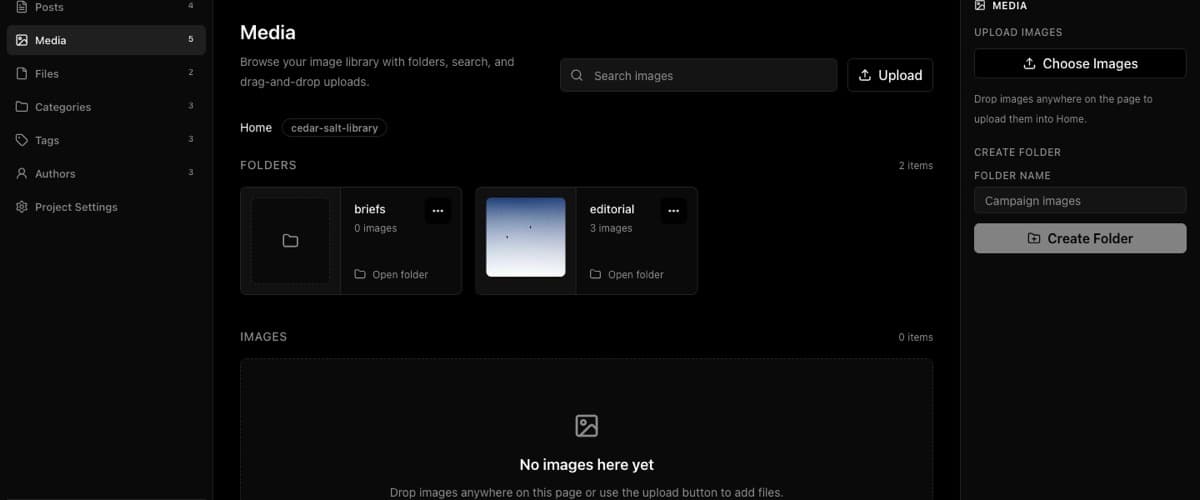
If Media is missing or shows setup guidance instead of the library, the project may need a media storage mapping first. See Media and files for the storage behavior BaseBuddy supports.
Create a folder
- In the right sidebar, find Create Folder.
- Type the new folder name in Folder Name.
- Click Create Folder.
BaseBuddy creates the folder where you currently are. If the breadcrumb shows Home, the folder is created at the top level of the media library. If you already opened another folder, the new folder is created inside that folder.
Folder names cannot contain slashes. Use a plain folder name such as Campaign images, not Campaign/images.
Open a folder before uploading
Open the destination folder before you upload if the image should land there.
- Click the folder card, or open the folder menu and choose Open folder.
- Check the breadcrumb to confirm you are no longer in Home.
- Upload with Upload or Choose Images, or drop images onto the page.
Images uploaded from an open folder are added to that folder. Images uploaded from Home are added at the top level.
Search folders and images
Use the search field at the top of the media library.
At Home, the field says Search images. Inside a folder, it says Search this folder.
When a search is active, the image section changes to Search Results. BaseBuddy searches image names and paths in the current folder scope. Clear the search term when you want to browse folders again.
Move or delete a folder
Folder cards have a menu with folder actions. From that menu, you can choose Open folder, Move Folder, or Delete Folder.
Use Move Folder when the images should stay in the media library but belong under a different folder. Moving a folder changes the storage object paths for everything inside that folder. It does not rewrite existing post body references, featured image references, or frontend code that may already point at the old paths.
Use Delete Folder only when you are sure the folder and its contents are no longer needed. Deleting a folder deletes everything inside it from the media library.
Folder actions do not publish, unpublish, archive, save, or update post body content. They only affect media storage objects.
Verify the folder is organized correctly
After creating, moving, or deleting folders:
- Return to Home with the breadcrumb if needed.
- Open the folder with Open folder.
- Confirm the expected images appear in the folder.
- Search with Search images or Search this folder to confirm important images are still findable.
- Check any live post or preview that already used a moved or deleted image, because BaseBuddy does not rewrite existing image references.
If your media library uses private storage, treat generated URLs as temporary. Signed or private URLs can expire and should not be copied into public docs, issues, screenshots, or long-lived content.
If folders do not behave as expected
| Symptom | What to check |
|---|---|
| Create Folder is disabled | Enter a folder name in Folder Name and confirm your account can manage media |
| Folder creation fails | Remove slashes from the folder name and try a shorter plain name |
| Uploaded images appear in the wrong place | Open the target folder before uploading |
| Search hides folders | Clear the search term to return from Search Results to normal folder browsing |
| A moved image no longer loads on your site | Update the existing post, field, or frontend reference that still points at the old path |
| A deleted image still appears somewhere | Check caching on your site and confirm the post or frontend is not using a stale URL |
For upload limits and bounded library reads, see Caps and rate limits.
Related guides
- Media and files
- Caps and rate limits
- How to upload and manage images in the Media library
- How to move or delete images safely
- How to insert images into a post