How to customize your BaseBuddy sidebar
Understand which BaseBuddy sidebar is fixed and which post sidebar fields you can customize.
BaseBuddy uses the word sidebar in two places.
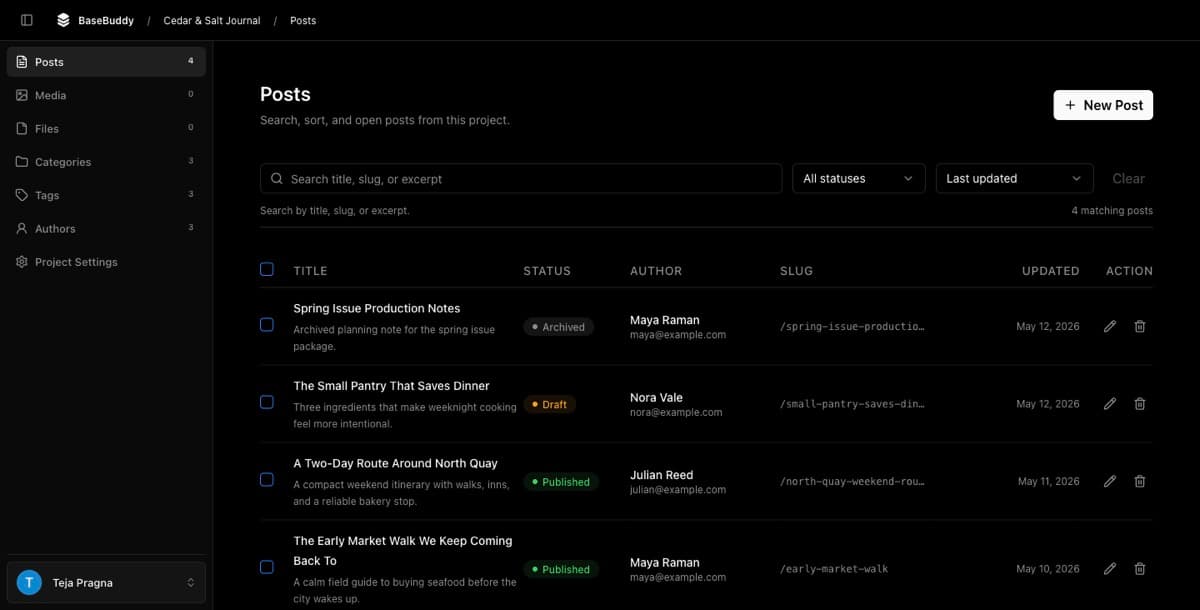
The left project navigation is fixed navigation for supported BaseBuddy areas. The field panel beside an open post is customizable through Project Settings -> Sidebar Fields.
This page explains the difference so you change the right surface.
The left project navigation is fixed
The left sidebar helps editors move between built-in BaseBuddy areas:
| Area | What it opens |
|---|---|
| Posts | The mapped post or content item list |
| Media | The image library, when media storage is configured |
| Files | The file library, when file storage is configured |
| Categories | The mapped category manager |
| Tags | The mapped tag manager |
| Authors | The mapped author manager, when the user can manage authors |
| Project Settings | Project details, members, permissions, mapping, and sidebar fields |
BaseBuddy does not support arbitrary custom navigation in this left sidebar. You cannot add custom app pages, external links, or team-specific destinations here.
You also should not treat the left navigation as a layout customization area. Its sections appear from the project state, saved mapping, storage setup, and the current user's permissions.
The post sidebar fields are customizable
The customizable sidebar surface is Project Settings -> Sidebar Fields.
This setting controls the details panel beside an open post. It lets project owners and admins adjust how post sidebar fields are grouped and ordered for editors.
Use Sidebar Fields when you want to:
- Move post details into a clearer order.
- Group related fields under pages such as SEO Fields or Meta Fields.
- Hide supported fields that editors do not need in the post sidebar.
- Restore the saved layout or return to the default layout.
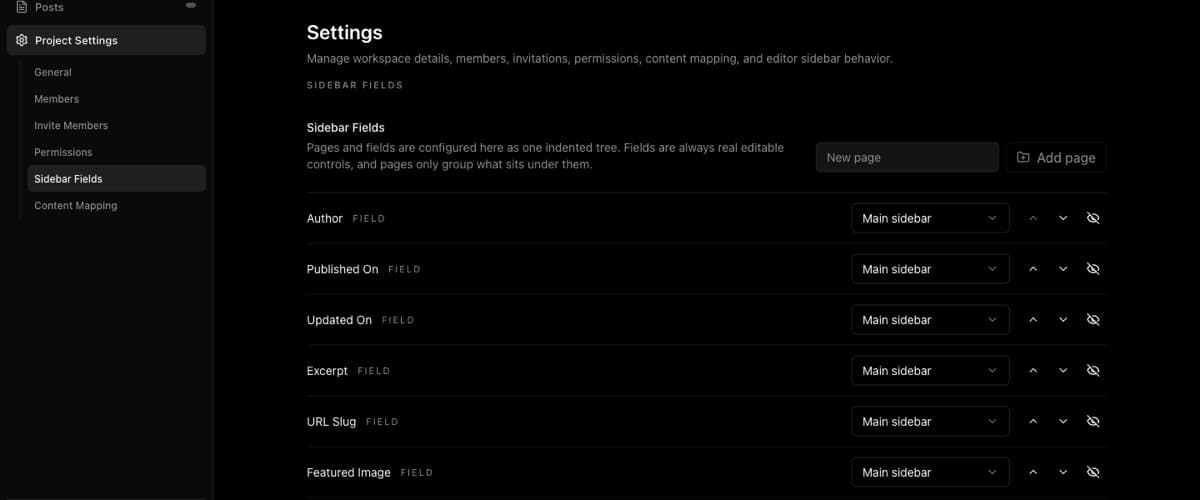
Fields in this screen come from BaseBuddy's supported post sidebar fields and the saved mapping. Pages only group fields. They do not create new app pages, change the left project navigation, or add new database fields.
If a field is read-only or unsupported because of its mapping, moving it in Sidebar Fields does not make it editable. Fix the mapping first, or keep the field hidden until it is safe for editors.

Where to go next
For the exact controls in Sidebar Fields, follow How to customize post sidebar fields.
If you want to undo changes and return to BaseBuddy's default post sidebar field layout, follow How to restore default sidebar fields.