How mapping works on BaseBuddy
Understand how BaseBuddy turns your existing tables, fields, and relations into an editor without changing your schema.
Mapping is how BaseBuddy connects your existing database to the editor. It tells BaseBuddy where content lives, which fields editors should see, what kind of control each field needs, and how a save can write back safely.
This matters because BaseBuddy does not create a new CMS schema or reshape your tables. Your content stays where it already is. The saved mapping is the agreement BaseBuddy follows at runtime.
Mapping in one minute
BaseBuddy starts with the tables, columns, JSON paths, relations, media references, and file references you already have. You map those storage locations to editor fields. After you save the mapping, BaseBuddy uses it to load lists, render editor controls, validate changes, and write only the storage target that changed.
Auto-detection can help suggest a starting point, but it is not the runtime truth. The latest saved mapping is.
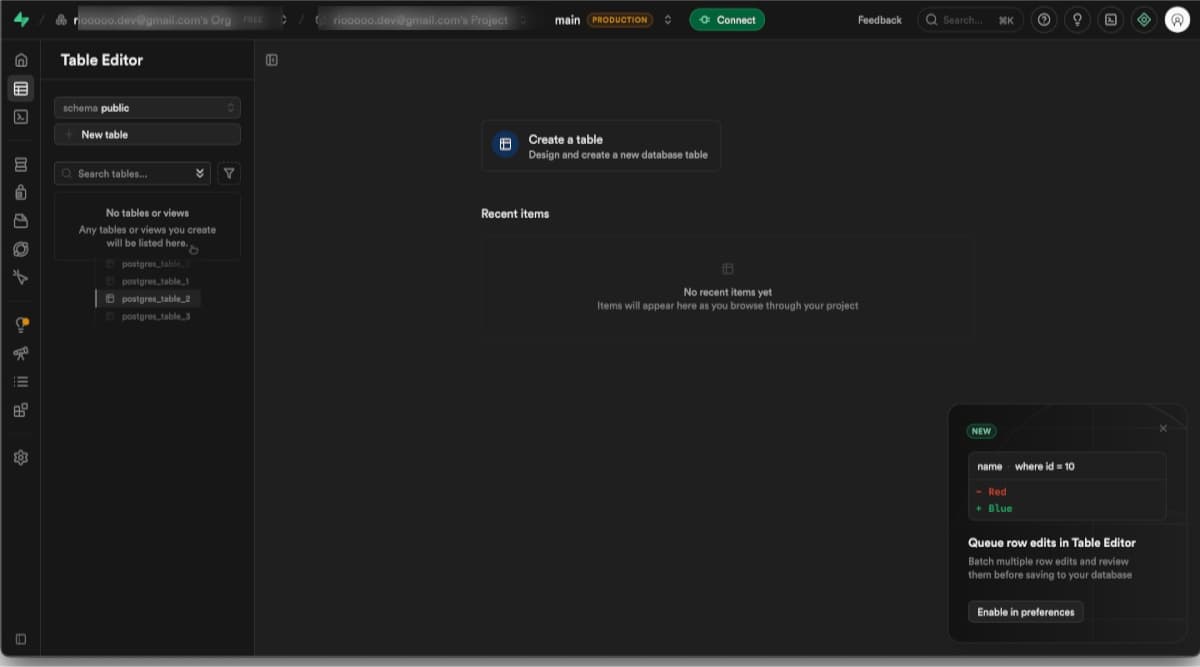
How the mapping screen works
Open Project Settings -> Content Mapping to review the areas BaseBuddy can connect for a project. The mapping overview shows sections such as Posts, Media, Files, Categories, Tags, and Authors.
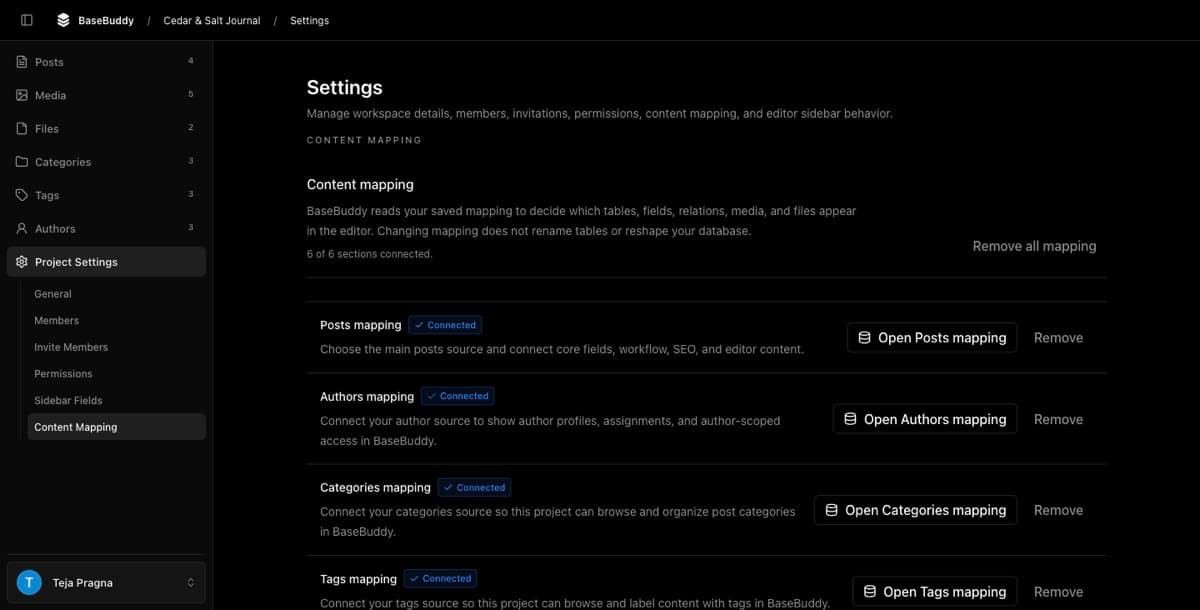
For most projects, start with Posts. A posts mapping usually begins with the table where one row is one editable item. That table might be named posts, articles, pages, documents, or something custom.
The posts mapping flow then asks you to choose fields such as:
| Field | What BaseBuddy needs to know |
|---|---|
| ID | The stable row identifier BaseBuddy can use to open and update one item |
| Title | The field editors recognize in lists and editor headers |
| Content | The main body field and its format, such as Markdown, HTML, text, or JSON |
| Slug | The stored address or route value, if your app uses one |
| Status | The stored draft, published, archived, boolean, or custom workflow value |
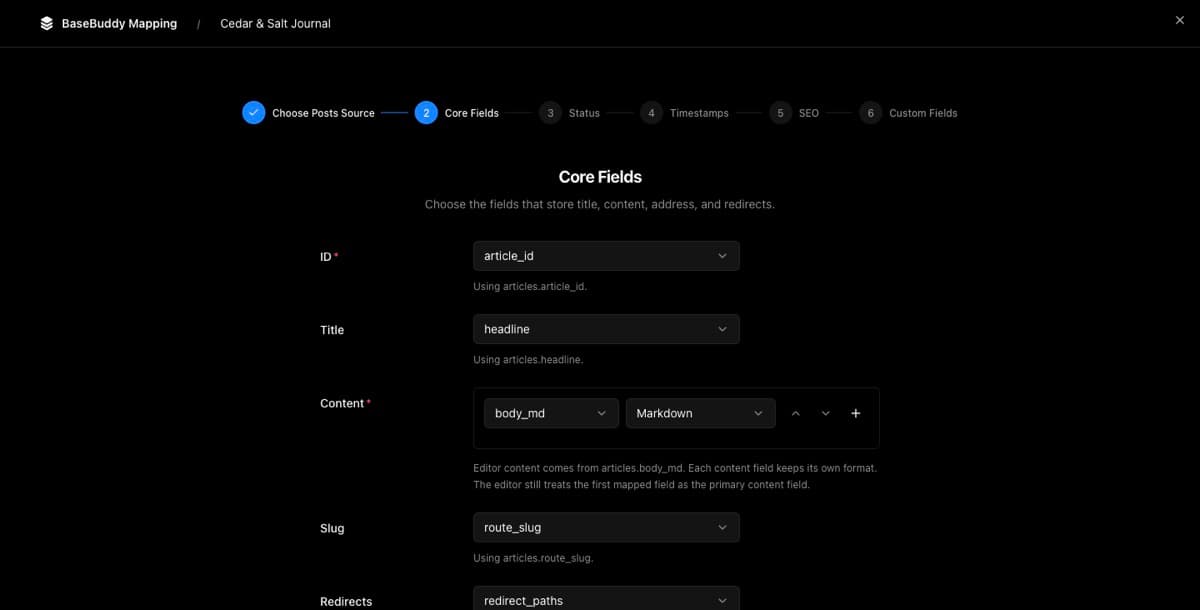
After the core fields are clear, you can add dates, SEO fields, custom fields, media, files, authors, categories, and tags. Those can live in direct columns, JSON paths, arrays, foreign keys, helper rows, or join tables, as long as the mapping is explicit enough for BaseBuddy to read and write safely.
What the saved mapping controls
When you save a mapping, BaseBuddy stores a runtime contract for the project. That contract answers a few practical questions for each field:
| Question | Example |
|---|---|
| Where is this value stored? | articles.title, payload->seo->title, post_tags.tag_id |
| What kind of value is it? | Text, Markdown, number, boolean, enum, datetime, JSON, relation, media, file |
| Is it one value or a list? | One author, many tags, one slug, many redirects |
| Can BaseBuddy edit it safely? | Editable direct column, patchable JSON path, read-only generated field |
| How should Save write it? | Update one column, patch one JSON path, diff join rows, or do not write |
BaseBuddy picks editor controls from the storage shape first. A semantic role like title, content, slug, status, or publishedAt can refine labels and workflow behavior, but it does not replace the storage rules underneath.
That is why two projects can both have a field called Title while saving differently. One title might be a direct text column. Another might live inside a JSON object. The label can be familiar, but the saved storage contract decides how BaseBuddy reads and writes.

Map safely the first time
Start with the smallest useful mapping. Choose the source table, then map only the fields editors need to find and safely edit one item.
- Choose the table where one row is one editable post, article, page, or document.
- Map the ID, title, and primary content field.
- Choose the real content format, such as Markdown, HTML, plain text, or JSON.
- Map slug and status only if the write path is clear.
- Leave generated, computed, trigger-owned, unfamiliar, broad JSON, relation, media, file, or workflow-sensitive fields out of the first test unless you already know they are safe.
- Save the mapping.
If a field can be read but cannot be patched safely, BaseBuddy should show it as read-only or unsupported. Read-only is a safety feature, not a failure. It prevents normal Save from writing the wrong column, replacing too much JSON, changing a relation unexpectedly, or editing a database-generated value.
Normal Save writes dirty mapped fields only. It should not publish, unpublish, archive, rewrite unrelated values, or silently convert Markdown, HTML, JSON, arrays, or relation shapes. Publish, Unpublish, and Archive are separate explicit actions.
Verify before editors use it
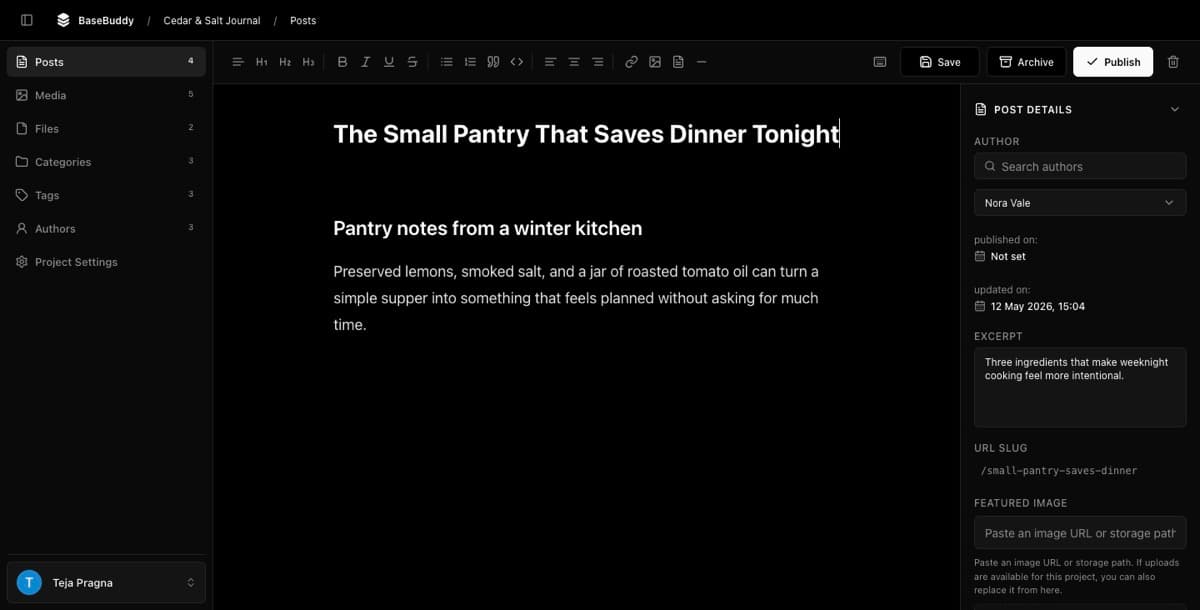
After saving a mapping, test one harmless item before inviting editors or using the project for regular production edits.
- Open the posts list and confirm the expected rows load.
- Open one safe draft, test page, or low-risk record.
- Confirm the editor shows the fields you intended to map.
- Open the item without editing and confirm nothing writes to the database.
- Change one harmless text field and select Save.
- Inspect the same row in Supabase or your database client.
- Confirm only the mapped storage target for that field changed.
- Test Publish, Unpublish, or Archive separately if your project uses workflow actions.
If more changed than expected, stop and review the mapping before continuing. The usual cause is a field mapped to the wrong source, a broad JSON or helper-row write target, or a relation shape that should stay read-only until it has a safer mapping.
Common surprises
Auto-detection is only a starting point. If the suggestion does not match your schema, switch to manual mapping and choose the real table, field, relation, or storage source.
A field may appear read-only when it is generated, view-derived, trigger-managed, unsupported, missing a safe write path, or blocked by permissions. Make it editable only after you know exactly where BaseBuddy should write.
Content format matters. If your app stores Markdown, map it as Markdown. If it stores HTML, map it as HTML. BaseBuddy should preserve the mapped storage format on normal save.
Relations need their real shape. A single author foreign key, a many-to-many tag join table, a text array, and a JSON relation list are different storage contracts. Map the actual shape instead of forcing every relation into the same model.
Related guides
- How to map a posts table
- How to map markdown content safely
- How to fix a field showing as read-only
- How to safely edit your first post
- How to publish, unpublish, and archive content
- Projects and mappings
- Mapping fields and relations
- Storage contract and UI
- Safe editing model