How to map categories on BaseBuddy
Connect your existing category storage so categories appear in the post editor and the built-in Categories section.
Use this guide when your posts already have categories in Postgres or Supabase and you want BaseBuddy editors to assign them safely.
BaseBuddy supports categories in two built-in places: as a category relation beside an open post, and as the Categories section in the project sidebar after categories are mapped. This is not arbitrary sidebar customization. You are connecting your existing category storage to BaseBuddy's supported category editor.
BaseBuddy does not create a new taxonomy model, rename your tables, or move category data into BaseBuddy-owned tables. The saved mapping tells BaseBuddy where categories live and how a category change should be written.
Choose the real category shape
Start from how your database stores the relationship today.
| Storage shape | Common example | How to map it |
|---|---|---|
| Single foreign key | posts.category_id points to categories.id | Map the category field to the post column. BaseBuddy shows a single category selector. |
| Join table | post_categories.post_id and post_categories.category_id | Choose Stored in another table, then select the connection table and item column. BaseBuddy shows a multi-category selector. |
| Array column | posts.category_ids or posts.categories | Map the array column when the values match category IDs or safe stored values. |
| JSON array | posts.metadata.categories or a JSON column with category values | Map the JSON column and confirm the JSON array shape when BaseBuddy shows that control. |
| Derived text values | posts.category or distinct category names on posts | Treat this as limited or read-only unless the mapping has a safe write path. |
If the relation is trigger-owned, view-derived, polymorphic without clear discriminator rules, or unclear to patch, keep it read-only or unsupported until the database owner confirms the write path.
Map the category fields
Categories need a readable category source as well as the post-to-category connection.
Map the fields BaseBuddy can safely use:
| Category field | Common columns | Notes |
|---|---|---|
| ID | id, category_id | The stable value BaseBuddy uses to identify one category. |
| Name | name, title, category_name | The label editors see in selectors and the Categories section. |
| Slug | slug, handle | Optional, but useful when your site routes categories by slug. |
| Description | description, summary, excerpt | Optional editing field for category metadata. |
| Parent Category | parent_id, parent_category_id, parent | Optional hierarchy field for nested categories. |
Only map fields that exist in your current schema. If your category table does not have descriptions or parents, skip those fields instead of inventing them.
Open category mapping
- Open your BaseBuddy project.
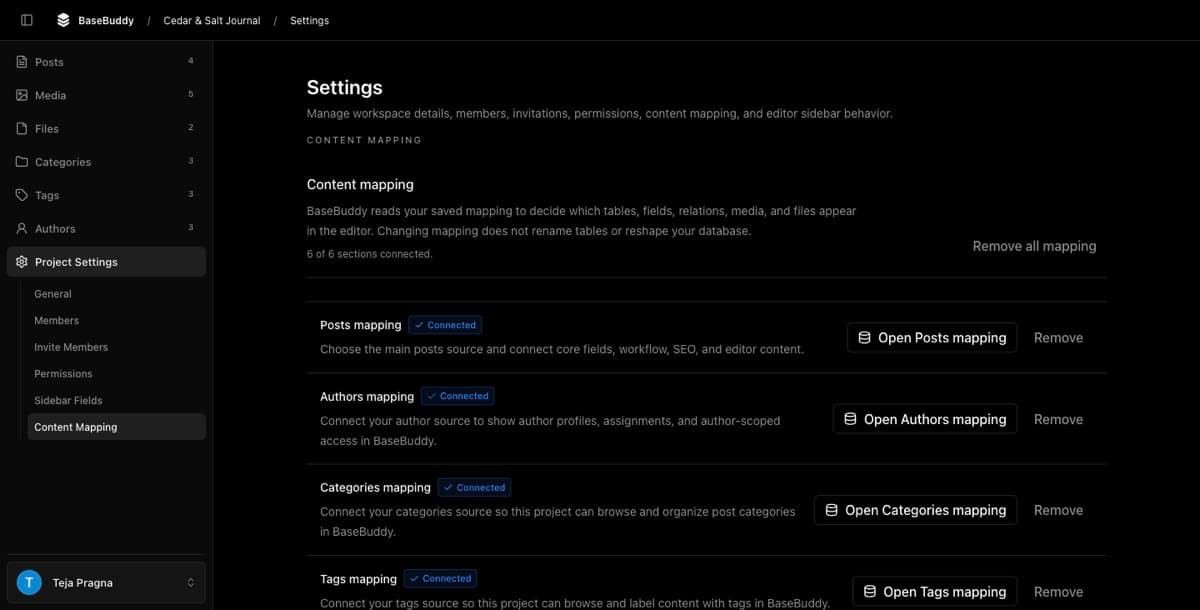
- Select Project Settings in the sidebar.
- Open Mapping.
- Confirm Posts mapping is connected first. Category mapping depends on the posts source.
- Find Categories mapping.
- Click Open Categories mapping.
If the button says Map Posts first, open Posts mapping, finish the posts setup, save it, then return to Categories mapping.
Connect posts to categories
In the mapping dialog, BaseBuddy opens the Categories step.
- Use the Categories field to choose where the post stores category assignment.
- For a single foreign key, choose the post column such as
category_id. - For a join table, choose Stored in another table, then select the connection table such as
post_categories. - Choose the item column that points at the category table.
- For an array or JSON column, select the stored column and review the shape controls BaseBuddy shows.
- Map the category fields: ID, Name, Slug, Description, and Parent where available.
- Click Finish.
- In the confirmation dialog, click Save mapping.
After saving, BaseBuddy reloads from the saved mapping. Normal post saves will use that mapping instead of guessing from table names.
Check the editor
Open a post after the mapping is saved. The category relation should appear in the post sidebar when the field is mapped and visible.

Change categories on one safe test post before editors rely on the setup. Click Save, then inspect the row or relation table in Supabase or your database client.
| If your mapping uses | Good result |
|---|---|
| Foreign key | Only the mapped category foreign-key column changes. |
| Join table | Only the mapped rows for that post are replaced or updated. |
| Array column | Only the mapped category array changes. |
| JSON array | Only the mapped JSON category value changes. |
Changing categories should not publish, unpublish, archive, rewrite content, or change unrelated fields.
Check the built-in Categories section
After categories are mapped, Categories is a supported BaseBuddy section in the project sidebar. It is not a custom page.
Open Categories from the project sidebar and confirm category rows load. Project owners, admins, and editors can manage categories when their role allows it. Lower-permission users may see read-only or unavailable controls depending on project permissions.
If your mapping includes writable category fields, test one low-risk change:
- Create or edit one category with a clear sample name.
- Save it.
- Confirm the mapped category table changed only in the expected columns.
- Reopen the post editor and confirm the category appears in the selector.
If your category source is limited or read-only, BaseBuddy may show existing categories for selection or display without allowing category row management.
Common issues
If Categories still shows Set up, return to Project Settings -> Content Mapping and check that Categories mapping is connected. Also confirm posts mapping is already saved.
If the wrong category appears on a post, check the relation path first: the post foreign key, join table source column, join table item column, array values, or JSON values may be pointing at the wrong stored value.
If category options do not load, check the mapped category ID and Name fields. BaseBuddy needs a stable ID and readable label to show useful selector options.
If the field is read-only or unsupported, do not force it editable just to remove the label. Fix the mapped write path, or keep the relation display-only until the storage shape is safe.