How to accept a BaseBuddy invite
Open a BaseBuddy project invite, sign in with the invited email address, accept the invitation, and open the project.
Use this guide when someone sends you a BaseBuddy invite link for a project.
Invite links are sensitive. Treat the link like access to the project, and only use it if it was meant for you. BaseBuddy will only let the invite be accepted by the email address shown on the invite.
Open the invite link
Open the invite link from the project owner or admin.
The invite page shows:
| Field | What to check |
|---|---|
| Project | The project you are joining |
| Expires | When the invite stops working |
| Invited Email | The exact email address that must accept the invite |
| Current Account | The account currently signed in on this browser |
Check Invited Email first. You need to sign in with that exact email address before you can join the project.
Sign in with the invited email
If the page shows Sign in or create your account first, select Sign in with invited email.
BaseBuddy opens the normal sign-in page and pre-fills the invited email when it can. Sign in with the local password account that uses the invited email address.
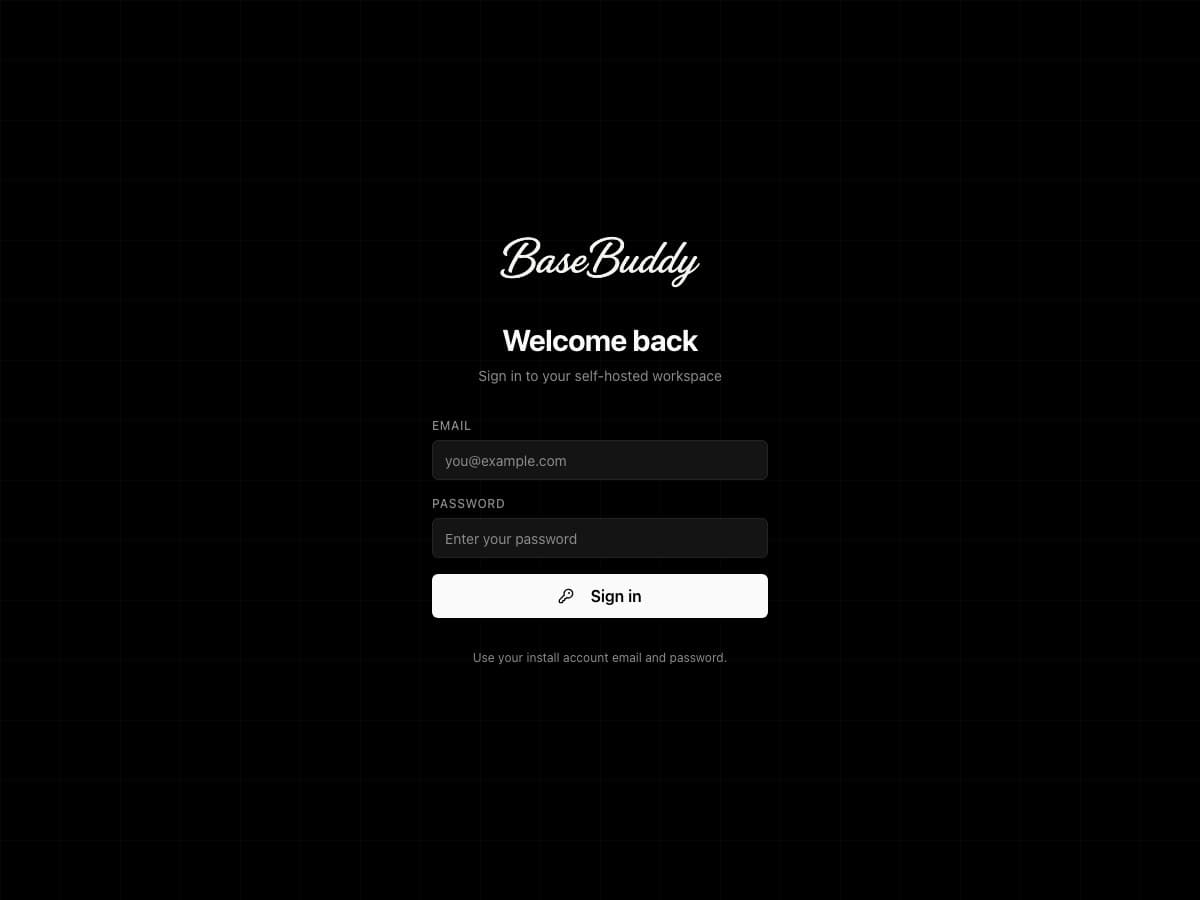
After sign-in succeeds, BaseBuddy should return you to the invite page.
Use the same browser where you opened the invite. If the browser does not return to the invite page after password sign-in, ask the project owner to check BaseBuddy sign-in setup.
Accept the invite
When you are signed in with the invited email, the invite page shows Ready to join.
Review the project name, roles, author scopes if shown, expiry date, and current account. Then select Accept invitation.
BaseBuddy adds you to the project and opens the project page. If the project does not open automatically, return to BaseBuddy and open Projects.
If the page shows a different state
| State | What it means | What to do |
|---|---|---|
| Sign in or create your account first | You are not signed in yet. | Select Sign in with invited email and sign in with the email shown under Invited Email. |
| Ready to join | You are signed in with the invited email. | Select Accept invitation. |
| Wrong account | This browser is signed in as a different email. | Select Switch account, then sign in with the invited email. For more help, see Fix a BaseBuddy invite opened with the wrong account. |
| This invite has already been accepted | The invite was already used. | If you accepted it, sign in with the invited email and open the project. If you still cannot access the project, ask an owner or admin to check your membership. |
| This invite expired | The invite is past its expiry date. | Ask a project owner or admin for a fresh invite link. |
| This invite was revoked | A project owner or admin cancelled the invite. | Ask whether you should receive a new invite. |
| Invitation not found | The link is invalid, incomplete, deleted, or no longer available. | Ask the sender for a fresh invite link. |
Verify access
After accepting the invite:
- Open Projects.
- Open the invited project.
- Confirm you can see the sections and actions your role should allow.
If you expected more access, ask the project owner or admin to review your role, permission overrides, and author scopes. BaseBuddy access is project-specific, so being a member of one project does not automatically give access to another project.
Related guides
- How to invite users to your BaseBuddy project
- How to fix an invite opened with the wrong account
- How to verify BaseBuddy sign-in setup
- How to create local password sign-in users
- Permissions and teams