How to give a user access to only their own posts
Use author mapping, the Author role, and author scopes so a member can work only on posts assigned to their mapped author record.
Use this when a contributor should sign in to BaseBuddy and work only on posts assigned to their own mapped author record.
BaseBuddy cannot infer ownership from local BaseBuddy auth, the member's email address, or an author email field alone. The saved post-author mapping is required. BaseBuddy needs to know which author record belongs to the member and which posts point to that author record.
If you are still deciding whether this person needs an author record, a member account, or both, start with Authors vs members: what is the difference?.
Before you start
Make sure your posts and authors are mapped first.
- Open the project.
- Open Project Settings.
- Open Mapping.
- Confirm Posts mapping is saved.
- Confirm Authors mapping is saved.
- Open a known post and check that the sidebar shows the correct Author.

If the wrong author appears, fix the mapping before changing member access. Author-scoped permissions use the saved author relation, so a bad relation means the wrong posts may be included or excluded.
Use How to map authors to posts on BaseBuddy or How to set up authors on BaseBuddy if author mapping is not ready yet.
Choose the right access shape
For own-post access, use the Author role with one or more Author scopes.
Do not combine Author with all-content roles when the goal is only that user's own posts. In the default roles, Viewer can read all content, Editor can read and edit all content, and Admin or Owner can manage much more than authored content.
Use this pattern instead:
| Access piece | What to choose |
|---|---|
| Role | Author |
| Author scope | The mapped author record for that contributor |
| Publish switch | On only if they should publish for that author |
| All-content roles | Leave Viewer, Editor, Admin, and Owner off unless the user should have broader access |
For the full role matrix, see Permissions and roles: how BaseBuddy handles them.
Update an existing member
Use this flow when the person is already a project member.
- Open the project.
- Select Project Settings in the sidebar.
- Open Members.
- Find the member.
- Select Manage access.
- Under Roles, select Author.
- Remove all-content roles such as Viewer, Editor, Admin, or Owner unless the user should keep broader access.
- Under Author scopes, select the author record that belongs to this user.
- Use the Publish switch for that author only if the user should publish, unpublish, archive, or save mapped status changes for their posts.
- Select Save access.
Changes apply only after you select Save access for that member.
If no author options appear, BaseBuddy does not have usable author records for this project yet. Recheck the saved author mapping and confirm at least one post shows the expected Author in the editor.
For a narrower version of this flow, see How to assign author scope to a member.
Invite a new user with own-post access
Use this flow when the person is not a member yet.
- Open the project.
- Select Project Settings in the sidebar.
- Open Invite Members.
- Enter the user's email address.
- Under Roles, select Author.
- Do not select all-content roles such as Viewer or Editor if the goal is only own-post access.
- Under Author scopes, select the mapped author record for that user.
- Turn Publish on only if this user should publish for that author.
- Select Create invite link.
- Share the copied invite link through your team's trusted channel.
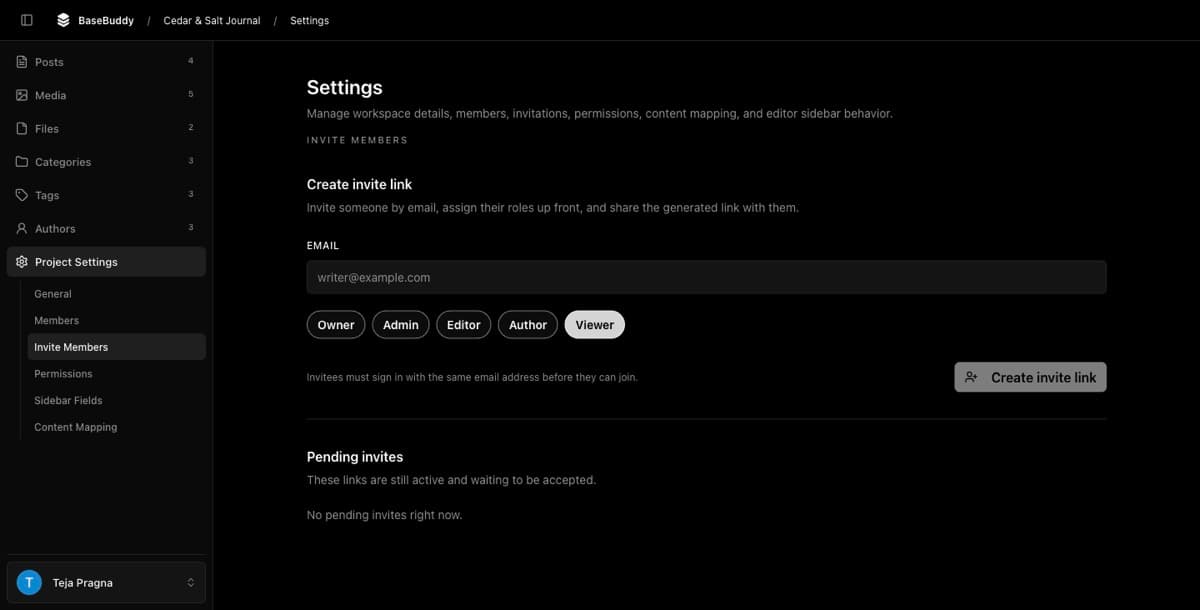
Invitees must sign in with the same email address used on the invite. For the full invite flow, see How to invite users to your BaseBuddy project.
How read, edit, and publish are limited
BaseBuddy checks both permissions and the mapped post-author relation.
| Action | What BaseBuddy checks |
|---|---|
| Read | The member has authored read access and the post is assigned to one of their selected author scopes. |
| Edit | The member has authored edit access and the post is assigned to one of their selected author scopes. |
| Publish, unpublish, or archive | The member has authored publish access, the post is assigned to one of their selected author scopes, and that scope's Publish switch is on. |
| Save a mapped status change | The same publish check applies when a normal save changes mapped workflow status. |
If the Publish switch is off for an author scope, the member may still read and edit posts for that author, but they cannot publish, unpublish, archive, or save a mapped status change for those posts.
Posts without a mapped author, posts assigned to another author, or posts whose author relation is unsupported for access checks should not be treated as the user's own posts. Fix the saved mapping before relying on author-scoped access.
Verify the result
Test with the affected user or a test account that has the same role and author scope.
- Choose one post assigned to the user's mapped author record.
- Choose another post assigned to a different author, or a post with no mapped author.
- Sign in as the user.
- Confirm the assigned post is available.
- Open the assigned post and make a small safe edit.
- Select Save and confirm the edit succeeds.
- Confirm the unassigned or different-author post is not available, or cannot be opened or edited.
- If Publish is on, test Publish, Unpublish, Archive, and one normal save that changes mapped status.
- If Publish is off, confirm those publish and status-change actions are blocked.
If the user can see too much, check whether they also have Viewer, Editor, Admin, Owner, or an explicit all-content permission.
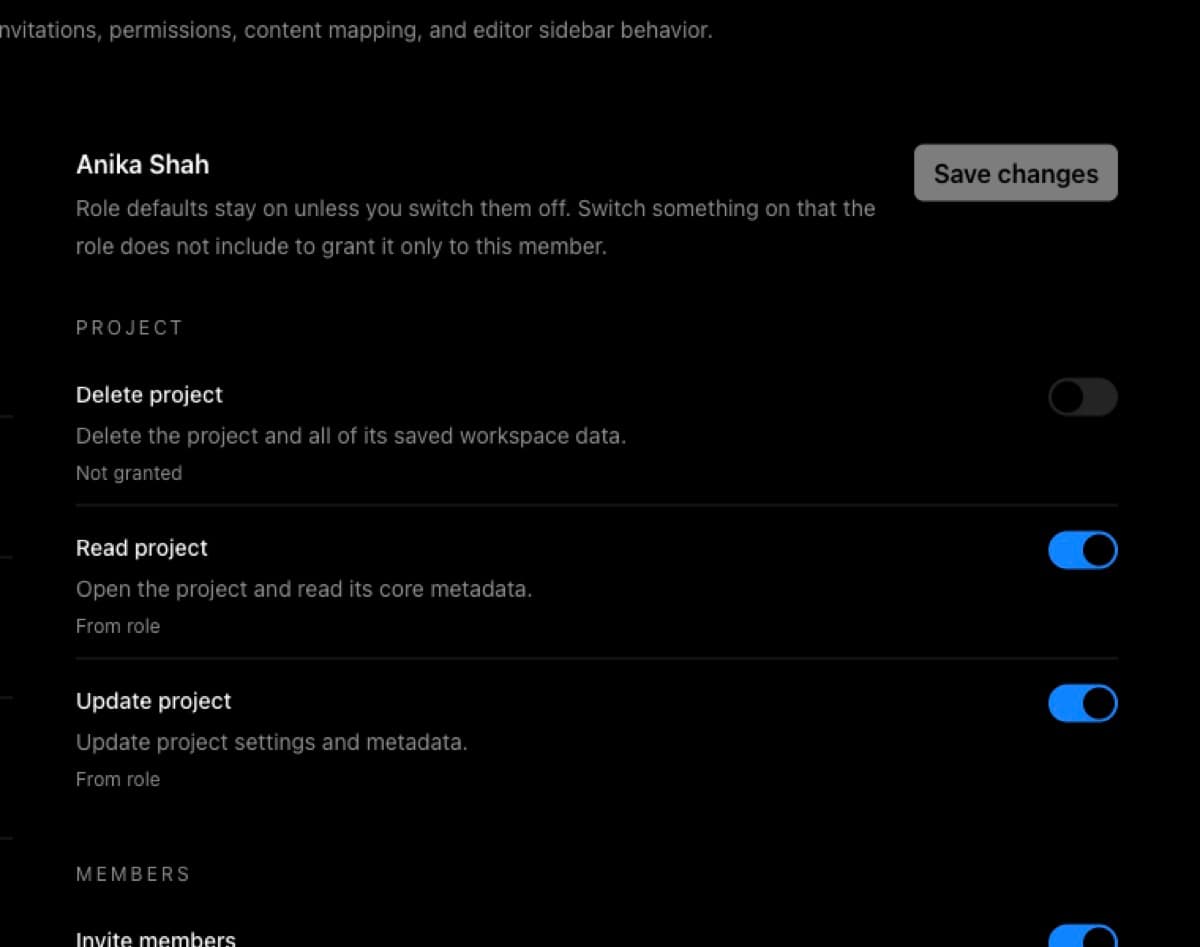
If the user cannot see the assigned post, check the saved author mapping first, then check the member's Author role, selected Author scopes, the Publish switch, and any permission overrides.
What this does not cover
This page does not set up Supabase Row Level Security, change your content schema, create a new authors table, or sync local BaseBuddy auth users to author records.
It also does not promise automatic ownership detection from email fields. Email can help your team recognize a person, but BaseBuddy uses the saved post-author mapping and the member's author scopes for authored access.
Related guides
- How to map authors to posts on BaseBuddy
- How to set up authors on BaseBuddy
- How to assign author scope to a member
- Authors vs members: what is the difference?
- Permissions and roles: how BaseBuddy handles them
- How to invite users to your BaseBuddy project
- How to customize permissions on BaseBuddy