How to rotate exposed Supabase keys and database passwords
Rotate leaked Supabase secret keys, legacy service-role keys, and database passwords, then update BaseBuddy env values and verify setup checks.
If a Supabase key, database URL, database password, or full config file was committed, pasted into chat, shared in a screenshot, or printed in public logs, remove the public copy and rotate the exposed secret.
Deleting the public copy is not enough. Treat the value as exposed once someone else could have copied it.
Identify what was exposed
Start by deciding which value leaked. This keeps you from rotating the wrong thing while the old secret is still active.
| Exposed value | What to rotate or check |
|---|---|
Supabase secret key, sb_secret_..., or legacy service_role key | Rotate the server key before using the project again |
| Database URL | Rotate the database password because the URL contains it |
| Database password | Rotate that password and rebuild every connection string that used it |
Full basebuddy-data/basebuddy.config.json file | Treat every secret, password hash, and session in the file as exposed |
Publishable key, sb_publishable_..., or legacy anon key | Review Row Level Security and public access; rotate only if your process requires it |
For BaseBuddy, credentials are saved in env, not basebuddy-data/basebuddy.config.json. Do not add replacement keys, passwords, or database URLs to screenshots, issues, or support messages.
Rotate a Supabase secret key
Use this section when the exposed value is a Supabase sb_secret_... key or a legacy service_role key.
- Open the Supabase Dashboard.
- Select the project that BaseBuddy uses.
- Open Project Settings.
- Select API Keys.
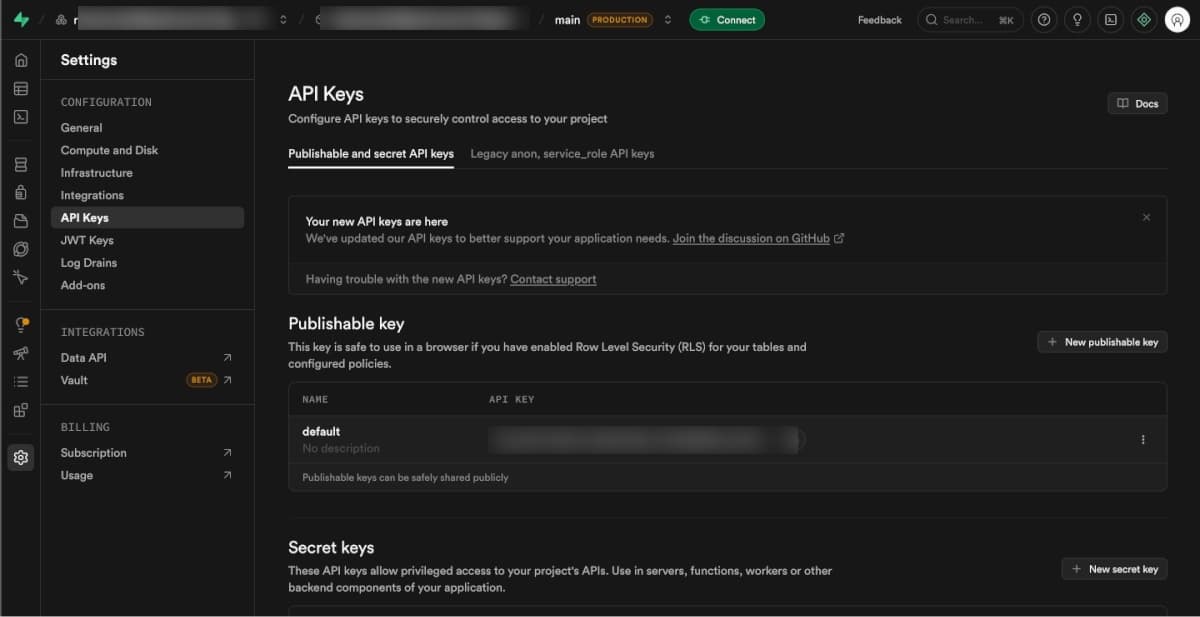
If your project uses the newer sb_secret_... keys, create a new secret key in the Secret keys area. Copy it once and store it in your deployment secret manager or .env file.
Update the matching BaseBuddy env value:
shBASEBUDDY_SUPABASE_SECRET_KEY=new-server-keyOnly update the project that was exposed.
Restart or redeploy BaseBuddy before deleting the old Supabase key. After the new deployment is running and setup checks pass, return to Project Settings -> API Keys and delete the exposed key.
Supabase documents this flow in Understanding API keys. If your project still relies on legacy anon and service_role JWT keys, follow Supabase's guide to rotating legacy anon, service, and JWT secrets.
Handle publishable or anon keys correctly
A publishable key is designed to be used by browser-side clients. A legacy anon key is the older version of that browser-facing key.
If only the publishable or anon key was exposed, the urgent question is not whether someone saw the key. The urgent question is what your Row Level Security policies allow the anon and authenticated roles to do.
Check:
- RLS is enabled on tables that should not be publicly readable or writable.
- Policies do not grant more access than you intend.
- Public storage buckets contain only files you are comfortable serving publicly.
- The Supabase Security Advisor has no ignored findings you do not understand.
If your team requires publishable-key rotation anyway, create a replacement publishable key in Project Settings -> API Keys, update the matching BaseBuddy env value, verify the app, and then delete the old key if Supabase allows deletion for that key type.
shBASEBUDDY_SUPABASE_PUBLISHABLE_KEY=new-publishable-keyDo not rotate a legacy JWT secret casually on a production project. Follow Supabase's legacy rotation guide because changing JWT-backed keys can affect active clients and sessions.
Rotate the database password
Use this section when a database URL or database password was exposed. A Postgres URL contains the password between the username and @.
txtpostgresql://USER:PASSWORD@HOST:PORT/postgresIn Supabase, open your project and go to Database -> Settings.
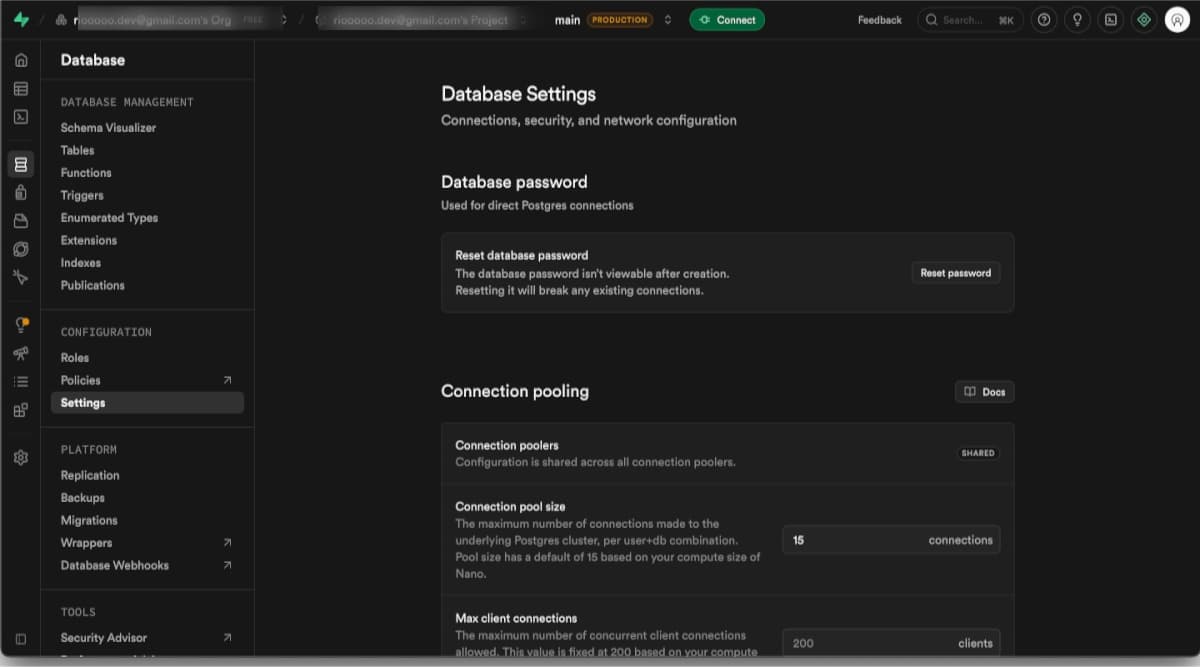
Before you reset the password, find any other apps, workers, local .env files, or database tools that use the same database user. They will need the new connection string too.
If BaseBuddy uses the default Supabase postgres database user, reset the project database password from this page.
If BaseBuddy uses a dedicated database user, rotate that role's password in the Supabase query editor instead:
sqlalter role basebuddy_app with password 'new-long-generated-password';Replace basebuddy_app with the database username from your BaseBuddy database URL. Use a password manager to generate the new password.
After changing the password, open the Supabase connection dialog and copy a fresh connection string.
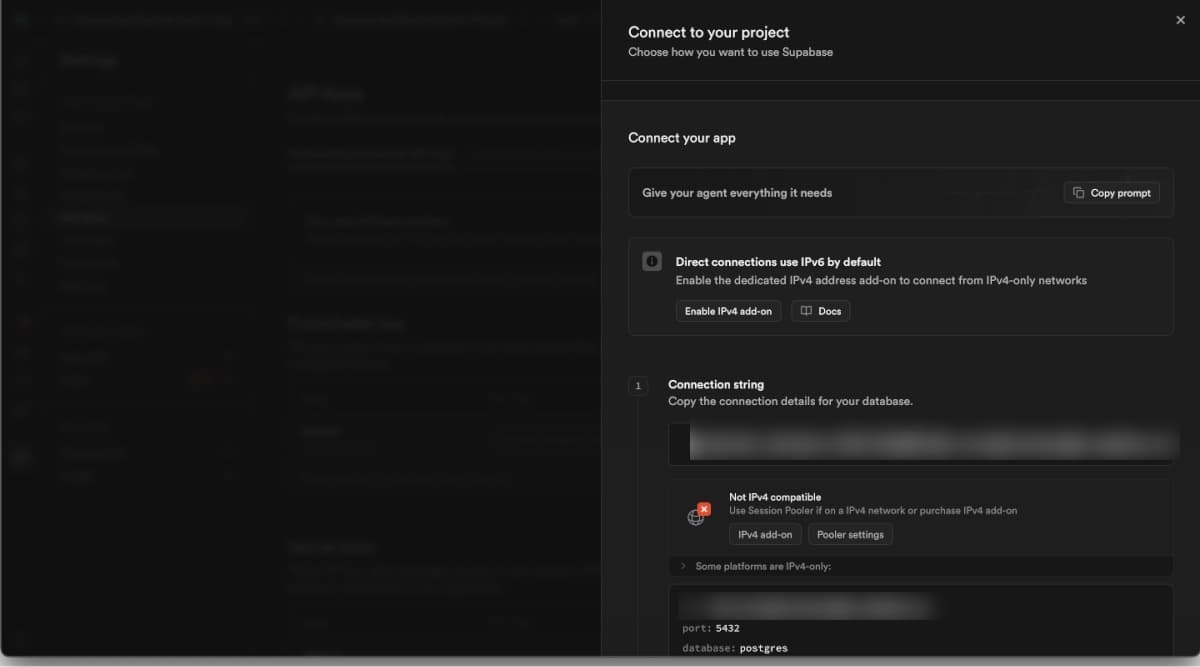
Replace the password placeholder with the new password. If the password contains special characters, URL-encode it before placing it in the connection string.
| Character | Encoded value |
|---|---|
@ | %40 |
: | %3A |
/ | %2F |
? | %3F |
# | %23 |
% | %25 |
Then update the matching BaseBuddy database URL in env:
shBASEBUDDY_CONTENT_DATABASE_URL=postgresql://...Do not mix direct and pooler URL pieces. If you switch connection modes, copy the whole Supabase connection string again and replace only the password.
Supabase also documents resetting the database password and managing Postgres role passwords.
Update BaseBuddy env values
BaseBuddy reads install credentials from env.
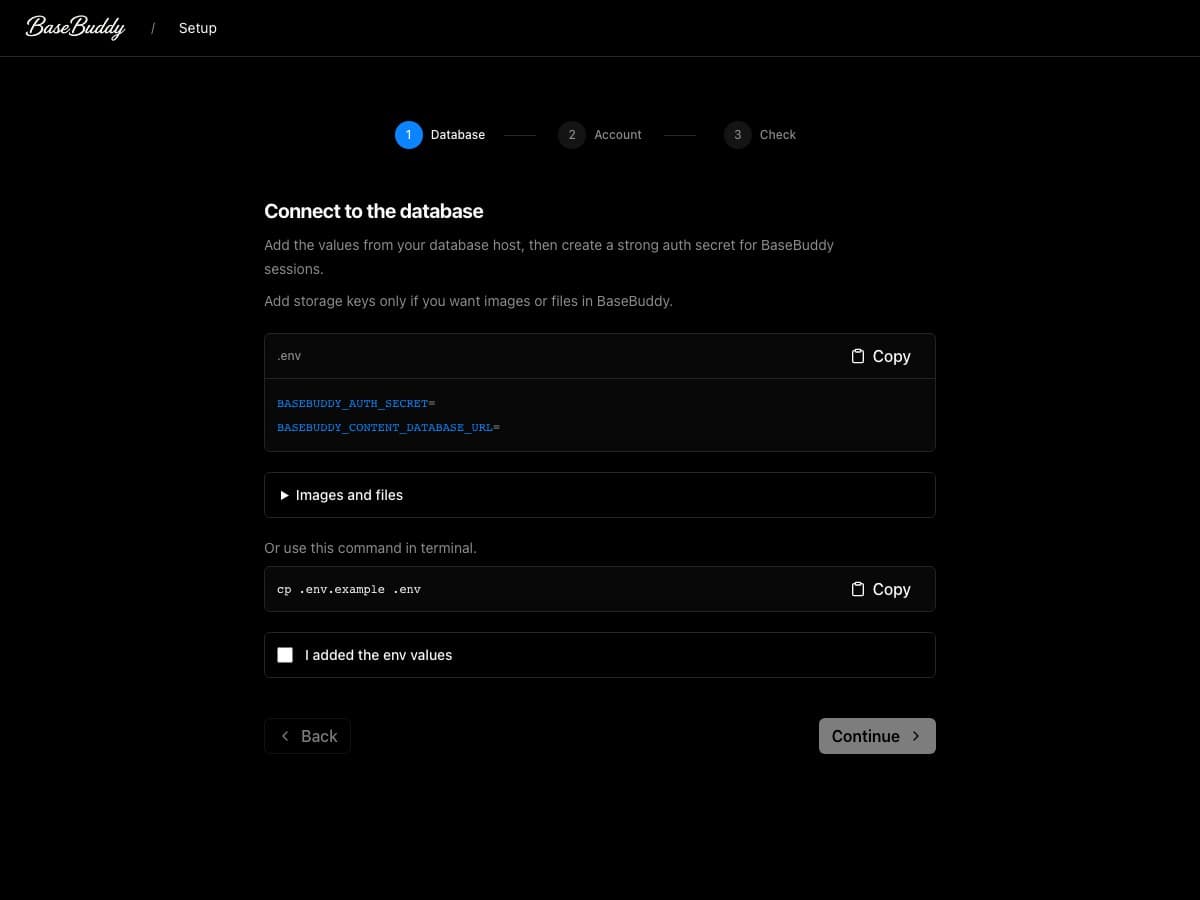
Update .env or the production host env for the database and optional Supabase storage values.
Restart or redeploy BaseBuddy
After changing env values, restart or redeploy BaseBuddy, then rerun setup checks.
For local development:
shpnpm basebuddy doctorYou can also run:
shpnpm setup:checkThe setup checks should show the config file, local auth, content database, and optional storage sections as ready.
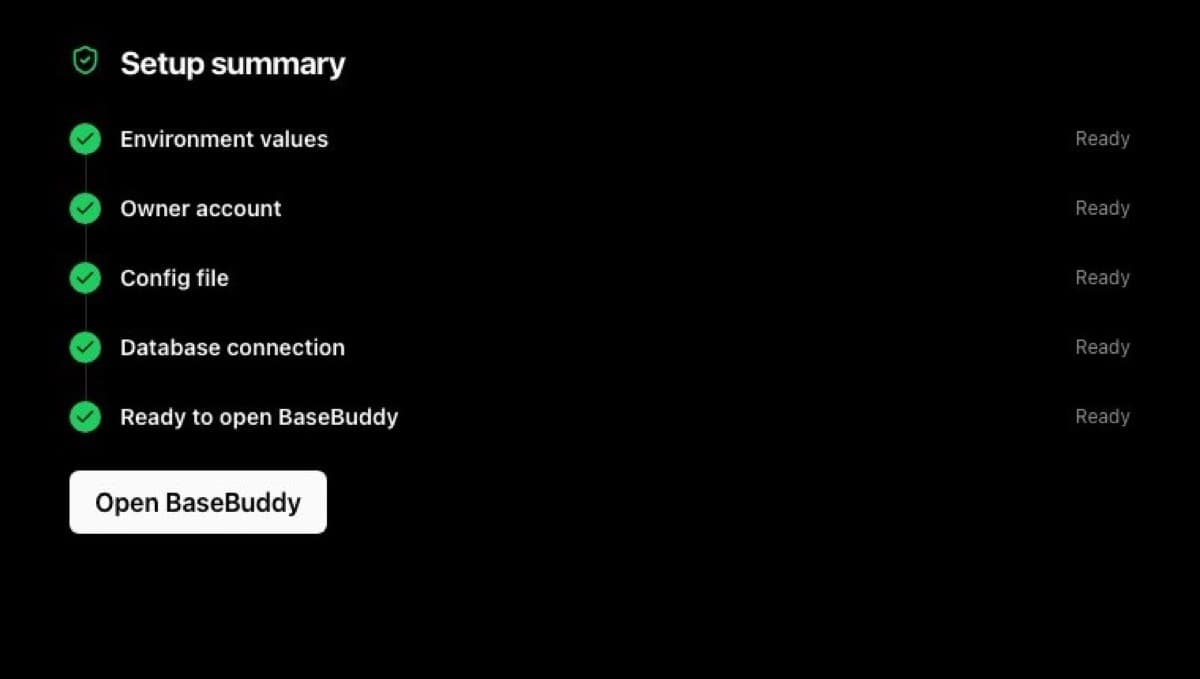
If a check fails, fix the first failing section before changing mapping or content. A stale secret key or old database password can make later checks look broken.
Verify one safe flow
After setup checks pass, test the smallest real workflow.
- Sign in to BaseBuddy.
- Open one project.
- Go to Project Settings -> Content Mapping and confirm schemas, tables, and columns still load.
- Open one safe content item.
- Change one harmless editable text field.
- Select Save.
- Check the database row and confirm only that dirty field changed.
Do not use this test to publish, unpublish, archive, remap fields, or change multiple content values at once. The goal is to confirm the rotated credentials work without making a broad content change.
Common problems
| Problem | What it usually means | What to do |
|---|---|---|
| Setup checks still use the old key | BaseBuddy was not restarted or the deployment env was not updated | Update the host env, redeploy, then run setup checks again |
| Supabase API check fails | The URL and key came from different Supabase projects | Recopy the project URL and key from the same project |
| Database check fails after password reset | The database URL still contains the old password, or the new password was not URL-encoded | Rebuild the URL from Supabase and encode special characters |
| Direct connection stopped working | The host cannot reach the direct database endpoint | Copy the session pooler URL from Supabase and update the full database URL |
| Old secret key was deleted too early | The running app still depended on it | Add the new key to BaseBuddy env, restart, and rerun setup checks |
For the related lookup steps, use How to find your Supabase project URL and API keys, How to find or reset your Supabase database password, and How to fix failed setup checks. For BaseBuddy's secret-handling model, read Security.