How to troubleshoot missing edit buttons or read-only screens
Check permissions, author scopes, mapping, storage shape, publish access, and setup state when BaseBuddy does not let you edit.
Use this guide when BaseBuddy opens a project or post, but does not let you edit the thing you expected to edit.
You may see a disabled Save, Update, Publish, Unpublish, or Archive action. A post body may open without editing access. A sidebar field may appear as display-only. A settings area may be missing for a lower-permission member. Work through the checks in this order so you fix the narrowest safe cause first.

Start with the current member's access
BaseBuddy checks project membership before it lets someone edit content, publish content, update mapping, manage members, or change project settings.
If Save is disabled on an open post, hover or focus the action first. If the tooltip says Editing access is required before you can save changes., the problem is the current editing access, not the field value itself.
- Open the project as an owner or admin.
- Go to Project Settings.
- Open Permissions.
- Find the affected member.
- Check the member's role and effective permissions.
- Look for explicit denies that remove content edit, publish, mapping, or member access.
- Change only the permission that explains the missing action.
- Ask the affected member to reload the project and try the same action again.
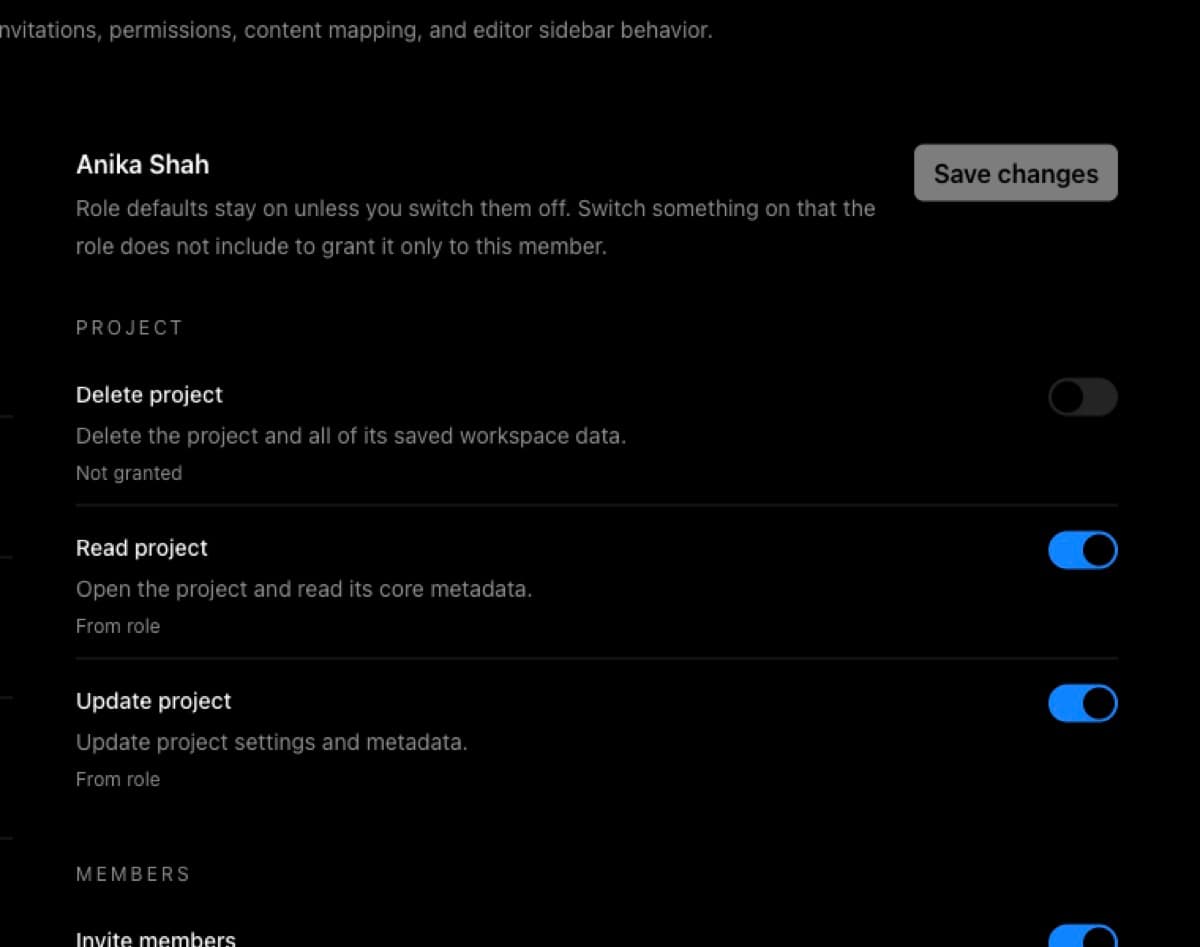
Use Permissions and roles: how BaseBuddy handles them to compare the role defaults. Use How to customize permissions on BaseBuddy when the role is mostly right but one member needs a narrow exception.
Check author scope next
If the member has the Author role or authored content permissions, BaseBuddy also checks which author records they can access.
Author scopes are not the same as project roles. The member still needs the right read, edit, or publish permission, and the post must be connected to one of their assigned author records through the saved author mapping.
Check these items:
| What to check | Why it matters |
|---|---|
| The member has an assigned author scope | Without one, authored content access has no allowed author record |
| The post is assigned to that author | Authored edit access is checked against the post's mapped author |
| The author relation is mapped correctly | BaseBuddy cannot apply author-scoped access safely if it cannot tell which author owns the post |
| The per-author Publish switch is on when needed | Authored publishing requires both authored publish access and publish access on that author scope |
If an author-scoped member can see fewer posts than expected, review the author mapping before adding broader permissions. If the post has no mapped author, an authored-only member may not be able to edit it.
For the full author setup path, see How to set up authors on BaseBuddy and How to map authors to posts.
Review field-level mapping
If the member can edit other content but one field is still read-only, check the saved mapping for that field.
BaseBuddy reads the saved mapping to decide whether a field has a safe write path. A field can be visible in the editor and still be read-only or unsupported. That is intentional when BaseBuddy can display the value but should not write it.
- Open Project Settings.
- Open Mapping.
- Open the mapping section for the affected content area.
- Find the field that is read-only in the editor.
- Check the source table, column, JSON path, array item, relation, media reference, or file reference.
- Check whether the field is marked read-only or unsupported.
- If the field cannot be safely patched, leave it read-only.
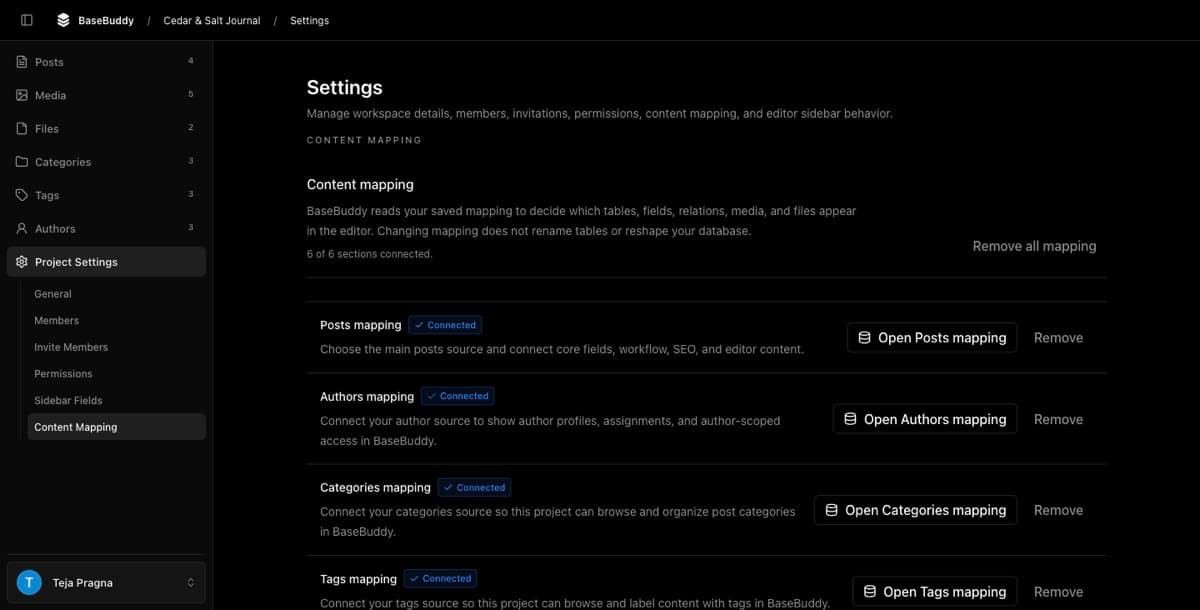
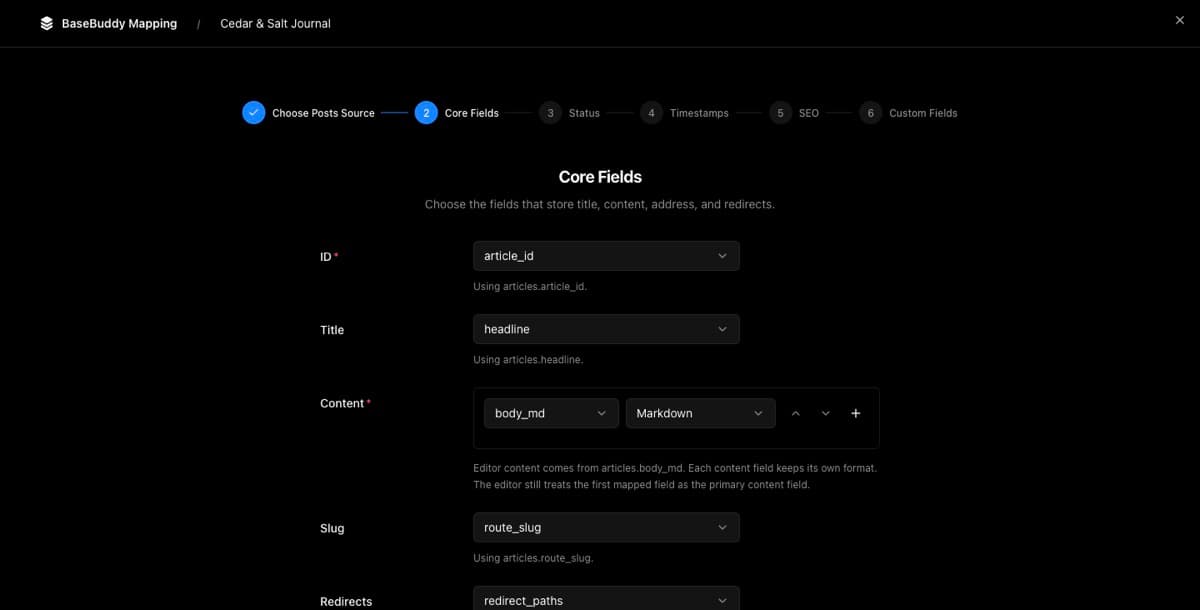
If BaseBuddy shows a field-specific message that the field cannot be edited here yet, ask an owner to review the field mapping instead of trying to edit around it.
Use How to fix a field showing as read-only for the field-level repair flow. Use How mapping works on BaseBuddy for the runtime model behind saved mapping.
Check the storage shape
Some storage shapes are safe to display but not safe to edit. Do not force one of these writable just to bring back an edit control.
| Storage shape | Safer response |
|---|---|
| Generated column | Keep it read-only; the database owns the value |
| View-derived field | Map the real writable table column instead, if one exists |
| Trigger-managed timestamp or audit value | Let the trigger manage it unless the database owner confirms a writable field |
| Broad JSON object or array | Map the exact path or list item BaseBuddy should patch |
| Incomplete helper-row mapping | Add the missing row, source, or value target before editing |
| Ambiguous relation | Review the foreign key, join table, discriminator, or value column |
| Unsupported binary, composite, or exotic type | Keep it display-only unless BaseBuddy has a supported editor for that type |
The safe fix is usually to remap the field to a clearer source, not to rename or reshape your existing content tables. BaseBuddy should follow the schema you already have.
For deeper storage rules, see Storage contract and UI, Mapping fields and relations, and Safe editing model.
Check publish and status access
Publishing has its own permission checks. A member may be able to edit body copy but still be blocked from workflow actions.
If Publish is disabled and the tooltip says Editing access is required before you can publish., check editing access first. If editing access is available, check publish permission and author-scope publish access next.
BaseBuddy requires publish access for:
| Action | Permission area to check |
|---|---|
Publish | Publish all content or publish authored content |
Unpublish | Publish permission, because it changes workflow state |
Archive | Publish permission, because it changes workflow state |
| Normal save that changes mapped status | Publish permission, even though the user clicked Save |
Draft posts also need a title before they can be published. Save normal field edits first, then use the workflow action as a separate step.
Read Publishing workflows when the missing action is specifically Publish, Unpublish, or Archive.
Check setup, session, and connection state
If permissions and mapping look correct, the editor may be blocked by setup or session state.
First, reload the project and sign in again if needed. If the open post shows a retry action, use it once after confirming the member still has edit permission.
Then check for these states:
| What you see | What to check |
|---|---|
Post already in use | Another member has an active editing session |
Go back | Return to the posts list instead of taking over the current session |
Take over | Owners, admins, and editors can take over an active editing session when appropriate |
| Setup checks are failing | The install may not be ready to read setup data, mapping, permissions, or content |
| Mapping cannot load tables or fields | The content database connection or database user permissions may be wrong |
| Editing access disappears after opening a post | Session, permission, or connection state may have changed while the post was open |
Use How to fix failed setup checks when setup readiness is not clean. If you recently changed env values, database passwords, Auth settings, or deployment config, restart BaseBuddy and run setup checks again before changing mapping or permissions.
Verify the fix safely
After you change permissions, author scopes, mapping, or setup state, test one harmless edit before regular editing resumes.
- Open a safe draft or low-risk content item.
- Change one simple text field.
- Do not change status, author, categories, tags, media, files, or large JSON fields in the same test.
- Click
Save. - Inspect the row in Supabase or your database client.
- Confirm only the mapped storage target for that one field changed.
- Reopen the item in BaseBuddy and confirm the value still displays correctly.
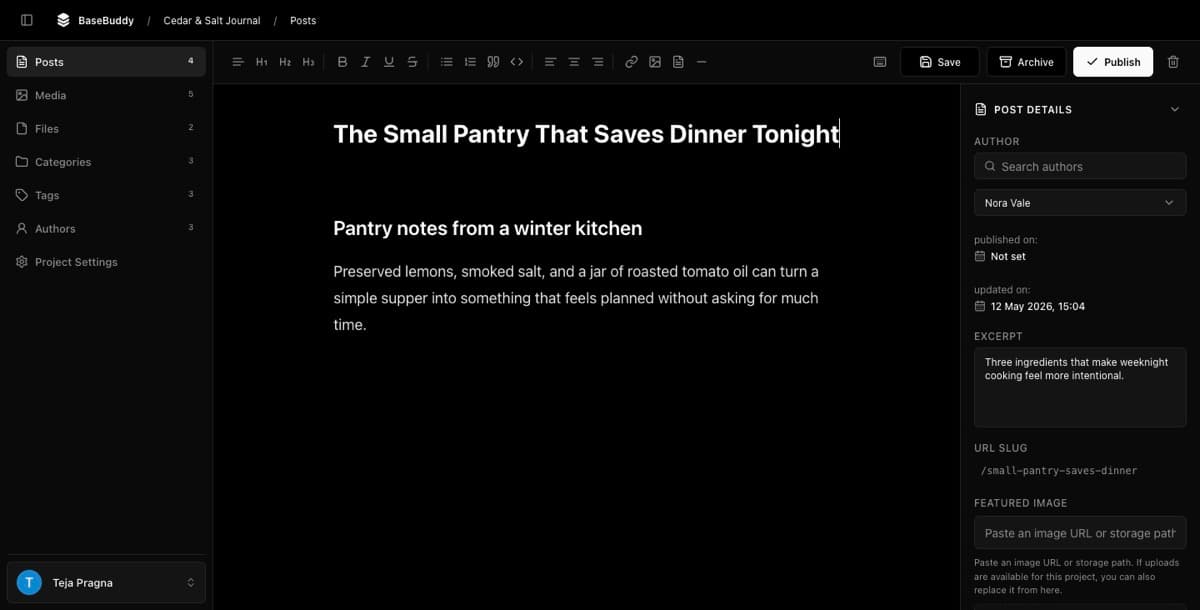
If a simple edit works, test workflow actions separately. If the same edit is still blocked, return to the first failed check in this guide instead of broadening permissions or making unsafe fields writable.
Related guides
- How to fix a field showing as read-only
- Permissions and roles: how BaseBuddy handles them
- How to customize permissions on BaseBuddy
- How mapping works on BaseBuddy
- How to safely edit your first post
- How to fix failed setup checks