How to map tags on BaseBuddy
Map the tag fields, arrays, or relation tables your existing schema already uses, then verify that tag saves only touch that storage.
Use this guide when your posts already have tags and you want BaseBuddy to show and edit them safely.
BaseBuddy does not install a standard taxonomy schema. It maps the tag shape your database already uses, then reads and writes through the saved mapping. If the storage shape is unclear, generated, trigger-owned, or unsafe to patch, keep tags read-only or unsupported until you know the correct write path.
Before you start
Make sure your posts mapping is already saved and one post opens correctly in the editor. Tags are easier to verify after the basic post fields are working.
If you are still mapping the main content table, start with How to map a posts table.
Identify your tag shape
Check how your app stores tags today. The right mapping depends on the existing storage, not on the field name.
| Existing shape | Common example | How BaseBuddy should treat it |
|---|---|---|
| Join table | post_tags(post_id, tag_id) | A multi-select relation through the existing join table |
| Single tag foreign key | posts.tag_id -> tags.id | A single tag selector |
| Value match | posts.tag_slug -> tags.slug | A selector that stores the matched value, such as a slug |
| List column | posts.tag_ids, posts.tag_names, posts.tags, posts.keywords | A list value, usually edited as the whole mapped list |
| JSON list or object | posts.meta->tags or a tag object column | Editable only when the mapped JSON value is the exact tag value BaseBuddy should write |
| Derived or trigger-owned tags | View output, generated values, trigger-maintained rows | Read-only or unsupported until you have a safe write path |
Do not create new tags or post_tags tables just because a guide uses those names as examples. Use your real table, column, list, or JSON shape.
Map a join-table tag relation
Use this path when each post can have many tags through a table such as post_tags, article_tags, or entry_topics.
- Open the project in BaseBuddy.
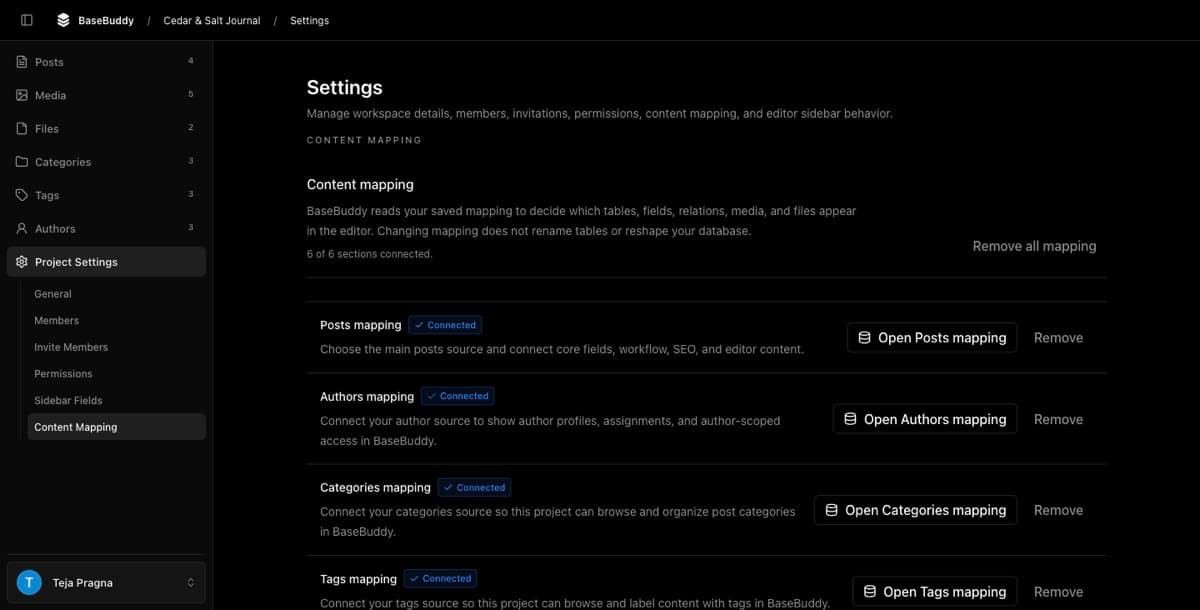
- Open Project Settings -> Content Mapping.
- Select Open Posts mapping.
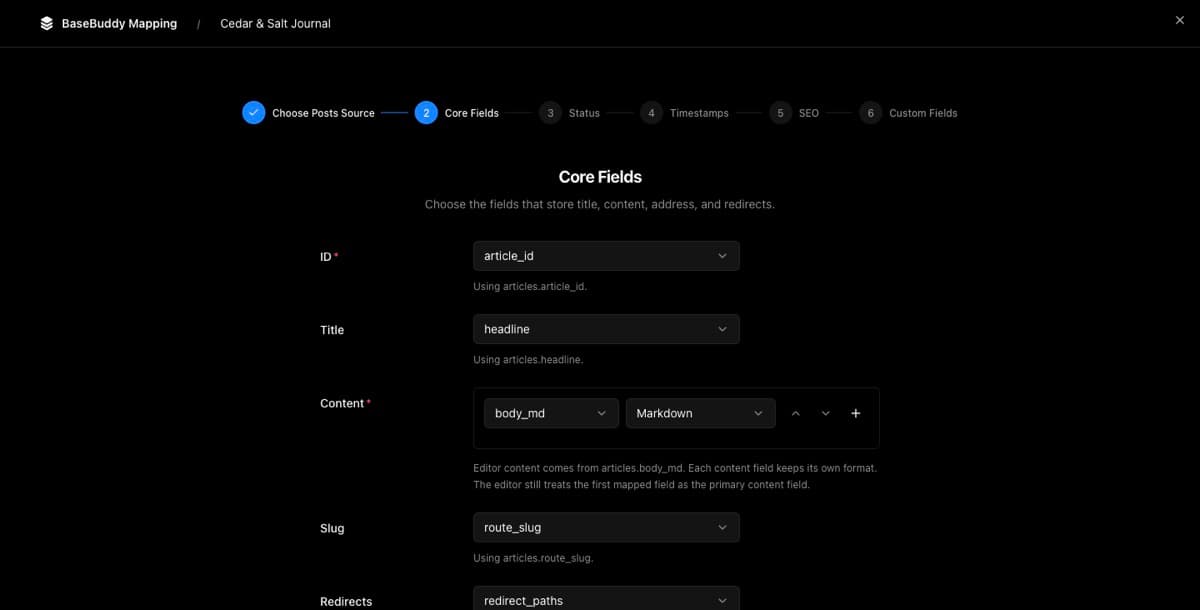
- Continue to the Tags step.
- For the tag source, choose Stored in another table.
- In Connection path, choose the existing connection table.
- Set Connection table to the table that connects posts to tags.
- Set Item column to the column that points at the tag record, such as
tag_id. - In Tag fields, map the tag record fields editors should see, usually ID, Name, and optionally Slug or Description.
- Continue through the mapping wizard.
- When BaseBuddy asks Save content mapping?, review the change and select Save mapping.
The post-side column should point at the post row. The item column should point at the tag row. If those are reversed, BaseBuddy may show the wrong tags or write the wrong join rows.
Map tags stored on the posts row
Use this path when the tag value lives directly on the posts table.
- Open Project Settings -> Content Mapping.
- Select Open Posts mapping.
- Continue to the Tags step.
- Choose the existing tag column from the posts table.
- If it is a foreign key, confirm the target tag table and display field.
- If it is an array or list column, confirm the mapped value is the whole tag list BaseBuddy should replace on save.
- If it is JSON, choose the JSON shape only when that mapped value is dedicated to tags.
- Save the mapping.
For list and JSON storage, be extra careful with broad fields. If metadata stores many unrelated values and tags are only one nested part, do not map it as an editable tag value unless the write path is explicit enough to avoid replacing unrelated JSON.
Map readable tag fields
When tags point at a separate tag table, map the fields that make the selector understandable.
| Tag field | Good choices |
|---|---|
| ID | id, primary key, or the stable unique value your relation stores |
| Name | name, title, tag_name, label |
| Slug | slug, handle, key |
| Description | description, summary, details |
Use the stable ID or unique value for the relation itself. Use the human-readable field for display so editors do not have to choose from raw IDs.
Verify one tag save
Test with one known post before editors rely on the mapping.
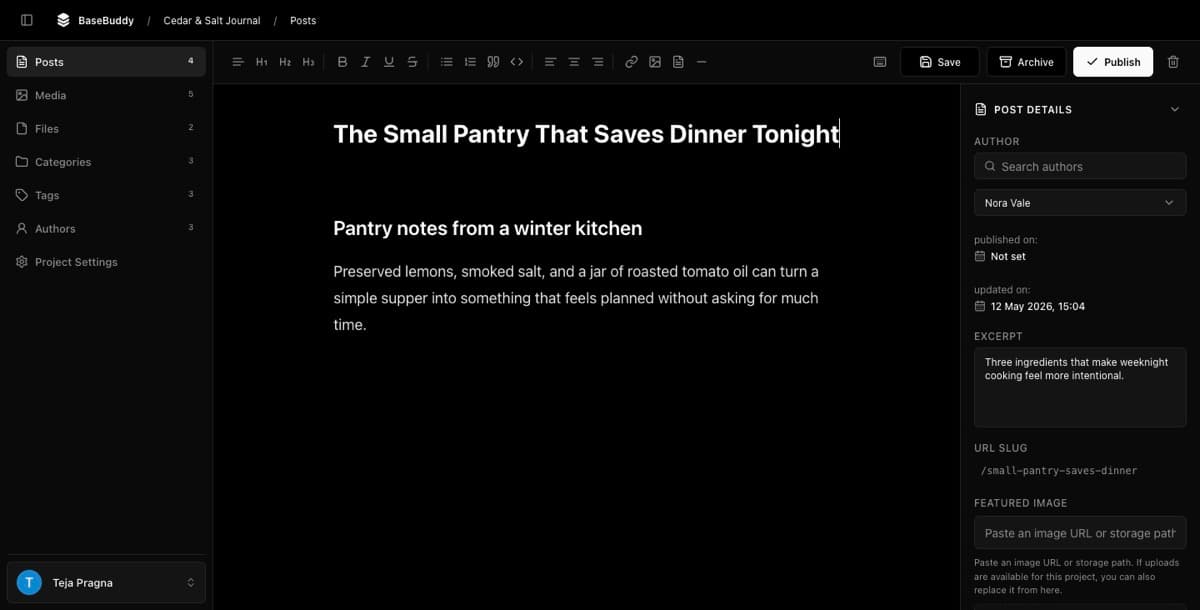
- Open Posts.
- Choose a draft, internal test post, or another row that is easy to inspect.
- Open the post and find Tags in the editor or sidebar.
- Add or remove one tag.
- Select Save.
- Inspect the same post in Supabase or your database client.

The database change should match your mapped shape:
| Shape | Good result |
|---|---|
| Join table | Only the mapped rows for that post change in the connection table |
| Single foreign key | Only the mapped tag column changes on the post row |
| Value match | Only the mapped stored value changes, such as the tag slug |
| List column | Only the mapped list column changes |
| JSON tag value | Only the mapped tag JSON value changes |
Normal Save should not publish, unpublish, archive, rewrite unrelated fields, create a new taxonomy schema, or convert one storage shape into another.
For the broader first-edit checklist, use How to safely edit your first post. For the underlying model, see Safe editing model.
Common issues
If tags do not appear, confirm the tag table or tag column is visible to the database user BaseBuddy uses. BaseBuddy cannot map tables or columns it cannot read.
If the wrong tag label appears, check the Tag fields mapping. The relation may be correct, but the display field may point at an ID, slug, or unrelated column instead of the readable tag name.
If saving tags changes unrelated rows, stop and review the relation direction, connection table, item column, and post-side column. A join-table mapping should only replace the mapped tag rows for the current post.
If the Tags field is read-only, check whether the shape is derived, trigger-managed, missing a write target, or too broad to patch safely. Use How to fix a field showing as read-only before trying to make it editable.
Related guides
- How mapping works on BaseBuddy
- How to map a posts table
- Mapping fields and relations
- How to fix a field showing as read-only
- How to safely edit your first post