How to fix broken image or file URLs
Diagnose broken images, failed downloads, expired signed URLs, moved files, deleted assets, mapping issues, and frontend path handling.
Use this guide when an image or file was uploaded through BaseBuddy but later shows as a broken image, failed download, expired link, or wrong asset on your site.
Start by finding which reference is broken. The storage object may still exist, while an old value saved into post content points to a moved, deleted, private, or temporary URL. BaseBuddy refreshes library URLs as needed when you browse Media or Files, but old values already saved into content can still point to URLs or paths that no longer work.
BaseBuddy does not scan and rewrite old post bodies, Featured Image values, file links, frontend code, or old URLs after library moves and deletes.
Common symptoms
| Symptom | Likely cause | First place to check |
|---|---|---|
| The asset opens in BaseBuddy, but not on your site | Your frontend expects a different URL, path, CDN domain, or delivery route | The saved post value and your frontend image/file handling |
| The URL worked at first, then stopped later | A private or signed URL was saved as if it were permanent | The saved body link, Featured Image, or copied URL |
| The image or download broke after a folder cleanup | The object was moved or deleted from storage | Media or Files, then any post that used the old path |
| Body images work, but the card or hero image is broken | The Featured Image value or mapping points somewhere different | The post sidebar Featured Image field and Mapping |
| A file link opens in BaseBuddy but fails for visitors | The file may be private, expired, or served through the wrong frontend route | Files, then your site's download handling |
| The asset is in the wrong folder | It was uploaded from a different current folder than expected | Search images, Search files, or Search this folder |
| S3-compatible links expire or include signed query strings | No stable public URL base or protected delivery route is being used | Media Storage or Files Storage settings |
Check in this order
Follow the checks in this order so you do not change mapping or re-upload files before you know what broke.
- Open the asset from BaseBuddy.
- Confirm the asset still exists in Media or Files.
- Check the saved post value that references the asset.
- Check whether the value is a temporary private or signed URL.
- Check whether the asset was moved or deleted.
- Check the saved mapping.
- Check how your site or frontend turns the saved value into a browser URL.
1. Open the asset from BaseBuddy
First confirm whether BaseBuddy can still find and open the storage object.
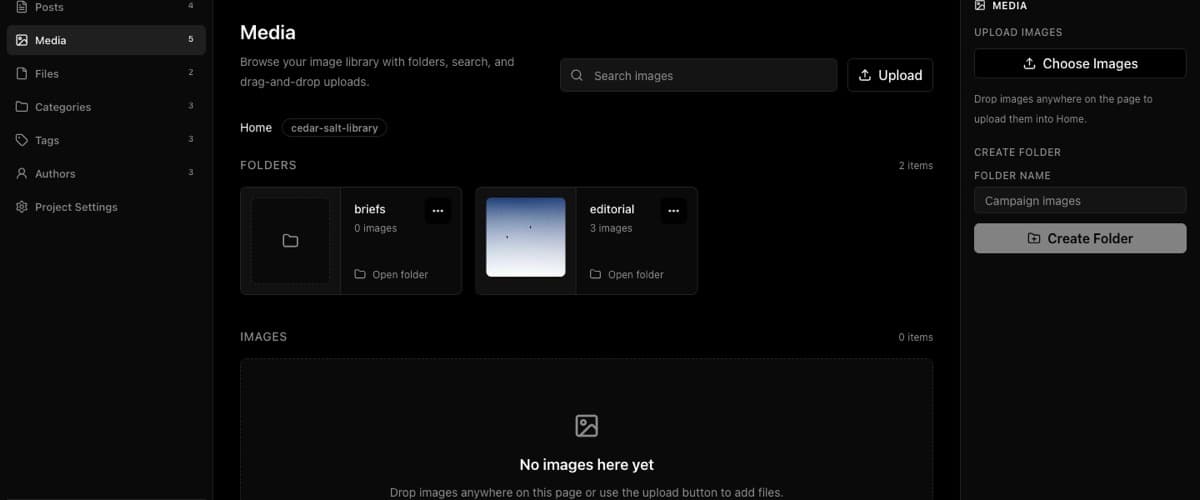
For images:
- Open the project in BaseBuddy.
- Open Media.
- Use Search images at the top of the library, or open the expected folder and use Search this folder.
- Open the image options menu.
- Click Open image.
For files:
- Open the project in BaseBuddy.
- Open Files.
- Use Search files at the top of the library, or open the expected folder and use Search this folder.
- Click Open, or open the file options menu and click Open file.
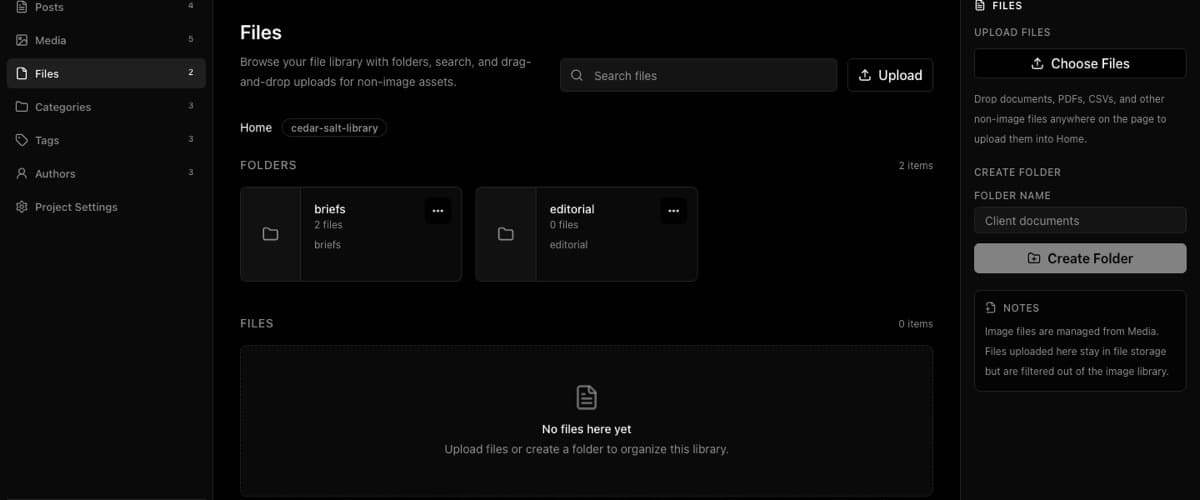
If the asset opens from BaseBuddy, the storage object probably exists. Continue by checking the saved content value and your frontend handling.
If the asset does not appear in Media or Files, it may have been uploaded to another folder, moved, deleted, filtered by file type, or stored in a different bucket than the current mapping expects.
2. Check the saved post value
Open the affected post and find the field that stores the broken reference.

For body images and file links, click into the body field and inspect the image or link that was inserted. If the post body stores Markdown, HTML, JSON, or another structured format, check the actual saved value in your database before making broad edits.
For card, cover, hero, or social preview images, check the post sidebar Featured Image field. Your site may use Featured Image separately from images inserted into the body. Fixing a body image will not automatically fix Featured Image, and replacing Featured Image will not insert an image into the body.
If the saved value points to an old object path, old CDN URL, deleted file, or expired signed URL, update that content value intentionally and then save the post. Normal save still follows the saved mapping and writes dirty fields only. See Safe editing model for the save rules.
3. Treat private and signed URLs as temporary
Private assets should not be treated like permanent public URLs.
BaseBuddy can generate temporary URLs so editors can browse private Media and Files libraries. It also refreshes library URLs as needed while you use the library. That does not make an old signed URL permanent after it has already been saved into a post body, pasted into Featured Image, copied into your frontend code, or shared externally.
If a saved URL has a long query string with signing parameters, or if it only works for a short time, treat it as temporary. Replace long-lived content with the value your site is designed to serve:
- A stable public object URL, when the asset is meant to be public.
- A protected delivery route in your app, when the asset must stay private.
- A storage object path that your frontend resolves into the right public or protected URL.
Do not make private assets public just to fix a broken link. First decide whether the asset should be public, private behind your app, or replaced with a new public-safe version.
For the storage behavior BaseBuddy supports, see Media and files.
4. Check moves and deletes
Moving an image, file, or folder changes object paths. Deleting removes the storage object. Existing content that already points at the old path can break.
In Media, check whether someone used Move image, Move folder, Delete image, or Delete folder. In Files, check whether someone used Move file, Move folder, Delete file, or Delete folder.
If the object was moved, update the affected post body, Featured Image, file link, or frontend reference to the new value. If the object was deleted, restore or re-upload the asset only if it is still needed, then update the old references that still point to the deleted location.
For image cleanup, use How to move or delete images safely. For file cleanup, use How to move or delete files safely.
5. Check mapping only after the asset and content value
If the asset exists and the saved value looks correct, review the saved mapping.
- Open Project Settings.
- Open Mapping.
- For image library issues, open the media mapping and check Media Storage.
- For downloadable file issues, open the files mapping and check Files Storage.
- Confirm Storage Provider points at the storage system you actually use.
- If you use S3-compatible storage for public assets, confirm Public URL Base matches the public bucket or CDN domain your site expects.
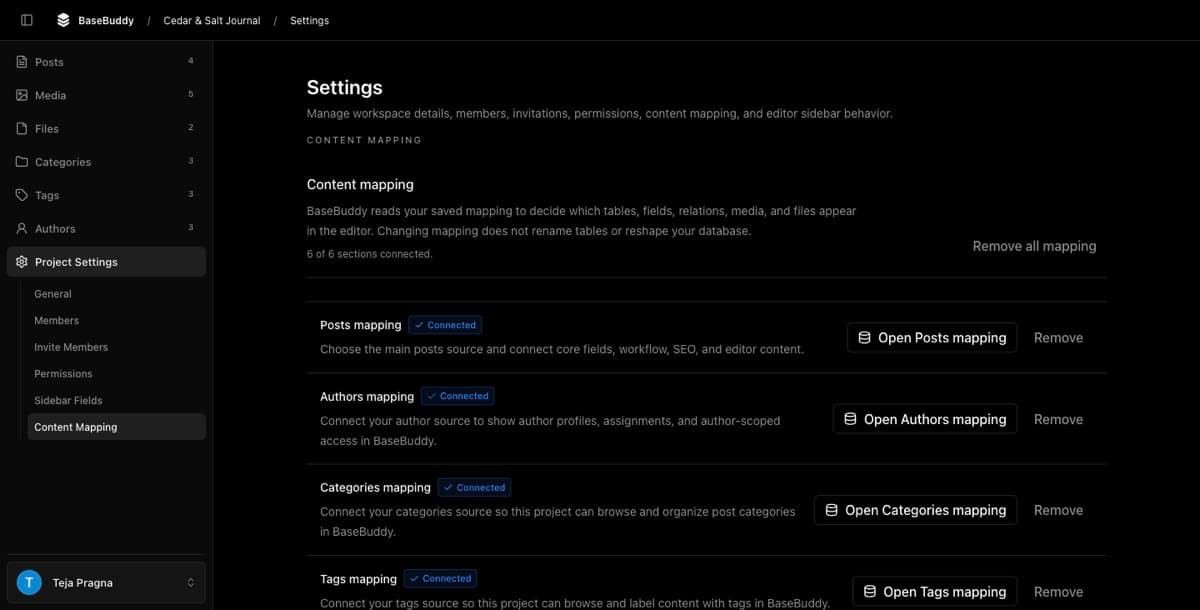
Mapping tells BaseBuddy where to browse and upload assets. Changing mapping does not rename buckets, move files, rewrite post bodies, repair old Featured Image values, or change your frontend code.
If the broken URL is already saved inside content, fix the content value or the frontend resolver that serves that value. If the library itself points at the wrong bucket or provider, fix the mapping before uploading more assets.
6. Check your site or frontend path handling
If BaseBuddy can open the asset and the saved value is what you expect, the problem may be in the site that renders it.
Check these common frontend issues:
| Frontend check | What to confirm |
|---|---|
| Public bucket URL | The saved URL matches the bucket, CDN, or custom domain your site can serve |
| Object path handling | Your frontend adds the correct bucket, prefix, or delivery route before rendering |
| Private delivery | Private files are served through an authenticated route instead of a copied signed URL |
| Remote image allowlist | Your image framework allows the storage or CDN domain |
| Caching | The site, CDN, or browser is not serving an old URL after you replaced the asset |
| Moved paths | The frontend does not still reference a folder path that was moved |
BaseBuddy writes the saved value according to your mapping. Your site is still responsible for turning that value into the final image src or file href that visitors can load.
Verify the fix
After you update the content value, restore the file, adjust mapping, or fix frontend handling:
- Reopen the affected post in BaseBuddy.
- Confirm the body image, file link, or Featured Image shows the intended value.
- Save only the field you intentionally changed.
- Open the asset from Media or Files again.
- Check the affected page on your site or preview.
- If your site uses caching, clear or wait for the cache before deciding the fix failed.
Related guides
- Media and files
- Safe editing model
- How to insert images into a post
- How to insert files or downloads into a post
- How to move or delete images safely
- How to move or delete files safely
- How to upload and manage images in the Media library
- How to upload and manage files in the Files library
- How to configure S3-compatible storage for media and files
- How to configure Supabase Storage buckets for media and files