Authors vs members: what is the difference?
Understand the difference between content authors and BaseBuddy project members before setting up access.
Short answer
Authors are content records used by your site. Members are people who can sign in to BaseBuddy.
They can refer to the same real person, but they are not the same record and they are not managed in the same place.
BaseBuddy does not create or sync author records and member accounts automatically. It connects them only through your saved mapping and, when needed, author scopes on a project member or invite.
Quick comparison
| Question | Content author or byline | BaseBuddy member or sign-in user |
|---|---|---|
| What is it? | A row in your content database, usually used for bylines, author pages, bios, avatars, or post ownership. | A user who can sign in to BaseBuddy and access one or more projects. |
| Where does it live? | In your existing content tables, such as authors, profiles, or another table you mapped. | In BaseBuddy setup data and local BaseBuddy auth. |
| Who controls it? | Your content schema and the saved project mapping. | BaseBuddy project owners and admins through members, invites, roles, and permission overrides. |
| What is it used for? | Showing who wrote content and connecting posts to author records. | Login, project access, editing rights, publish rights, delete rights, and owner controls. |
| Does it need a login? | No. An author can be just a public byline. | Yes. A member exists so someone can sign in. |
| Does it need an author record? | Not always. Some content does not have authors. | No. A member can manage content without appearing as a byline. |
Why the distinction matters
BaseBuddy uses author mapping to understand content relationships. For example, a post may belong to an author through a saved mapping such as posts.author_id.
BaseBuddy uses member permissions to decide what signed-in users can do. A member can have more than one role, and their effective access comes from roles, permission overrides, and any author scopes.
Author scopes connect those two ideas. They let a member work only on content connected to selected author records.
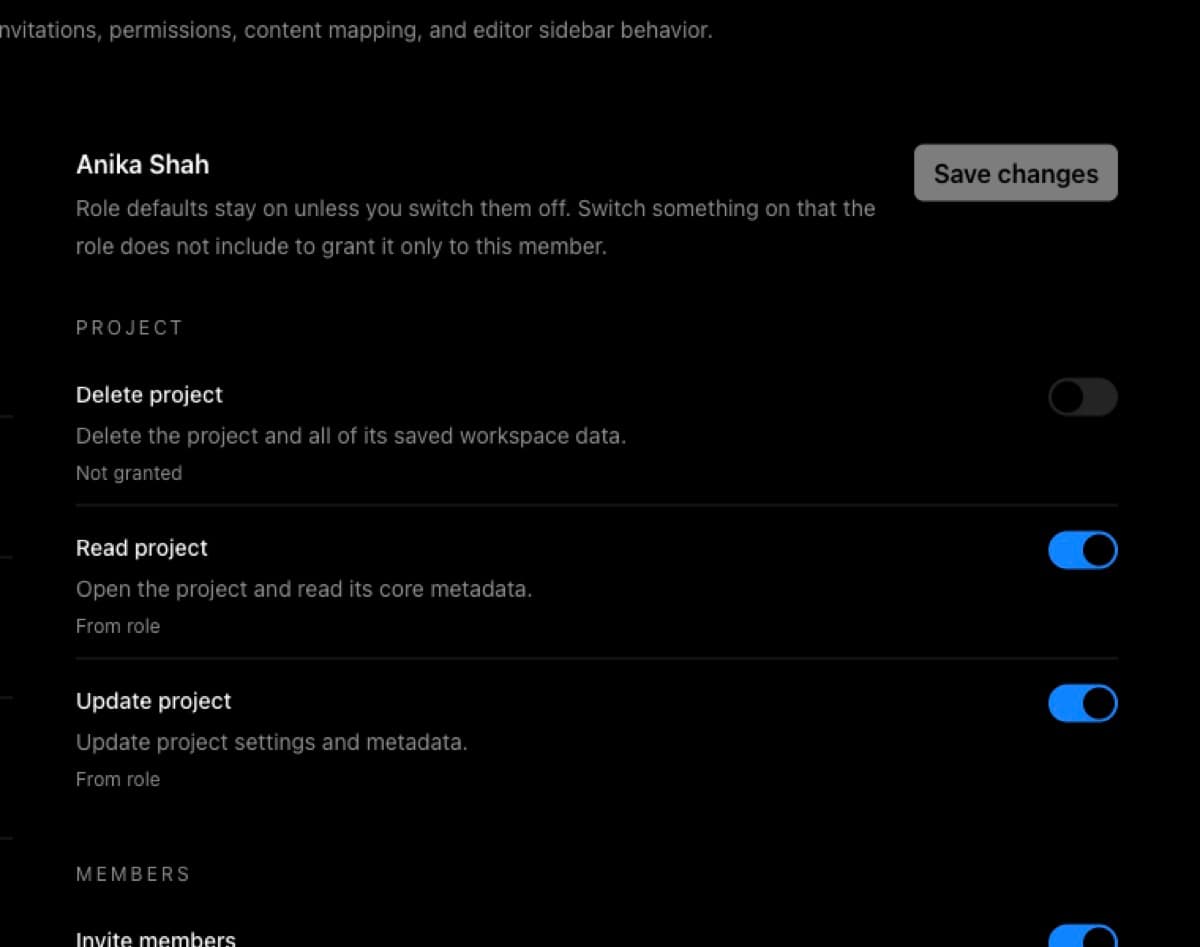
Common examples
| Situation | Author record? | BaseBuddy member? | What access usually means |
|---|---|---|---|
| Editor edits all posts | Optional | Yes | Give the editor a role or permissions that can edit project content without author scopes. |
| Author edits assigned authored posts | Yes | Yes | Invite the person as a member with the Author role, then assign the matching author scope. |
| Freelance byline with no login | Yes | No | Keep the author record for public content, but do not invite them to BaseBuddy. |
| Operations teammate with no byline | No | Yes | Invite them as a member so they can manage content, settings, or workflow without appearing as an author. |
How author-scoped permissions work
Author scopes limit which authored content a member can access. They do not replace normal role permissions.
For example:
- A member still needs edit permission before they can edit anything.
- Author scopes appear and apply when the member or invite includes the
Authorrole. - BaseBuddy narrows authored access to content connected to the selected author records.
- Publishing is checked separately. The member needs authored publish access, and the specific author scope needs its
Publishswitch turned on.
Use author scopes when contributors should only access their own posts. Do not use author scopes when a trusted editor should work across the whole project.
Inviting members
Invite a person only when they need to sign in to BaseBuddy. During the invite or member setup, choose the closest role or roles. Add author scopes only when the Author role is selected and the person's access should be limited to specific authored content.
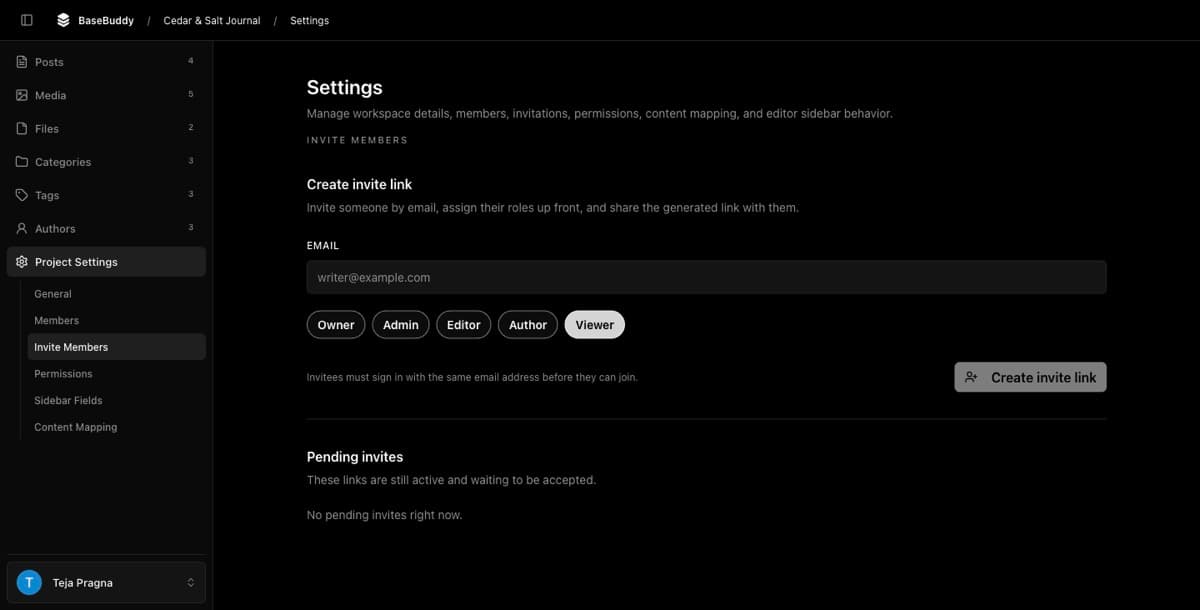
BaseBuddy creates an invite link for you to share through your team's normal channel. Self-host installs do not require BaseBuddy to send invite email.
Where to go next
Map authors before relying on author scopes. Use How to map authors to posts for the basic post-author connection, then use How to set up authors on BaseBuddy when author-scoped access is part of the plan.
When someone needs to sign in, use How to invite users to your BaseBuddy project. For access details, use Permissions and roles, How to customize permissions, and Permissions and teams.
Remember
An author can exist without a BaseBuddy member account. A BaseBuddy member can exist without a content author record.
Keep bylines and sign-in access separate in your mental model, then connect them only when contributor-specific permissions require it.