How to delete a BaseBuddy project
Remove a BaseBuddy project workspace without deleting mapped content tables, rows, columns, storage objects, or schemas.
When this helps
Use this when a project was created by mistake, points at an old content area, or should no longer be available in BaseBuddy.
Deleting a project is permanent. It removes the BaseBuddy workspace and access for that project, so pause before doing it on a production install or a project other editors use.
What gets deleted
Project deletion removes BaseBuddy app data for that project.
| BaseBuddy workspace data | What happens |
|---|---|
| Project settings | The project name, address, website URL, sidebar settings, and editor configuration are removed. |
| Mapping | Saved mapping revisions for the project are removed. |
| Members and invites | Project membership, roles, permission overrides, author scopes, and invite records are removed. |
| Editor state | Active edit sessions and BaseBuddy runtime summaries for the project stop being usable. |
After deletion, the project should no longer appear on /projects. Members should no longer be able to open that project's BaseBuddy URLs.
What does not get deleted
Deleting a BaseBuddy project does not delete the content storage the project was mapped to.
BaseBuddy should not delete:
| Existing content storage | Expected result |
|---|---|
| Database schemas | Schema names stay in your database. |
| Tables and columns | Mapped tables and columns stay in your database. |
| Rows and records | Posts, pages, authors, categories, tags, and other records stay in your database. |
| Storage objects | Existing images, files, and bucket objects stay in storage. |
BaseBuddy maps existing storage. Project deletion removes the BaseBuddy workspace that points at that storage; it is not a database cleanup tool.
If you need to delete content tables, rows, columns, schemas, images, or files, do that separately through your normal database or storage process.
Before you delete
Confirm these details first:
- Open the project and check the project name and address.
- Tell active editors that the project will be removed from BaseBuddy.
- If you may need to rebuild the project later, keep your own notes or screenshots of the mapping, sidebar settings, members, roles, and project address.
- If this is a production project, confirm your normal database and storage backups are in place.
- If another BaseBuddy project is replacing this one, open the replacement and confirm its mapped content loads before deleting the old project.
In most installs, use an owner account for this action. If the delete button is disabled or missing, ask someone with project delete access to complete the deletion or review the project's roles and permissions.
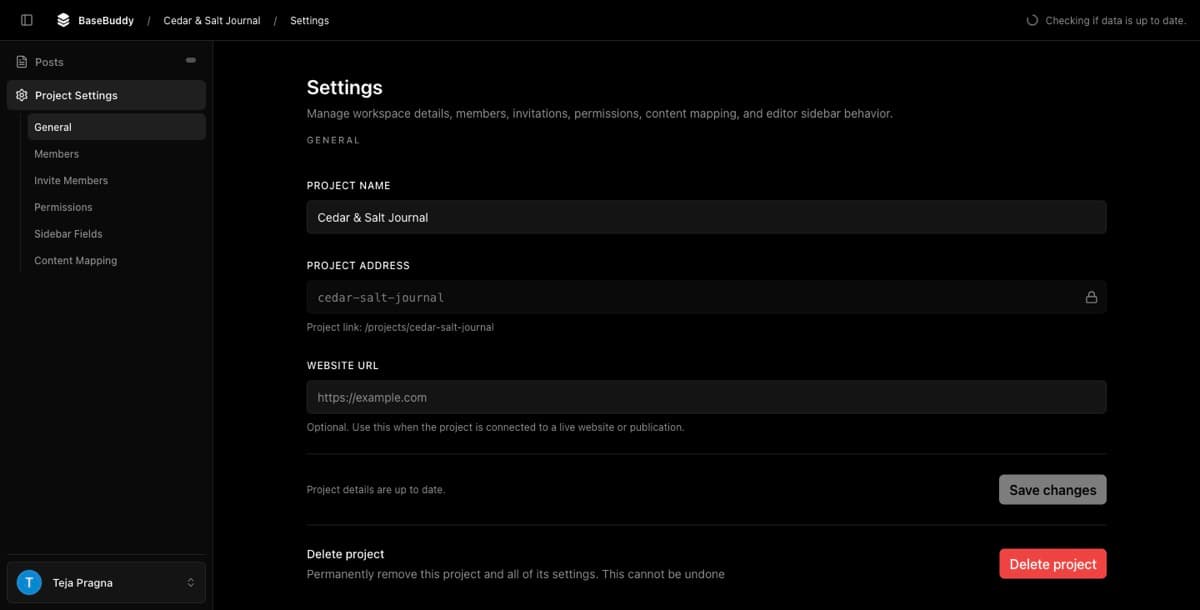
Delete the project
- Sign in to BaseBuddy.
- Open
/projects. - Open the project you want to delete.
- Go to Project Settings.
- Open General.
- Check the Project Name and Project Address one more time.
- Click Delete project.
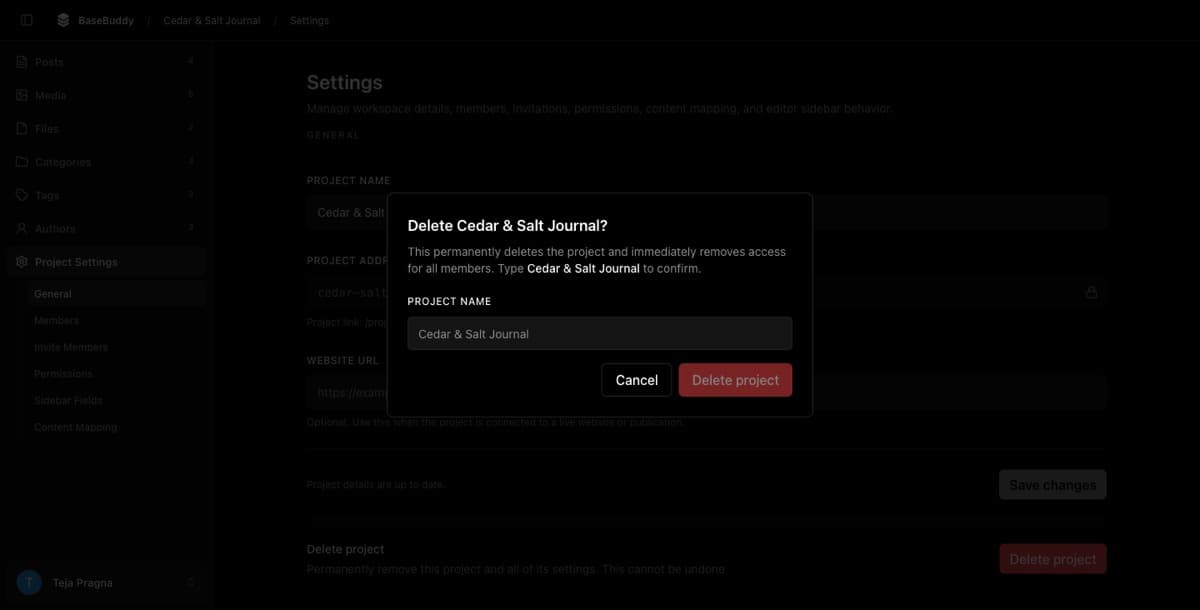
- In the Delete [project name]? dialog, read the confirmation text.
- Type the exact project name in Project name.
- Click Delete project.
The confirmation button stays disabled until the typed name matches the project name exactly. If you are unsure, click Cancel and check the project again.
After deletion
BaseBuddy should return you to /projects and show Project deleted.
Verify the result:
- Confirm the deleted project no longer appears on
/projects. - Try opening the old project URL and confirm it no longer opens for editing.
- Ask affected editors to refresh BaseBuddy and confirm the project is no longer available to them.
- Check your database or storage tool directly if you need proof that mapped tables, rows, columns, schemas, and storage objects still exist.
- If another app reads the same content database or storage bucket, confirm that app still sees the content.
If the project disappears from BaseBuddy and the mapped content remains in your database or storage, deletion worked as expected.
If deletion is blocked
If the delete button is disabled or does not appear, use an account with project delete access. Project deletion is intentionally restricted because it removes the workspace for every member.
If the dialog will not let you continue, retype the project name exactly as shown in the dialog. Extra spaces, different capitalization, or an old project name will keep Delete project disabled.
If deletion fails after confirmation, refresh the project, check that you are still signed in, and try again. If it still fails, ask an owner or setup maintainer to check the BaseBuddy app logs before changing anything in the database.
Related guides:
- How to create a BaseBuddy project
- How to change the name of a BaseBuddy project
- Permissions and roles: how BaseBuddy handles them
- Projects and mappings