How to remove or reset mapping safely
Disconnect one BaseBuddy mapping section or reset all mapping without deleting your existing database or storage content.
Use this when a project points at the wrong table, relation, media storage, file storage, or content area and you want BaseBuddy to stop using that mapping.
Removing mapping disconnects BaseBuddy editor sections from your saved mapping. It does not delete your database tables, rows, columns, schemas, storage buckets, files, or images.
The content remains in your database and storage. BaseBuddy only stops loading it through the affected project section until you map that section again.
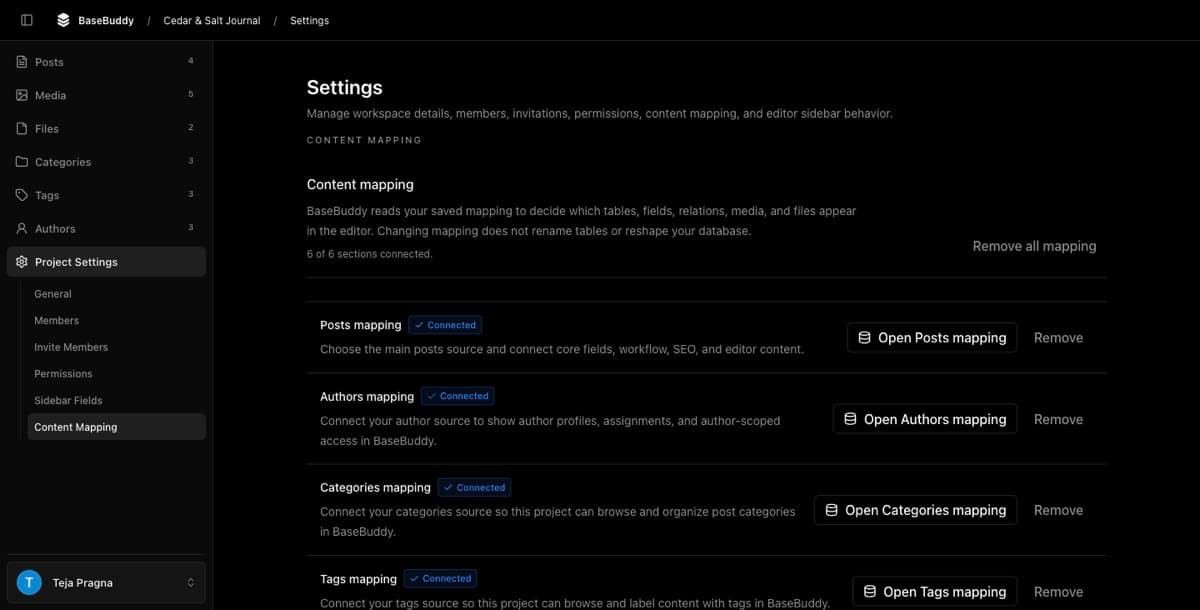
Before you remove mapping
Check which section you need to disconnect.
| Action | Use it when |
|---|---|
| Remove one section | One part of the editor is wrong, such as authors, categories, tags, media, files, or the posts source. |
| Remove all mapping | The whole project mapping is wrong and you want to start the mapping setup again from a blank state. |
If editors are using the project, tell them before removing mapping. The affected section will stop loading in BaseBuddy until it is set up again.
If you may need to rebuild the same mapping later, keep your own notes or screenshots of the current mapping choices before removing them.
Remove one mapping section
- Open your BaseBuddy project.
- Select Project Settings in the sidebar.
- Open Content Mapping.
- Find the section you want to disconnect.
- Confirm the section shows Connected.
- Click Remove on that section.
- Read the confirmation dialog.
- Click Remove mapping.
After the change saves, BaseBuddy shows a success message such as Posts mapping was unmapped. The section should no longer show as connected.
Removing one section only disconnects that section's saved mapping, with these expected effects:
| Removed section | What happens in BaseBuddy |
|---|---|
| Posts | Posts stop loading in the editor. Authors, categories, and tags are also disconnected because those mappings depend on the posts source. |
| Authors | Author records and author assignment mapping stop loading. The posts-to-authors relation is cleared. |
| Categories | Category records and category assignment mapping stop loading. The posts-to-categories relation is cleared. |
| Tags | Tag records and tag assignment mapping stop loading. The posts-to-tags relation is cleared. |
| Media | The media library storage mapping is cleared. Existing stored images are not deleted. |
| Files | The files library storage mapping is cleared. Existing stored files are not deleted. |
Other sections should keep working unless they depend on the section you removed.
Remove all mapping
Use Remove all mapping when the project mapping is broadly wrong and you want to reconnect content, media, and files from the beginning.
- Open your BaseBuddy project.
- Select Project Settings in the sidebar.
- Open Content Mapping.
- Review the connected section count.
- Click Remove all mapping.
- In the Remove all content mapping? dialog, read the warning.
- Click Remove mapping.
After the change saves, BaseBuddy shows All mapping sections were unmapped. Content, media, and files stop loading in BaseBuddy until each section is set up again.
This resets the saved mapping for the BaseBuddy project. It does not reset your database, storage buckets, or files.
What BaseBuddy does not delete
Removing mapping is not a database cleanup tool.
BaseBuddy does not delete:
| Existing content storage | Expected result |
|---|---|
| Database schemas | Schema names stay in your database. |
| Tables and columns | Tables and columns stay in your database. |
| Rows and records | Posts, pages, authors, categories, tags, and other records stay in your database. |
| Storage buckets | Buckets stay in storage. |
| Files and images | Stored objects stay where they already are. |
If you need to delete content, tables, schemas, buckets, files, or images, do that separately through your normal database or storage process.
Verify the result
After removing mapping, check BaseBuddy first.
- Return to Project Settings -> Content Mapping.
- Confirm the removed section now shows Not connected, or confirm the connected count dropped as expected.
- Open the affected sidebar section, such as Posts, Media, Files, Categories, Tags, or Authors.
- Confirm BaseBuddy no longer loads that disconnected section as an active editor area.
- If you removed only one section, open an unrelated connected section and confirm it still works.
If you need proof that the underlying content remains, inspect the mapped table, relation table, bucket, file, or image in Supabase or your database and storage tools.
Map the section again
You can reconnect the section from the same Content Mapping screen.
For posts, click Open Posts mapping and save a new posts mapping. After posts are mapped, you can reconnect dependent sections such as authors, categories, and tags.
For media or files, open the matching mapping section and choose the storage source again.
For related content, reconnect the existing relation shape instead of creating new tables just to match BaseBuddy examples.
Common issues
If Remove is disabled, the section is already not connected or another mapping action is still running.
If Remove all mapping is disabled, no sections are currently connected or another mapping action is still running.
If authors, categories, or tags became disconnected after removing posts mapping, that is expected. Those sections depend on the posts source, so map posts again before reconnecting them.
If content still appears in your public site after mapping is removed, that is also expected. Removing mapping only affects BaseBuddy's editor connection. It does not change the app or website that reads your database directly.
If a mapping update fails, refresh the project, confirm you are signed in with permission to update content mapping, and try again. If it still fails, ask an owner or setup maintainer to check the BaseBuddy app logs before changing anything in the database.
Related guides
- How mapping works on BaseBuddy
- How to map a posts table
- How to set up authors on BaseBuddy
- How to map categories on BaseBuddy
- How to map tags on BaseBuddy
- How to delete a BaseBuddy project
- Projects and mappings
- Media and files
- Safe editing model