How to customize post sidebar fields
Show, hide, group, reorder, and save the fields editors see beside an open post.
Use Sidebar Fields when the post side panel needs to match the way your team edits posts.
This setting controls the fields shown beside an open post. It does not change your database schema, saved mapping, permissions, editability, or the left project navigation. BaseBuddy reads your saved mapping to decide which fields are available, and Sidebar Fields only controls how those available fields are arranged.
Pages in this screen are only groupings. Fields are the real editor controls.
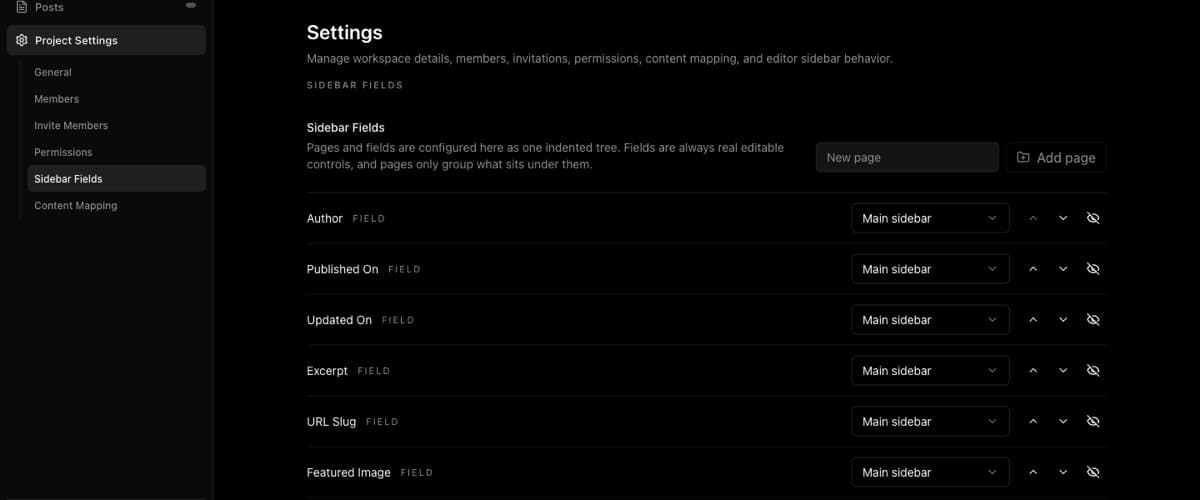
Open Sidebar Fields
- Open your BaseBuddy project.
- Open Project Settings.
- Select Sidebar Fields.
You should see an indented tree of pages and fields. The footer shows either Unsaved sidebar changes or Sidebar settings saved.
If you need to change which database fields are available, update the saved mapping instead. See Mapping fields and relations.
Add a group
Use pages when you want fields grouped under a label such as SEO, Publishing, or Editorial.
- Type a page name in New page.
- Click Add page.
- Use the parent menu on fields or pages to move them under the new page.
Choose Main sidebar when a field or page should appear at the top level of the post side panel.
Reorder fields and pages
Use Move up and Move down to change the order within the same parent group.
Moving a field changes where editors see it. It does not change where the value is stored, what Save writes, or whether the field is editable.
Show or hide fields
Use Hide row to remove a field or page from the post side panel. Use Show row to bring it back.
Hidden fields remain part of the saved mapping when they are mapped. Hiding a field is not a permission rule. If a user should not edit a value, use roles, permissions, and safe mapping instead of relying on layout.
If a field appears as read-only, changing its sidebar position will not make it editable. Use How to fix a field showing as read-only.
Rename or delete a group
To rename a page, edit its label in the tree.
To remove a page, use Delete page. Deleting a page removes the grouping only. Fields or pages inside it move up to the deleted page's parent.
Save or reset the layout
When the layout is ready, click Save layout.
Use Restore saved to discard unsaved layout changes and return to the last saved version. Use Use default to return to BaseBuddy's default post sidebar field layout. For more detail, see How to restore default sidebar fields.
Verify the post side panel
- Open Posts.
- Open a post.
- Check the fields beside the open post.
- Open any page groups you created.
- Confirm hidden fields are no longer shown.

Common fields include author, published date, updated date, excerpt, URL slug, featured image, preview, revisions, categories, tags, focus keyword, SEO analysis, readability analysis, meta title, meta description, and mapped custom fields.
If SEO fields are missing, first check whether they are hidden in Sidebar Fields. If they are not available at all, map them from your project mapping. See How to map SEO fields on BaseBuddy.
If you meant to customize the left project navigation instead of the fields beside an open post, use How to customize your BaseBuddy sidebar.