How to move or delete images safely
Move or delete images in the Media library without accidentally breaking existing posts, featured images, or old URLs.
Use this guide when you need to reorganize or remove images from the Media library.
Moving an image changes its object path. Deleting an image removes the storage object. BaseBuddy does not scan and rewrite existing body images, Featured Image values, file links, frontend code, or old URLs after you move or delete media.
Before you move or delete images
Check where the image is used before changing it. Look at the post body, Featured Image field, previews, and the live site if the asset may already be public.
For production content, use a small safe process:
- Choose one image that is easy to verify.
- Move that one asset first.
- Open the affected post in BaseBuddy.
- Check the post preview or your site.
- Continue with the rest only after the reference still works or after you have updated the old reference yourself.
If your site stores image URLs or object paths in post content, a move can leave the old value pointing at the old path. If you delete an image, any old reference to that image can become broken.
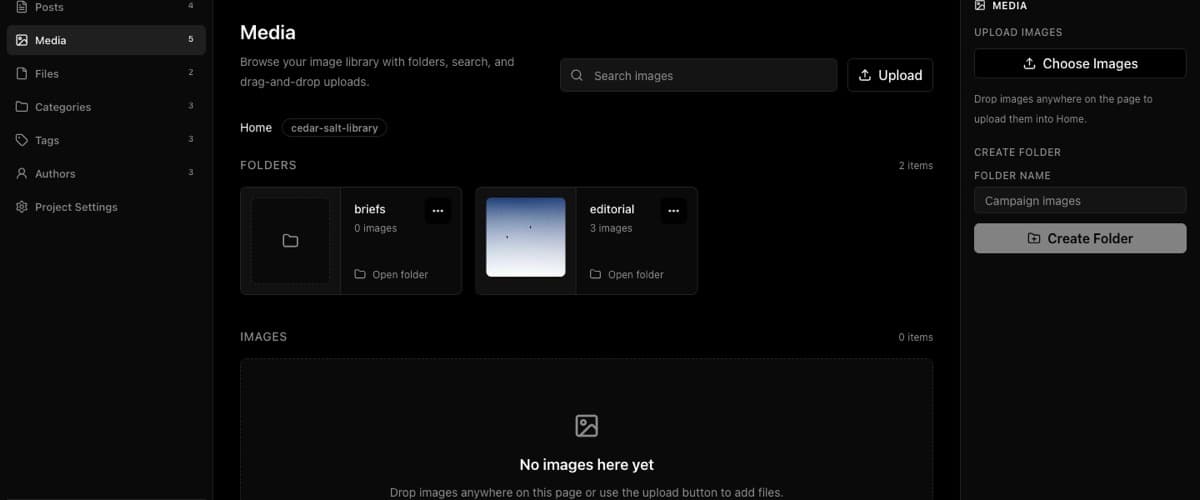
Move one image
- Open the project in BaseBuddy.
- Open Media.
- Browse or search for the image.
- Open Image options on the image card.
- Choose Move image.
- In the Move image dialog, choose a Destination.
- Click Move image.
The image is moved to the destination folder. If another image already uses the same name there, BaseBuddy chooses a unique path.
After the move, check any post or site page that used the old image path. BaseBuddy does not update body images, Featured Image values, frontend code, or old URLs for you.
Click Cancel if you opened the dialog and are not ready to move the image.
Delete one image
- Open Media.
- Browse or search for the image.
- Open Image options on the image card.
- Choose Delete image.
- In Delete image?, review the image name.
- Click Delete image.
The image object is removed from media storage. Existing post content, Featured Image values, file links, frontend code, and old URLs are not rewritten. If something still points at that image, it may show a broken image or fail to load.
Click Cancel if you are not sure the image is safe to remove.
Move a folder
Moving a folder changes the object paths for images inside it.
- Open Media.
- Open Folder options on the folder card.
- Choose Move folder.
- In the Move folder dialog, choose a Destination.
- Click Move folder.
You can also open the folder first and use Move Folder in the right sidebar.
If the destination already has a folder with the same name, BaseBuddy chooses a unique path. After the move, verify posts and site pages that used images from that folder. BaseBuddy does not scan and rewrite old body images, Featured Image values, frontend code, or URLs.
Click Cancel if you are not ready to move the folder.
Delete a folder
Deleting a folder removes the images and folder marker objects inside it.
- Open Media.
- Open Folder options on the folder card.
- Choose Delete folder.
- In Delete folder?, review the folder name and warning.
- Click Delete folder.
You can also open the folder first and use Delete Folder in the right sidebar.
BaseBuddy deletes the objects inside that folder from media storage. It does not rewrite existing body images, Featured Image values, file links, frontend code, or old URLs. Check affected posts and your site after deleting, especially if the folder contained images already used in published content.
Click Cancel if the folder may still be in use.
Verify after the change
After moving or deleting media:
- Reopen the affected post in BaseBuddy.
- Check body images and Featured Image.
- Save only if you intentionally changed post content.
- Check your site or preview.
- Fix any old references that still point to moved or deleted paths.
Normal Save and Update still follow the saved mapping and write dirty mapped fields only. Moving or deleting media is a separate media-library action, not a hidden rewrite of post content.
If your media library uses private storage, treat generated URLs as temporary. Do not copy signed URLs into long-lived content or documentation.
Related guides
- How to upload and manage images in the Media library
- How to organize images with folders
- How to insert images into a post
- How to fix broken image or file URLs
- Media and files
- Safe editing model