How to configure Supabase Storage buckets for media and files
Create Supabase Storage buckets for uploaded images and files, then map those buckets to BaseBuddy Media and Files.
Use this guide when you want BaseBuddy to upload, browse, and manage images or downloadable files through Supabase Storage.
Supabase buckets store the uploaded objects. BaseBuddy mapping tells the app which bucket to use for the Media library and which bucket to use for the Files library. The mapping does not create, rename, reshape, or delete buckets.
Before you start
You need access to the Supabase project that stores the content buckets. Save optional Supabase storage credentials in env, not in basebuddy-data/basebuddy.config.json.
BaseBuddy also needs working Supabase and database configuration before it can list buckets in the mapping screen. If setup is not ready yet, review Configuration and How to connect your content database to BaseBuddy first.
Decide whether your buckets should be public or private before you create them:
- Public buckets expose assets to anyone who has the URL.
- Private buckets need signed URLs or your own protected delivery behavior when assets should be opened outside BaseBuddy.
Do not choose public or private only because it is convenient in the dashboard. Choose the access model that matches how your site serves images and downloads.
Create the buckets in Supabase
- Open the Supabase project that owns your media bucket.
- Select Storage.
- Under Manage, open Files.
- Stay on the Buckets tab.
- Click New bucket.
- Create a bucket for images, such as
media. - If files should be separate from images, create another bucket for documents and downloads, such as
files.
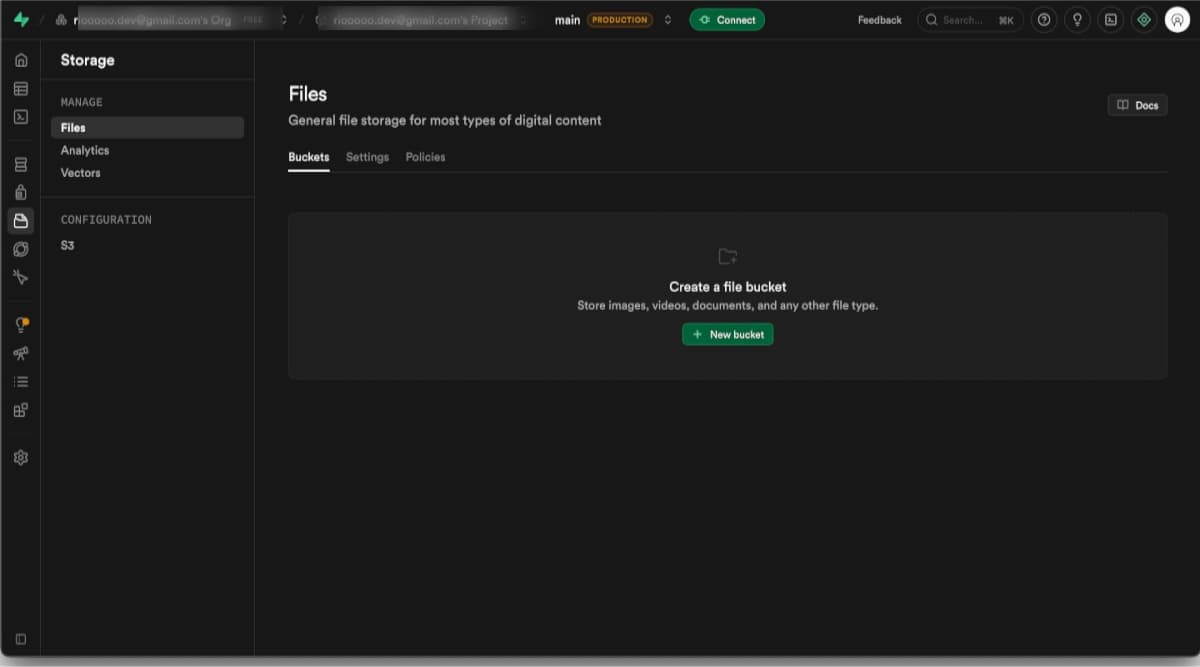
You can use one bucket for both Media and Files, but separate buckets are often easier to reason about. Media accepts images. Files accepts documents, PDFs, spreadsheets, archives, and other non-image downloads.
Supabase documents the bucket access model in Storage Buckets and the dashboard creation flow in Creating Buckets.
Map the Media bucket in BaseBuddy
- Open the project in BaseBuddy.
- Select Project Settings in the sidebar.
- Open Mapping.
- Find Media mapping.
- Click Open Media mapping.
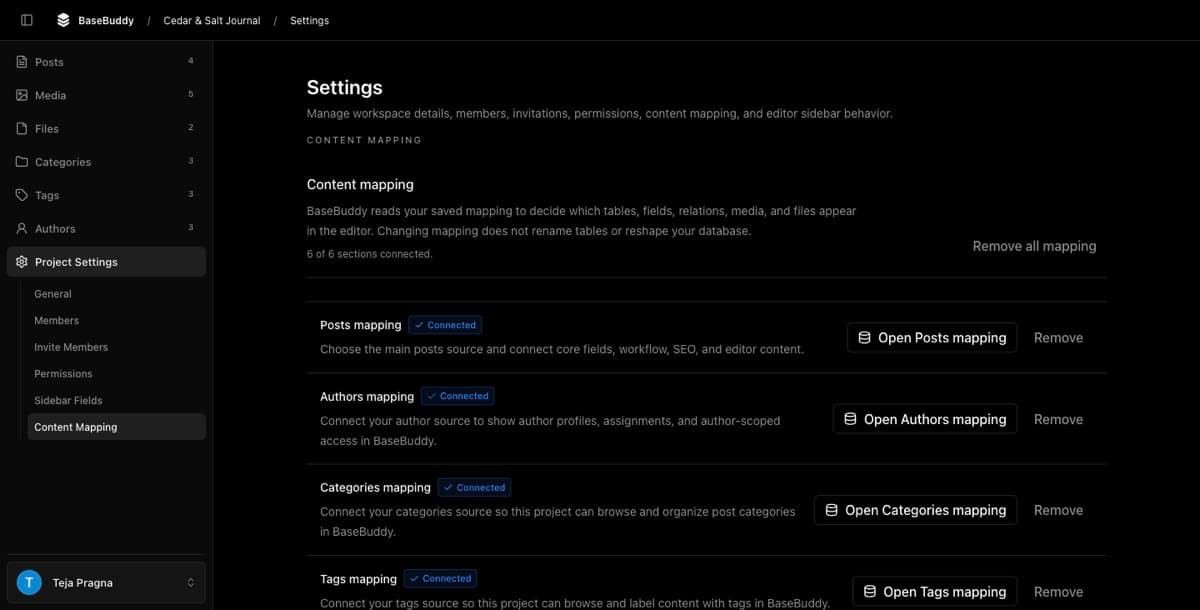
The Media mapping screen opens to Media Storage.
- Set Storage Provider to Supabase Storage Bucket.
- Under Bucket Name, choose the bucket you created for images.
- Click Finish.
If BaseBuddy can list buckets from Supabase, the bucket menu shows each bucket with its public or private status. If it cannot list buckets, Bucket Name appears as a text field. Enter the exact Supabase bucket id, such as media.
BaseBuddy saves the media storage mapping, checks upload access, and reloads the Media library with the saved mapping.
Map the Files bucket in BaseBuddy
- Stay in Project Settings.
- Open Mapping.
- Find Files mapping.
- Click Open Files mapping.
The Files mapping screen opens to Files Storage.
- Set Storage Provider to Supabase Storage Bucket.
- Under Bucket Name, choose the bucket you created for files.
- Click Finish.
If files share the same bucket as images, choose the same bucket here. If you created a separate bucket, choose the files bucket.
BaseBuddy saves the files storage mapping, checks upload access, and reloads the Files library with the saved mapping.
Verify Media and Files
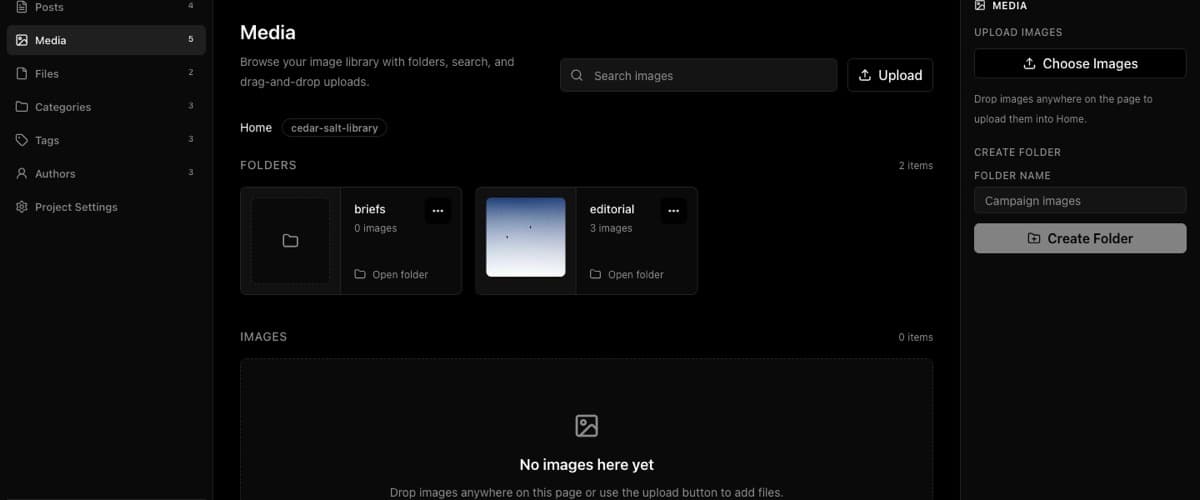
Open Media from the project sidebar. You should see the Media library with upload controls, folder browsing, and the mapped bucket name.
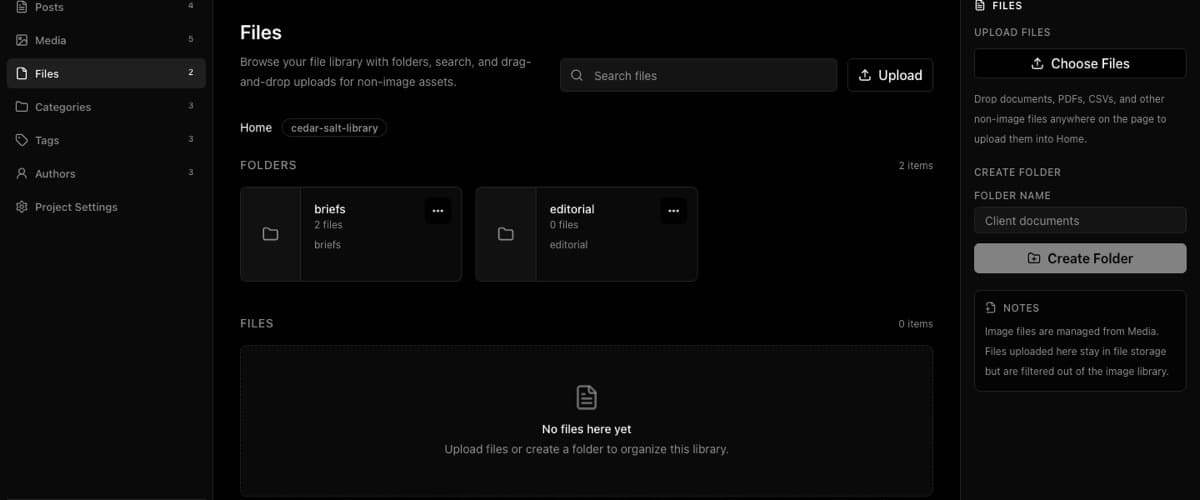
Then open Files from the project sidebar. You should see the Files library with upload controls, file rows, and folder tools.
Use How to upload and manage images in the Media library for image uploads. Use How to upload and manage files in the Files library for documents and downloads.
For the broader storage model, accepted file types, limits, and private URL notes, read Media and files.
What this setup does not do
Mapping a Supabase Storage bucket in BaseBuddy does not:
- create a bucket in Supabase
- rename a bucket
- change bucket visibility
- write storage policies or RLS rules
- migrate objects between buckets
- delete buckets, folders, images, or files
If you need S3-compatible storage instead of Supabase Storage, use How to configure S3-compatible storage for media and files.
If you need to serve private assets outside BaseBuddy, design that delivery path before linking those assets publicly. Supabase explains public asset URLs and private signed URL behavior in Serving assets from Storage.
This guide also does not cover move/delete cleanup. Moving or deleting existing objects can break old links if posts or your frontend still point at the previous object path.