How to preview content safely
Use browser-local preview snapshots to check saved content or unsaved changes without saving, publishing, or deploying.
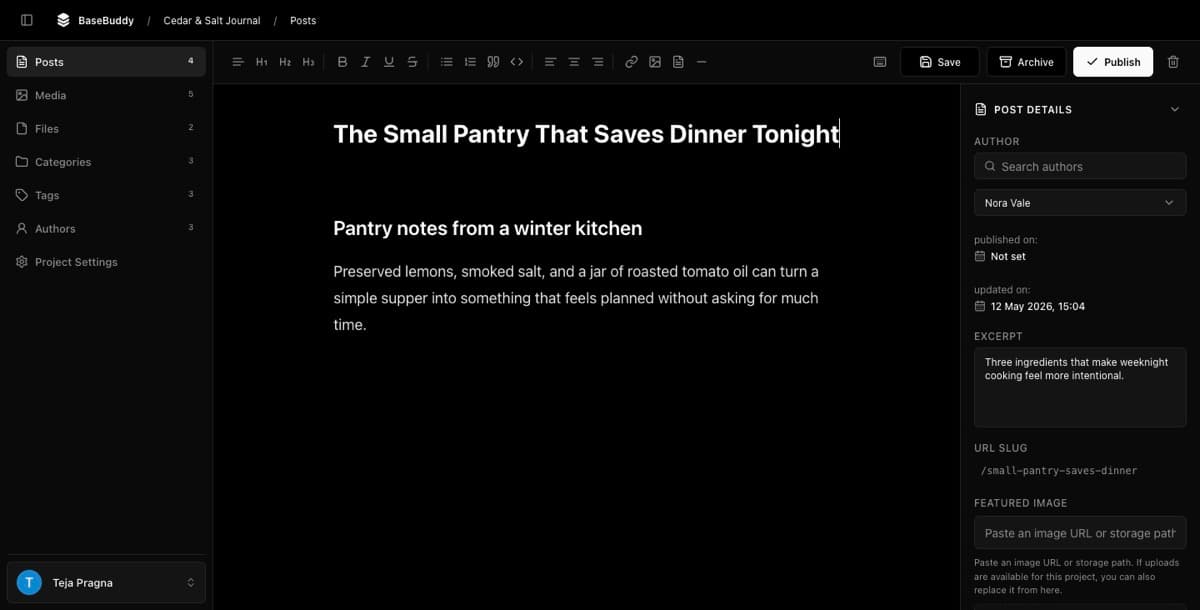
Use Preview when you want to check how a mapped post reads before you save or run a workflow action.
BaseBuddy Preview is a browser-local snapshot. It opens the current post in a separate preview tab from your browser's local storage. It is not a public website preview, deploy preview, rebuild, webhook, or publishing pipeline.
Before you preview
Open a mapped post in BaseBuddy and review the editor state.

Preview is safe to use because it does not write to your database. Opening a preview should not save dirty fields, publish content, unpublish content, archive content, update workflow fields, or trigger a deploy.
The preview snapshot can include unsaved changes from the current editor session. That lets you review edits before deciding whether to write them.
Open a preview
- Open the post you want to review.
- Make any edits you want to inspect, or leave the post unchanged if you only want to review the saved version.
- Click
Previewin the editor sidebar. - Allow pop-ups for the BaseBuddy site if your browser blocks the new tab.
- Review the preview tab.
The preview tab shows the post title, excerpt, content, status, preview time, and path. If the snapshot includes dirty editor values, the tab shows Unsaved changes included.
Understand what Preview does
Preview copies the current editor state into a local snapshot in your browser. BaseBuddy then opens a preview URL with a token that reads that snapshot from the same browser.
| Action | What happens |
|---|---|
Click Preview with no edits | Opens a browser-local snapshot of the current post values |
Click Preview with dirty fields | Opens a browser-local snapshot that includes those unsaved editor values |
| Close the preview tab | Leaves the database unchanged |
| Refresh an old preview later | May show Preview unavailable after the snapshot expires or is cleared |
Preview snapshots are local to the browser that opened them. Sending the preview URL to someone else will not give them a public preview of your site.
Save only when you are ready
If the preview looks right, return to the editor and click Save or Update when you are ready to write ordinary content edits.
Save and Update write dirty mapped fields only. They do not publish, unpublish, archive, reshape JSON, rewrite relations, convert storage formats, or deploy your public website as a hidden side effect.
If you are changing workflow state, use the explicit workflow action instead:
| Goal | Use |
|---|---|
| Write ordinary dirty fields on a draft | Save |
| Write ordinary dirty fields on a published post | Update |
| Make a draft public according to your mapping | Publish |
| Return published content to draft according to your mapping | Unpublish |
| Move content to the mapped archived state | Archive |
Refresh the snapshot
Preview is a snapshot, not a live mirror of the editor.
If you keep editing after opening the preview tab, return to BaseBuddy and click Preview again. The new tab uses a fresh browser-local snapshot with the latest editor state.
If Preview is unavailable
If the preview tab says Preview unavailable, open Preview again from the editor.
Common causes:
| Symptom | What to do |
|---|---|
| The preview tab does not open | Allow pop-ups for your BaseBuddy URL and click Preview again |
The tab says Preview unavailable | The browser-local snapshot expired, was cleared, or the token is missing |
| Someone else cannot open the preview link | Open Preview in their own BaseBuddy session instead of sharing the local token URL |
| The preview does not show your latest edits | Return to the editor and click Preview again |
Related guides
- How to safely edit your first post
- How to publish, unpublish, and archive content
- How mapping works on BaseBuddy
- Safe editing model