How to unlock and change a project address
Change the BaseBuddy project path after unlocking the Project address field, without changing the website URL, database URL, mapped schema, or content tables.
Use this when the BaseBuddy address for a project is wrong, unclear, or no longer matches how your team refers to the workspace.
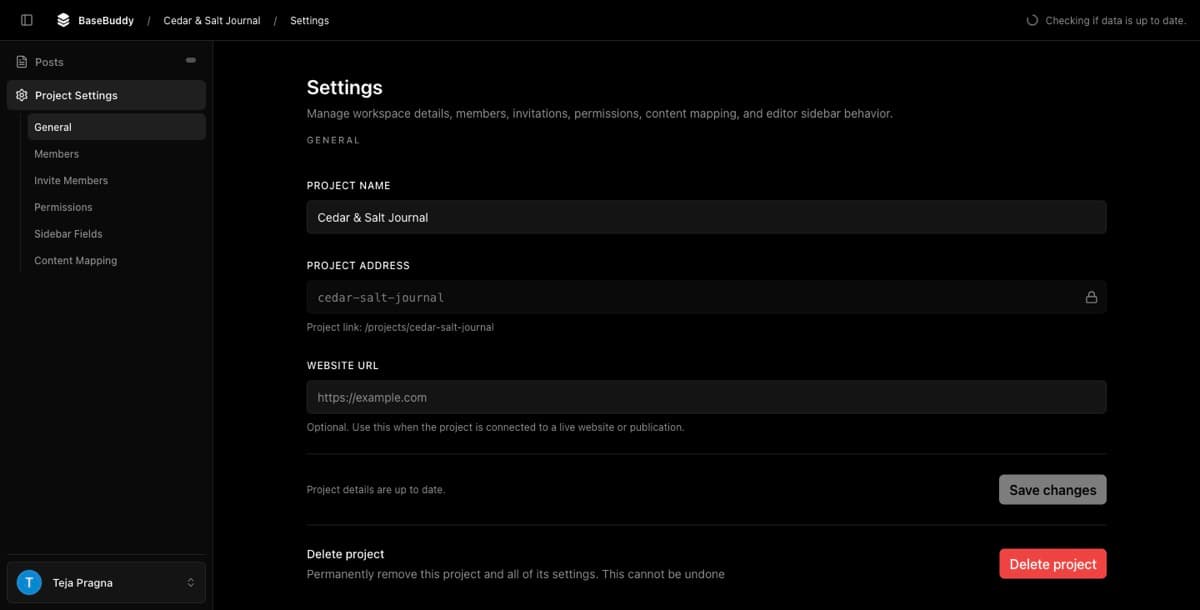
The Project address is the path BaseBuddy uses for the project inside your self-hosted app, such as /projects/marketing-site. Changing it updates the BaseBuddy project route. It does not rename your database schema, move mapped content, or change the external site connected to the project.
Before you change it
Only project owners and admins can update project settings. If the fields are disabled, ask a project owner or admin to make the change.
The address is locked by default because saved links may depend on it. After you save a new address, bookmarks, shared links, browser history, internal docs, or team notes that use the old /projects/... path may need to be updated.
Check the right field
The General settings screen has three nearby fields. They do different jobs.
| Field | What it controls |
|---|---|
| Project Name | The display name people see inside BaseBuddy |
| Project address | The BaseBuddy project path, such as /projects/marketing-site |
| Website URL | The external website or publication URL connected to the project |
Do not use Project address for a Supabase URL, database URL, sign-in return URL, or mapped schema name. BaseBuddy normalizes the address into URL-safe text, so spaces and punctuation become hyphens.
If you only want to rename the visible label, use How to change the name of a BaseBuddy project. If the public site URL changed, use How to update the project website URL.
Change the project address
- Sign in to BaseBuddy.
- Open the project you want to update.
- Select Project Settings in the sidebar.
- Open General.
- Find Project address.
- Select the lock icon in the Project address field. The icon is labeled Unlock project address.
- In the Unlock project address? dialog, select Proceed.
- Edit Project address.
- Check Project link: below the field and confirm the new
/projects/...path is the address you want. - Select Save changes.
After the save finishes, BaseBuddy shows Project settings saved. If you are already inside the project, BaseBuddy updates the route to use the new address.
Verify the change
After saving:
- Confirm the browser is on the new
/projects/...path. - Open the project from
/projectsand confirm it uses the new address. - Open a content list, such as Posts, and confirm mapped content still loads.
- Open Project Settings -> General and confirm Project address and Project link: show the new address.
- Update any saved links, bookmarks, internal docs, or team notes that still use the old project path.
Changing the Project address should not change mapping, content storage, project members, permissions, or workflow state. BaseBuddy still reads the saved mapping for the project after the route changes.
If you need to lock it again
If you unlock the field by mistake, select the lock icon again. The icon is labeled Lock project address.
If you already edited the address but do not want to save it, restore the previous value or leave the settings screen without selecting Save changes.
If the address will not save
If Save changes is disabled, check that Project Name and Project address are not empty and that the address is different from the saved value.
If BaseBuddy says the address is already taken, choose another Project address. Project addresses must be unique inside one BaseBuddy install.
If content does not load after the change, check whether mapping or database setup was changed at the same time. Changing only Project address does not rename tables, alter schemas, or rewrite content rows. For mapping background, read How mapping works on BaseBuddy.
Related guides
- How to create a BaseBuddy project
- How to change the name of a BaseBuddy project
- How to update the project website URL
- How mapping works on BaseBuddy