How to map SEO fields on BaseBuddy
Connect meta title, meta description, focus keyword, and URL slug fields from your existing posts table to the BaseBuddy editor.
Map SEO fields when your existing posts table already stores values such as a meta title, meta description, focus keyword, or URL slug and you want editors to update those values from BaseBuddy.
BaseBuddy does not add a separate SEO schema or rewrite your content model. It reads the saved mapping, shows the supported fields in the editor, and writes only dirty mapped fields when you click Save.
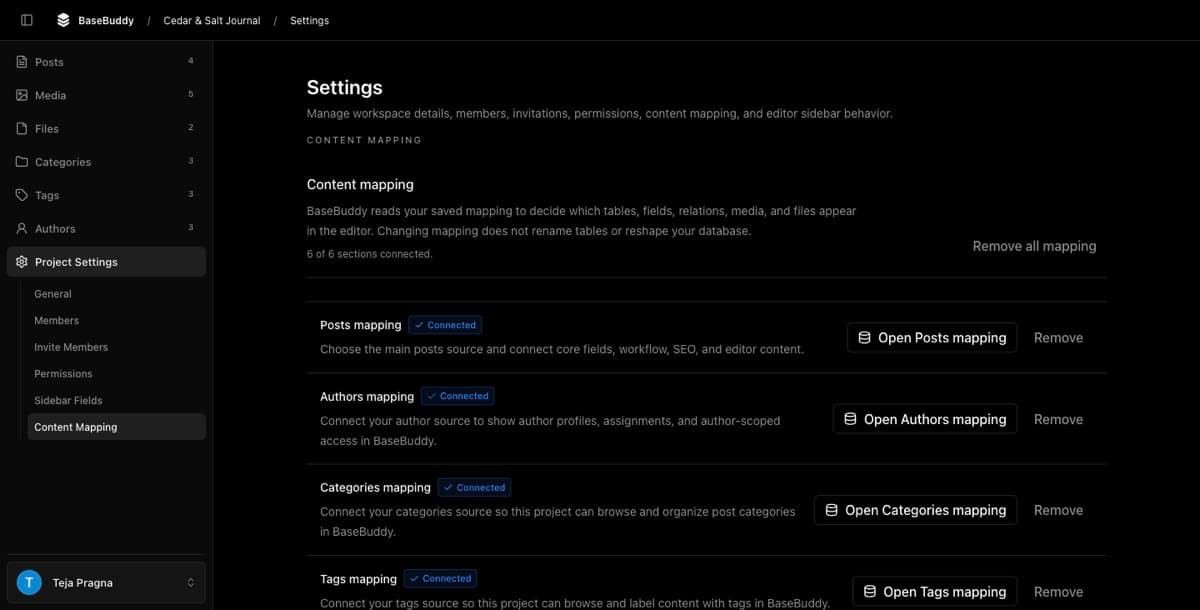
Supported SEO Fields
BaseBuddy supports these SEO-related post fields:
| Field | Where you map it | What it edits |
|---|---|---|
Meta Title | SEO | The stored title override your site can use for search results |
Meta Description | SEO | The stored description override your site can use for search results |
Focus Keyword | SEO | The main keyword or phrase used by BaseBuddy's editor checks |
URL Slug | Core Fields as Slug | The stored post address or route segment, if your site uses one |
Only map fields that exist in your database and have a safe write path. If your app does not store a focus keyword, leave Focus Keyword unmapped. BaseBuddy can still use a local focus keyword for editor checks, but it will not save that value with the post until an owner connects the field.
Open Posts Mapping
- Open your BaseBuddy project.
- Open
Settings. - Select
Mapping. - In
Posts mapping, clickOpen Posts mapping.
If your project is not mapped yet, the editor may show Map Posts instead. That opens the same posts mapping flow.
Map The URL Slug
On Core Fields, map Slug only if your site stores an editable post slug, route slug, permalink, or similar value.
Common columns include:
slugroute_slugpermalink
After the mapping is saved, this field appears in the post side panel as URL Slug. Editors can edit the slug there, then use the main Save action to write it back with the post.
If the slug is generated, trigger-managed, view-derived, or owned by another routing system, leave it unmapped or read-only.
Map Meta And Keyword Fields
Continue to the SEO step in posts mapping.
Map only the fields your database actually stores:
| BaseBuddy field | Common columns |
|---|---|
Meta Title | seo_title, meta_title, title_tag |
Meta Description | seo_description, meta_description, meta_desc |
Focus Keyword | focus_keyword, focus_keyphrase, seo_keyword, meta_keywords |
Leave a field blank if your site does not store that value or if the storage shape is unsafe to patch. Unsupported or unsafe mappings should stay read-only or unmapped rather than pretending they are editable.
Save The Mapping
Finish the posts mapping flow:
- Click
Continuethrough the remaining steps. - On the final step, click
Finish. - Review the
Save content mapping?confirmation. - Click
Save mapping.
After the save finishes, BaseBuddy reloads the project from the latest saved mapping. That saved mapping controls which SEO fields appear, whether they are editable, and how Save writes them.
Check The Editor
Open Posts, then open one safe post.
In the post side panel, check for:
URL SluginPost Details, ifSlugwas mapped.Focus KeywordunderSEO Fields, if it is mapped or available for local editor checks.Meta TitleandMeta DescriptionunderMeta Fields, if they are mapped.

Meta Title shows a 60-character guide and defaults to the post title if blank. Meta Description shows a 155-character guide and defaults to the excerpt if blank. These are editor affordances only; your site decides how to render the saved values.
BaseBuddy may also show SEO Analysis and Readability Analysis editor checks when supported fields and content are available. These checks help editors review the current post, but BaseBuddy does not save rankings, generate search traffic, create sitemaps, write schema markup, or replace a full SEO platform.
Verify One Safe Edit
Before editors rely on the mapping, test one low-risk post.
- Open a safe draft or test post.
- Change only one mapped SEO field, such as
Meta Description. - Click the main
Savebutton. - Inspect the row in Supabase or your database client.
- Confirm only that mapped storage target changed.
If you mapped URL Slug, test it separately. Click the slug in the side panel, edit it, click the small slug Save to apply the draft slug in the editor, then click the main Save button to write the post.
Normal Save writes dirty mapped fields only. It should not publish, unpublish, archive, rewrite unrelated SEO fields, or change unmapped values.
Common Issues
If an SEO field does not appear in the editor, reopen Project Settings -> Content Mapping -> Open Posts mapping and confirm the field is mapped on the SEO step.
If Focus Keyword appears but says it will not be saved, the field is not connected to database storage. Map a safe focus keyword column if your site needs to persist that value.
If a field is read-only, check whether the mapped source is generated, view-derived, trigger-managed, unsupported, or missing a safe write path. See How to fix a field showing as read-only.
If the wrong database value changes after saving, stop and review the saved mapping before making more edits.
Related Guides
- How to map a posts table
- How mapping works on BaseBuddy
- Mapping fields and relations
- How to customize your BaseBuddy sidebar