How to fix missing projects after sign-in
Clear project search, confirm the signed-in email, accept invites, and check membership when BaseBuddy sign-in works but projects do not appear.
Use this when sign-in succeeds but Projects shows No projects yet, No matching projects, or a direct project URL does not open.
Sign-in and project access are separate in BaseBuddy. Signing in proves who you are. Opening a project requires a project membership for that signed-in account, or a valid invite that has been accepted with the invited email address.
BaseBuddy's /projects page lists only projects where the current account has membership.
Start with the Projects page
Open /projects and check the visible state first.
| What you see | What it usually means |
|---|---|
| No matching projects | A search is hiding projects that your account can access. |
| No projects yet | This account has no project memberships in this install yet. |
| A direct project URL does not open | The signed-in account is not a member of that project, the project address is wrong, or setup is not ready. |
If you see No matching projects, clear the search field or open /projects without ?q=... in the URL. The search field filters only the projects your current account can already access.
If projects appear after clearing search, nothing is wrong with membership. Open the project from the list.
Check the signed-in email
Open the account menu in the top-right of BaseBuddy and confirm the email shown there.
Project membership is attached to the signed-in account. If you used a different local user email than the one invited, BaseBuddy will not show the project.
If the account menu shows the wrong email:
- Select Log out from the account menu.
- Sign in again with the email that should have access.
- Return to
/projects. - Clear search if No matching projects appears.
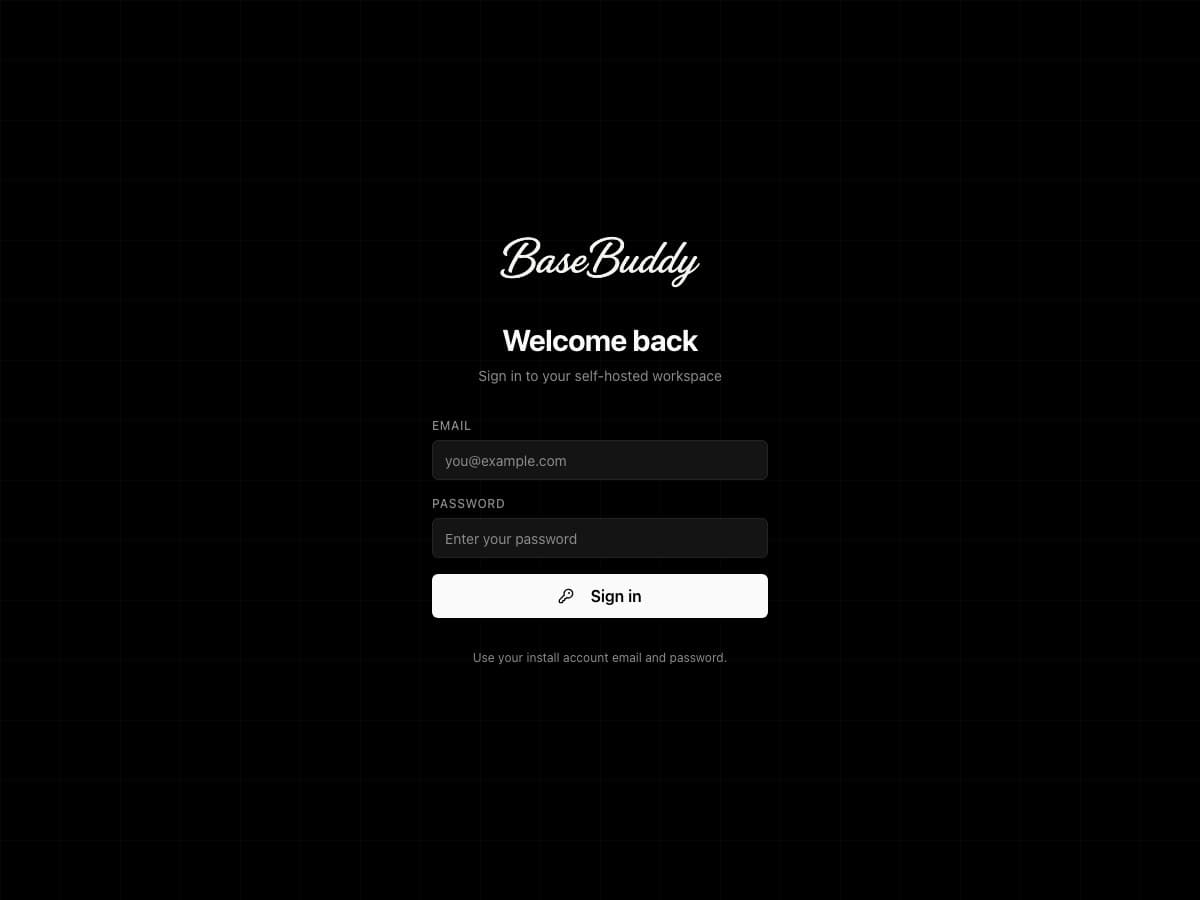
If you opened an invite and BaseBuddy says Wrong account, use How to fix an invite opened with the wrong account.
If this should be a new workspace
If you expected a fresh install or a new workspace, No projects yet is normal. Create the first project from the empty Projects page.
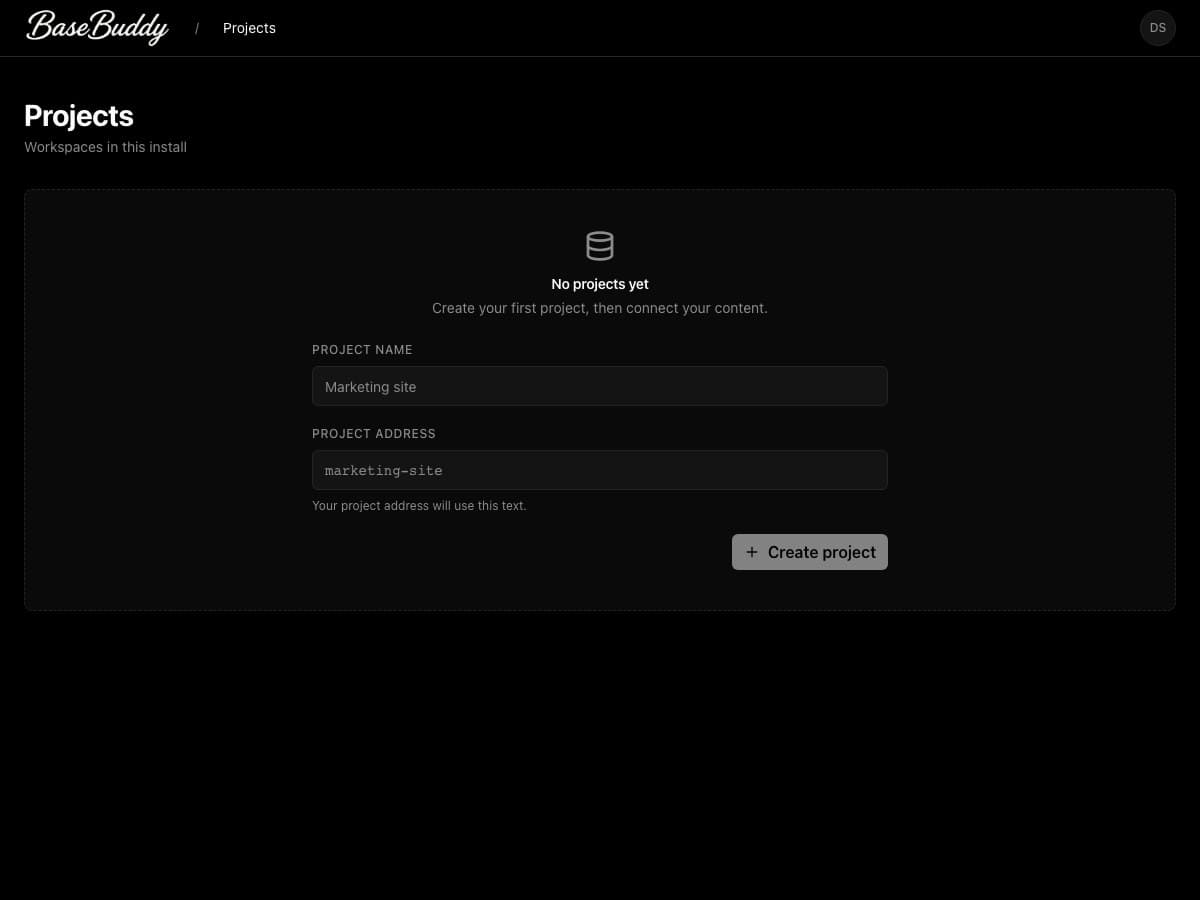
The user who creates a project becomes the project Owner. BaseBuddy creates the project, that owner's membership, and an initial mapping draft. It does not create, rename, reshape, or write to your content tables.
Follow How to create a BaseBuddy project if you need the step-by-step project creation flow.
If someone invited you
Ask the project owner or admin for the invite link, then open it while signed in with the invited email address.
Pending invites do not grant project access yet. BaseBuddy shows the project in /projects only after you accept the invite successfully.
On the invite page, compare:
| Field | What to check |
|---|---|
| Invited Email | The exact email address that must accept the invite. |
| Current Account | The account currently signed in on this browser. |
If the two emails match, select Accept invitation. If they do not match, switch accounts before accepting. For the full flow, use How to accept a BaseBuddy invite.
If sign-in does not return to the invite page, ask the setup owner to check local sign-in and invite return paths. Start with How to verify BaseBuddy sign-in setup.
If you own or administer the project
Open the project with an owner or admin account and check the member or invite state.
- Open the project.
- Select Project Settings in the sidebar.
- Open Members.
- Look for the affected person under Current members.
- If they are already a member, select Manage access and check their roles and author scopes.
- Open Invite Members.
- Look for an active pending invite for the person's email.
- If needed, copy the pending invite link or create a fresh invite.
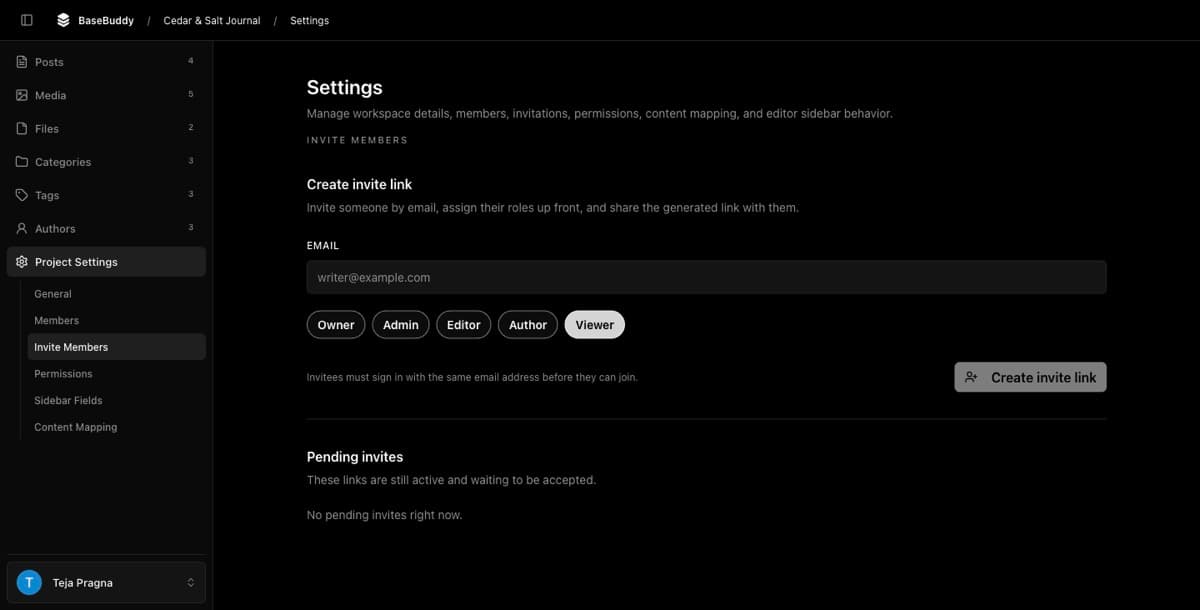
If the person has never signed in to this BaseBuddy install, send an invite link instead of trying to add them directly by email. Direct member add by email only works after BaseBuddy has created that person's profile, which happens when they sign in at least once.
If the person already accepted an invite but still cannot see the project, compare the member email with the email in their account menu. The invite email and signed-in email must be the same.
Check role-appropriate access
Once the project appears, verify the person can open the areas their role should allow.
Owners and admins can review member access from Project Settings -> Members and Project Settings -> Permissions.
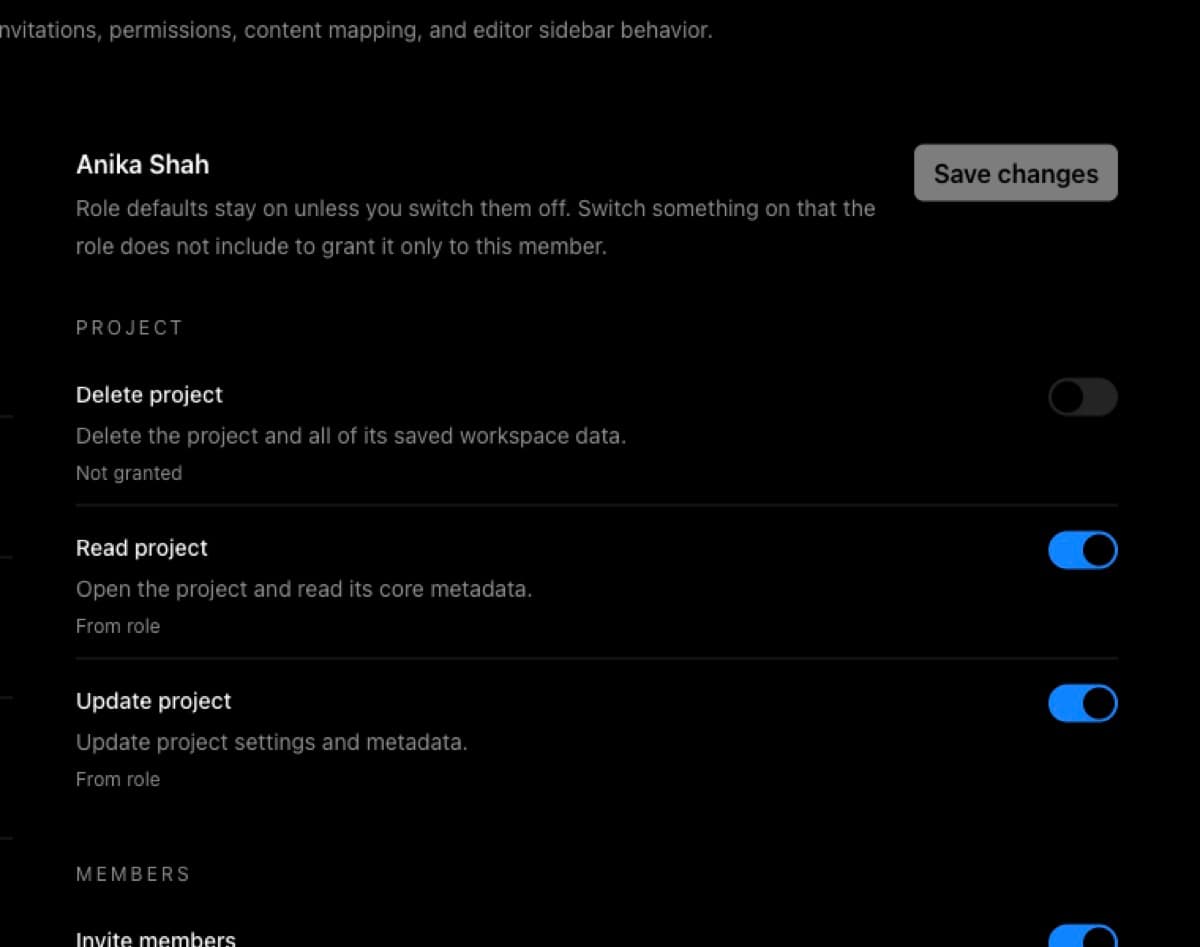
Check these items in order:
- The member is listed under Current members.
- Their role is correct: Owner, Admin, Editor, Author, or Viewer.
- Author-scoped users have at least one author scope.
- Any required per-author Publish switch is enabled.
- The Permissions screen does not show an explicit deny for the needed action.
- The member can sign in and open the project from
/projects.
Use How to check what a member can access and Permissions and roles: how BaseBuddy handles them when the project appears but actions are missing.
If setup or schema checks appear instead
If /projects redirects to setup, shows a setup notice, or the direct project URL shows setup checks, fix setup before changing membership.
Setup problems are different from missing project membership. BaseBuddy may not be able to read the config file, local user, project membership, mapping, or database connection yet.
Use How to fix failed setup checks, then return to /projects after setup is ready.
Common fixes
| Problem | Fix |
|---|---|
| Search shows No matching projects | Clear the search field or open /projects directly. |
| Signed in with the wrong account | Log out, then sign in with the email that owns the project or was invited. |
| Invite is still pending | Open the invite link and select Accept invitation with the invited email. |
| Invite was created for the wrong email | Ask an owner or admin to revoke it and create a new invite for the correct email. |
| The person never signed in before | Send an invite link. Direct add by email requires a profile from a previous sign-in. |
| Member exists but cannot do the expected action | Check roles, author scopes, permission overrides, and publish access. |
| Direct project URL does not open | Confirm the account is a member and the project address is correct; then check setup if the app shows setup checks. |
Verify the fix
After changing account, invite, membership, or permissions:
- Have the affected person sign out and sign back in with the expected email.
- Open
/projects. - Clear search.
- Confirm the project appears in the list.
- Open the project from the list.
- Try one role-appropriate action, such as viewing content, editing a draft, opening settings, or managing members.
If the project appears but one action is blocked, continue with How to check what a member can access. If sign-in itself is unreliable, check BaseBuddy sign-in setup.
Related guides
- How to create a BaseBuddy project
- How to invite users to your BaseBuddy project
- How to accept a BaseBuddy invite
- How to fix an invite opened with the wrong account
- How to check what a member can access
- Permissions and roles: how BaseBuddy handles them
- Permissions and teams
- How to fix failed setup checks