How to edit SEO title, description, slug, and focus keyword
Update SEO title, meta description, URL slug, and focus keyword fields safely from the BaseBuddy editor.
Use this guide when your posts mapping already includes SEO fields and you want editors to update them from the post editor.
BaseBuddy shows SEO fields from the saved mapping. It does not create a separate SEO table, rename your columns, or change how your site renders metadata. Normal Save or Update writes dirty mapped fields only.
If you have not mapped these fields yet, start with How to map SEO fields on BaseBuddy.
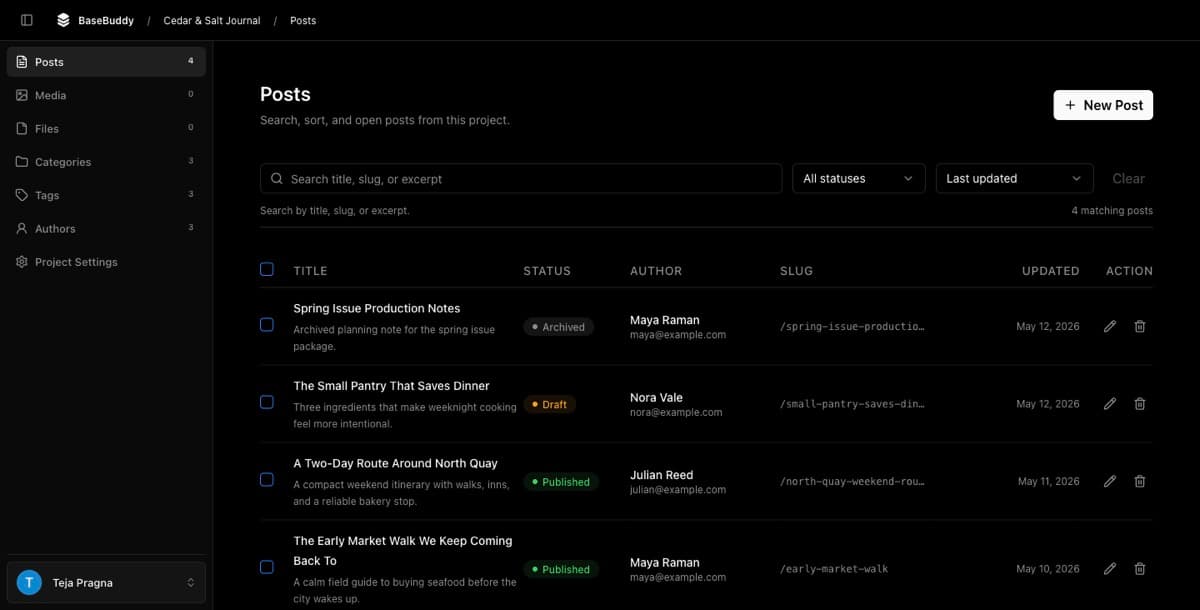
Open a safe post
- Open your BaseBuddy project.
- Open the posts list.
- Choose a draft or low-risk post.
- Review the current title, slug, status, and side panel fields before editing.
The side panel sections can vary by sidebar configuration. Your project may show SEO fields under groups such as Post Details, SEO Fields, or Meta Fields, or under custom group labels chosen by an owner.

Edit the SEO title
In the side panel, find Meta Title. This is the SEO title value your site can use for the browser title or search result title.
- Enter the title you want search previews to use.
- Use the character guide as a writing aid.
- Leave the field blank if your site should fall back to the post title.
Changing Meta Title marks the post as dirty. It is not written to the database until you click the main Save or Update button.
Edit the meta description
Find Meta Description in the side panel.
- Enter a short description for search previews or social snippets.
- Use the length guide to keep the description concise.
- Leave it blank if your site should fall back to another value, such as the post excerpt.
The guide in BaseBuddy is an editor aid. Your frontend decides exactly how saved metadata appears on public pages.
Edit the URL slug
Find URL Slug in the side panel.
- Click the current slug.
- Edit the slug text.
- Click the small inline
Savebeside the slug field. - Confirm the updated slug appears in the editor.
- Click the main
SaveorUpdatebutton when you are ready to write the post.
The inline slug Save applies the slug draft inside the editor. It does not replace the main post Save or Update. The database write still happens through the main action, along with any other dirty mapped fields.
Be careful with published URLs. If your public site depends on the slug, changing it may affect links, redirects, feeds, or search indexing outside BaseBuddy.
Edit the focus keyword
Find Focus Keyword in the side panel.
If the focus keyword is mapped to database storage, BaseBuddy saves it like any other dirty mapped field when you click the main Save or Update button.
If the field is not connected to database storage, BaseBuddy can still use the keyword for SEO analysis in the editor, but it will not be saved with the post. In that state, the keyword is local to the editing session. Ask an owner to map a safe focus keyword field if your site needs to persist it.
Save the post
After changing the SEO title, meta description, slug, or stored focus keyword, click the main Save or Update button.
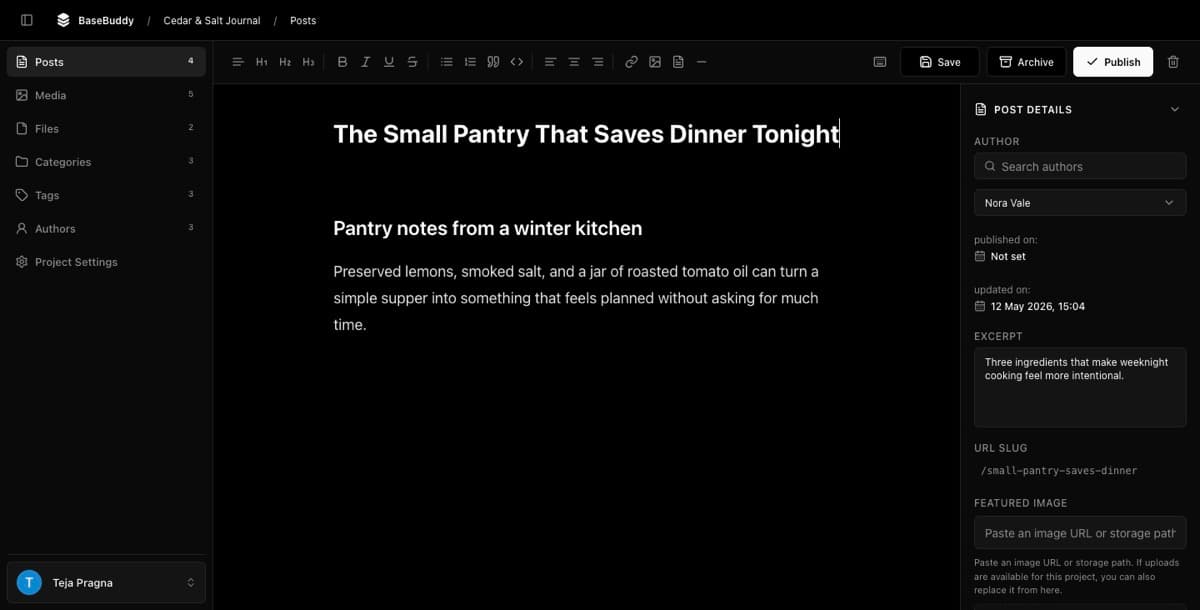
BaseBuddy writes only the dirty mapped fields. It should not publish, unpublish, archive, rewrite unrelated SEO fields, reshape JSON, or change unmapped values as a side effect.
If the post has no dirty mapped fields, the main save action should stay disabled or have nothing to write.
Verify the edit
After saving:
- Reopen the post in BaseBuddy.
- Confirm the SEO title, meta description, slug, and stored focus keyword still show the expected values.
- Inspect the row in Supabase or your database client if this is a new mapping.
- Confirm only the mapped fields you changed were updated.
- Confirm workflow status changed only if you clicked a workflow action such as
Publish,Unpublish, orArchive.
If your site has its own triggers, cache jobs, or search indexing pipeline, account for those separately from the fields BaseBuddy writes.
If a field is missing or read-only
If Meta Title, Meta Description, URL Slug, or Focus Keyword does not appear, check the saved posts mapping and sidebar field configuration. A hidden sidebar field can be available in the mapping but not visible to the current editor layout.
If a field appears as read-only, BaseBuddy can read the value but cannot patch that storage target safely. The source may be generated, trigger-managed, view-derived, unsupported, or missing a safe write path.
If Focus Keyword appears but says it will not be saved, it is available for local editor checks only. Map a database-backed focus keyword field before relying on it as saved content.
If the slug update appears in the editor but does not remain after the main Save or Update, confirm Slug is mapped to writable storage and that the current user has edit access.
Related guides
- How to map SEO fields on BaseBuddy
- How to safely edit your first post
- How to use the editor toolbar
- How to customize your BaseBuddy sidebar
- How to fix a field showing as read-only