How to fix owner or admin permission errors
Troubleshoot permission-denied messages when owners or admins manage project settings, members, invites, permissions, mapping, or project deletion.
Use this when an owner or admin sees a missing button, disabled control, or permission-denied message while managing a BaseBuddy project.
Some blocks are expected safety locks. Others mean the signed-in account, project membership, role, or explicit permission overrides need review. Check them in the order below before changing setup or asking someone to make direct database edits.
Do not edit BaseBuddy config internals directly to repair access. Use the project settings screens, or ask an owner to restore access from the UI.
Confirm the blocked action
Start with the exact screen, action, and message. This keeps you from fixing the wrong layer.
| Blocked area | Permission BaseBuddy checks |
|---|---|
| Opening member lists | Read members (member.read) |
| Inviting users | Invite members (member.invite) |
| Changing member roles or author scopes | Manage members (member.manage) |
| Changing permission overrides | Owner or Admin role, plus Manage members (member.manage) |
| Updating project settings | Update project (project.update) |
| Updating mapping | View mapping (mapping.read) and Update mapping (mapping.write) |
| Deleting a project | Delete project (project.delete) |
If the message names one of these actions, review that permission for the affected account. Effective access comes from role defaults plus explicit allows and denies. An explicit deny can remove access that the role normally includes.
Recognize expected admin locks
Admins can manage normal members, invites, permissions, mapping, project settings, and content. They cannot cross owner-only boundaries.
BaseBuddy intentionally blocks admins from:
- Assigning the Owner role.
- Removing the Owner role.
- Changing owner members.
- Changing owner permission overrides.
- Granting or removing Delete project access.
If an admin sees a disabled control or owner-only message in one of those places, access is working as designed. Ask a project owner to make the change.
For the full role model, see Permissions and roles: how BaseBuddy handles them.
Check the project and account
BaseBuddy access is project-scoped. Being an owner or admin in one project does not give the same access in another project.
- Confirm the user is signed in with the account that was added to the project.
- Confirm the browser is open to the right project.
- Open Project Settings -> Members.
- Find the affected member under Current members.
- Confirm their role badges are correct for this project.
- Select Manage access and review selected roles and author scopes.
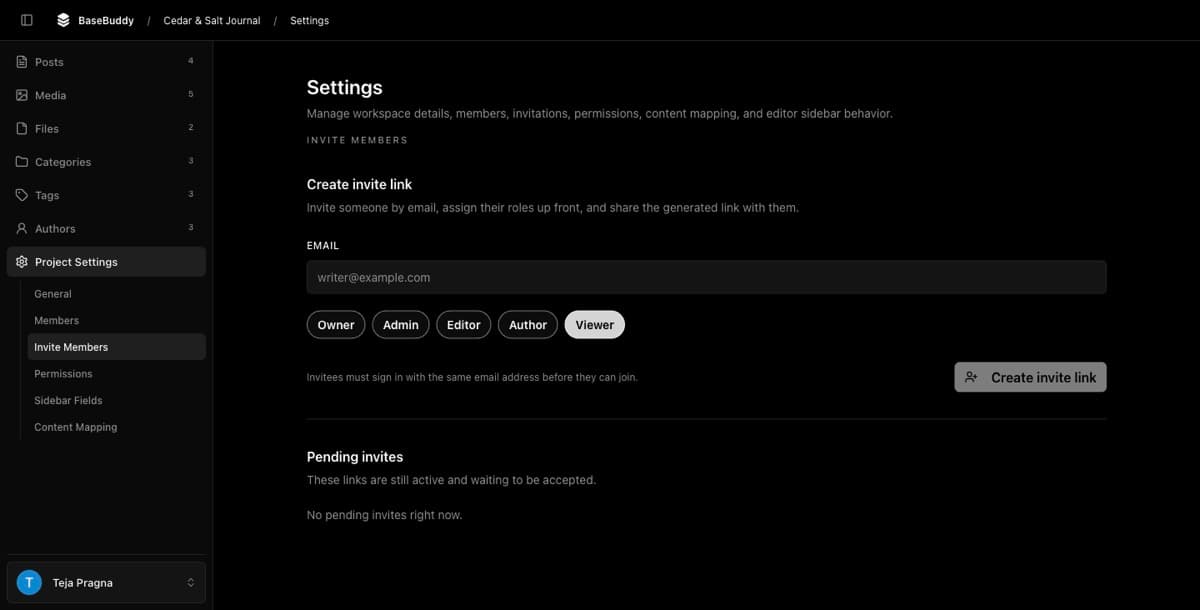
If the person is not listed, invite them again from the correct project. Use How to invite users to your BaseBuddy project to create a new invite with the intended email.
Review explicit denies
If the role looks right but the action is still blocked, check permission overrides.
- Stay in Project Settings.
- Open Permissions.
- Select the affected member.
- Review the relevant permission group: Project, Members, Mapping, Content, or Authors.
- Look for Removed for this member on the blocked action.
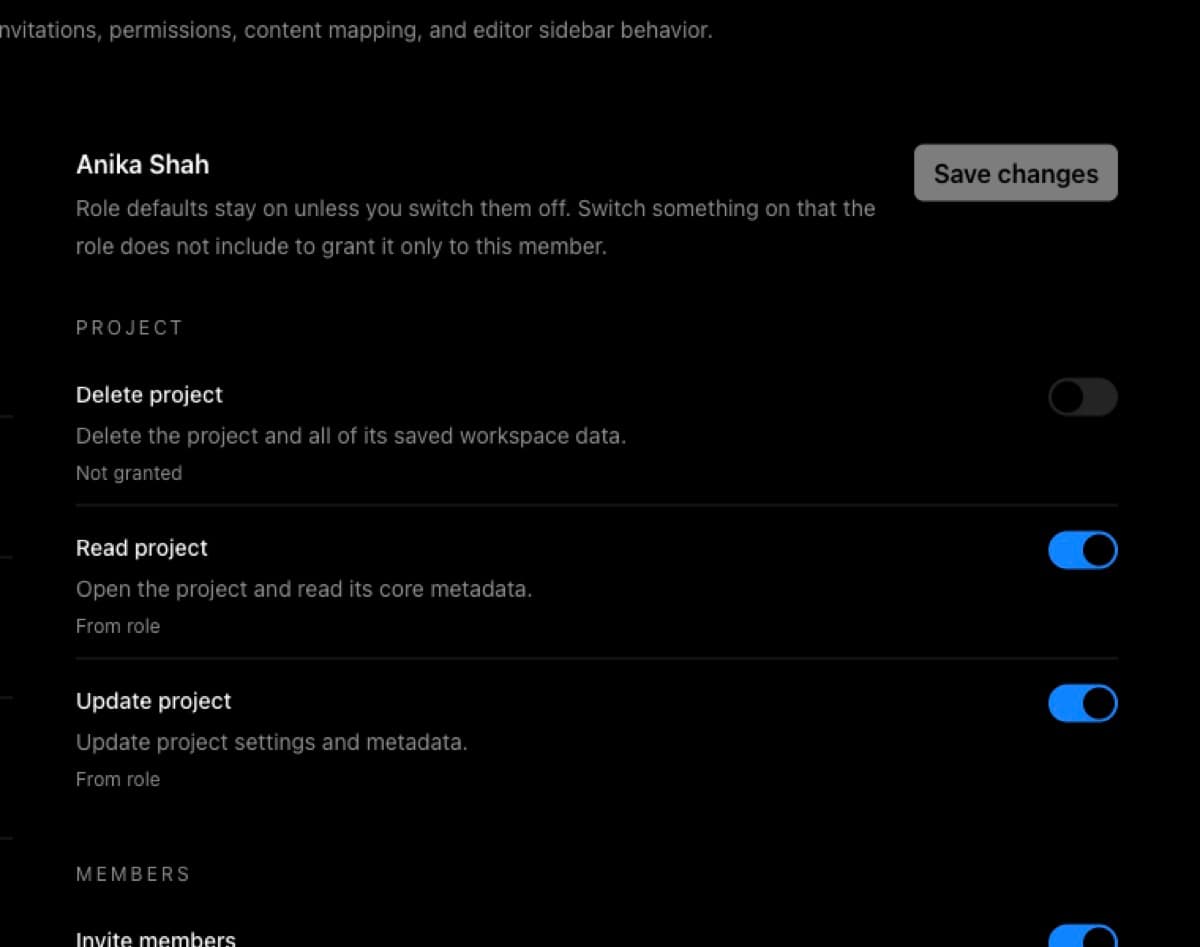
The switch shows the effective result. The status text explains why:
| Status | Meaning |
|---|---|
| From role | The member gets the permission from their role. |
| Extra permission for this member | An explicit allow adds the permission. |
| Removed for this member | An explicit deny removes the permission, even if the role includes it. |
| Not granted | The role does not include the permission, and no explicit allow adds it. |
For example, an Admin normally has Invite members, Manage members, Update project, and Update mapping. If any of those rows show Removed for this member, BaseBuddy blocks that action for that admin.
Use How to customize permissions on BaseBuddy when the role is close but one permission needs a narrow allow or deny. Use How to check what a member can access when you need to audit the whole account.
Ask an owner to restore access
If an admin cannot fix the block, ask a project owner to review the member.
The owner should:
- Open the project.
- Go to Project Settings -> Members.
- Confirm the member has the intended role.
- Go to Project Settings -> Permissions.
- Remove any unintentional explicit deny for the blocked action.
- Save the change.
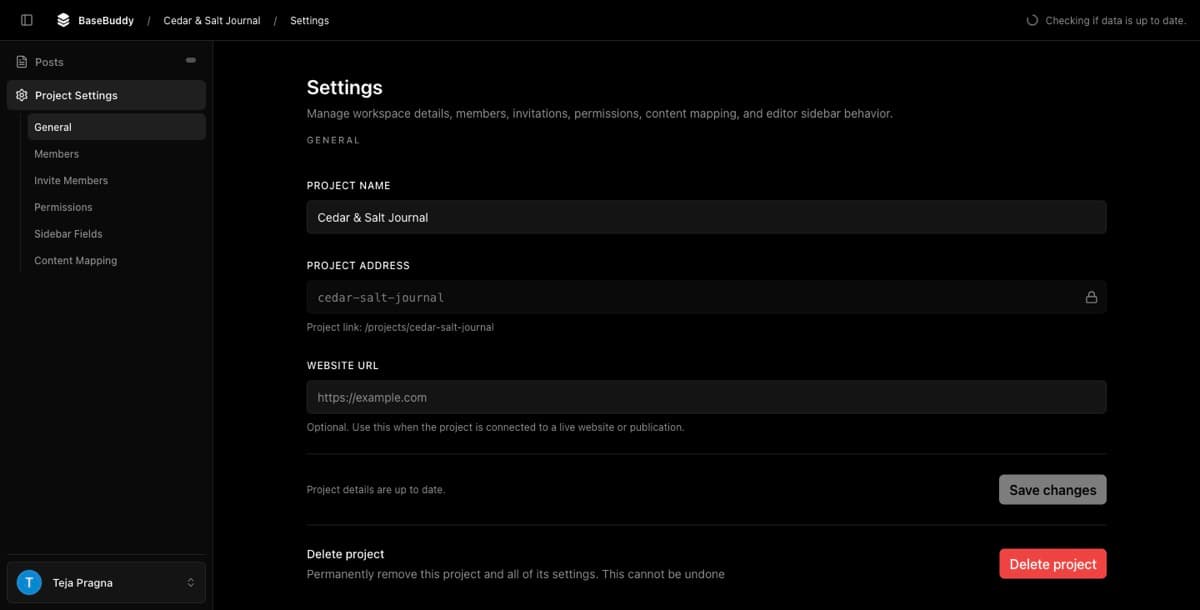
Only an owner can repair owner members, owner permission overrides, and Delete project access. If project deletion is the blocked action, use How to delete a BaseBuddy project after confirming the right owner has delete access.
If the UI looks right but API errors continue
If Members and Permissions show the expected access but the action still fails, check for stale session or setup problems before changing permissions again.
- Refresh BaseBuddy.
- Sign out and sign back in with the same account.
- Open the project again and retry the exact action.
- If the error continues after sign-in, run setup checks and fix any failed BaseBuddy setup item.
- Ask the setup maintainer to check app logs for the request time.
Setup checks can reveal a missing or invalid config file that makes access look broken even when the member settings are correct. Use How to fix setup checks before changing roles or overrides repeatedly.
Verify with the affected account
After changing access, test as the affected user or as a test account with the same role, author scopes, and permission overrides.
- Sign in as that account.
- Open the same project.
- Try the exact action that was blocked.
- Confirm owner-only actions are still blocked for admins.
- Confirm normal admin actions, such as invites, settings, mapping, and member management below owner, work as expected.
If the action now works for the affected account, the access repair is complete.
Related guides
- Permissions and roles: how BaseBuddy handles them
- How to customize permissions on BaseBuddy
- How to check what a member can access
- How to invite users to your BaseBuddy project
- How to remove a member from a project
- How to delete a BaseBuddy project
- How to fix failed setup checks
- Permissions and teams