How to change the name of a BaseBuddy project
Rename a project safely without changing database schemas, tables, or mapped content.
Use this when the project name shown inside BaseBuddy is unclear, outdated, misspelled, or no longer matches the content area your team edits.
Changing the project name is a BaseBuddy metadata change. It updates the label people see in the app; it does not rename your database, move content, or change the saved mapping.
What the name change does
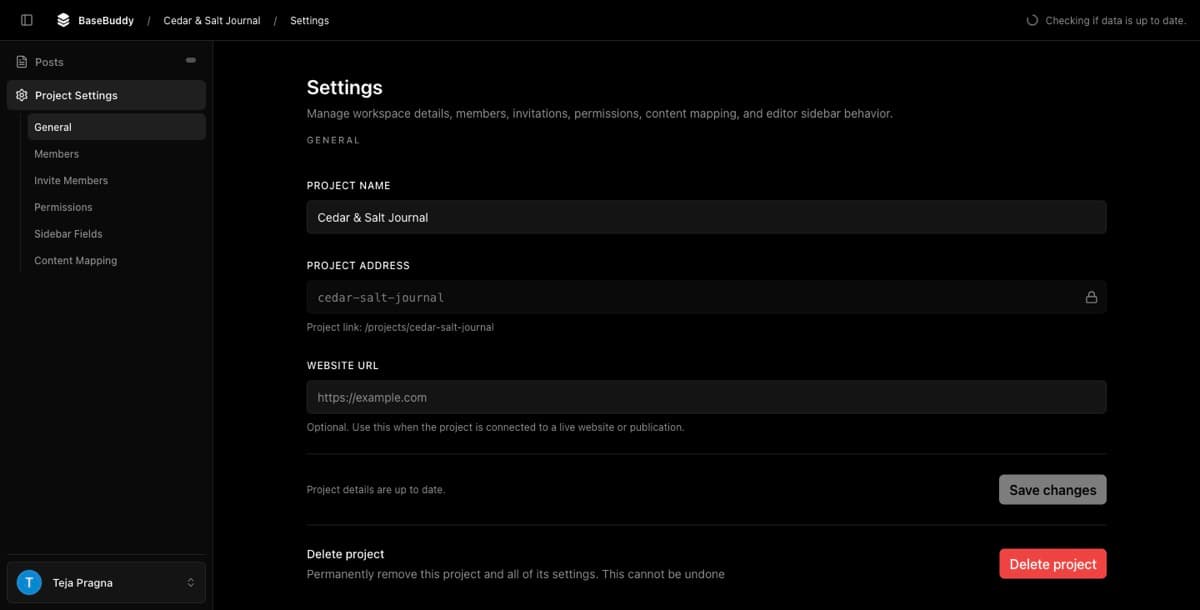
The Project Name field controls the display name BaseBuddy shows in places such as the project list, project header, and project settings.
Use a name that helps editors choose the right workspace, especially when one BaseBuddy install has several projects.
What it does not change
Renaming a project does not change your existing content storage.
It does not change:
| Area | What to expect |
|---|---|
| Database schemas | Schema names stay the same |
| Database tables | Table names stay the same |
| Columns and JSON paths | Mapped storage targets stay the same |
| Content rows | Existing posts, pages, media, files, and related records stay unchanged |
| Saved mapping | Field mapping still points at the same storage targets |
| Permissions | Members keep the same roles and permission overrides |
| Workflow state | Published, draft, archived, and other mapped statuses stay unchanged |
If you need to rename database schemas, tables, or columns, do that outside BaseBuddy with your normal database migration process. After a database-level rename, review the saved mapping before editors continue working.
Check nearby fields
The General settings screen also includes Project address and Website URL. They are not the same as the project name.
| Field | What it controls | Change it only when |
|---|---|---|
| Project Name | The visible name inside BaseBuddy | Editors need a clearer label |
| Project address | The BaseBuddy project URL, such as /projects/cedar-salt-journal | The address is wrong and your team can update saved links |
| Website URL | The external site or publication URL | The live site URL changed |
If you only want a clearer label, change Project Name and leave Project address locked.
Rename the project
Only project owners and admins can update project settings. If the fields are disabled, ask an owner or admin to make the change.
- Open BaseBuddy.
- Open the project you want to rename.
- Select Project Settings in the sidebar.
- Stay on General.
- Confirm the current Project Name, Project address, and Website URL match the project you meant to update.
- Edit Project Name.
- Leave Project address locked unless you intentionally want to change the BaseBuddy project URL.
- Leave Website URL alone unless the external site URL changed.
- Select Save changes.
After the save finishes, BaseBuddy shows Project settings saved.
If you also change Project address
You do not need to unlock Project address for a normal rename.
If you intentionally need to change it:
- Click the lock icon inside the Project address field.
- Read the Unlock project address? dialog.
- Select Proceed only if you are ready to update saved links.
- Edit Project address.
- Select Save changes.
When the address changes, BaseBuddy updates the project route. Bookmarks, shared links, browser history, and internal docs that use the old /projects/... address may need to be updated.
What teammates will see
After the rename is saved, teammates should see the new project name the next time their project list or project header reloads.
Someone who already has the project open may still see the old name until they refresh or navigate away and back. Their access does not change because the rename does not change membership, roles, permissions, or mapped content.
If you changed Project address, send teammates the new project URL.
Verify the rename
- Return to
/projectsand confirm the project appears with the new name. - Open the project and confirm the header shows the new name.
- Open Project Settings -> General and confirm Project Name is saved.
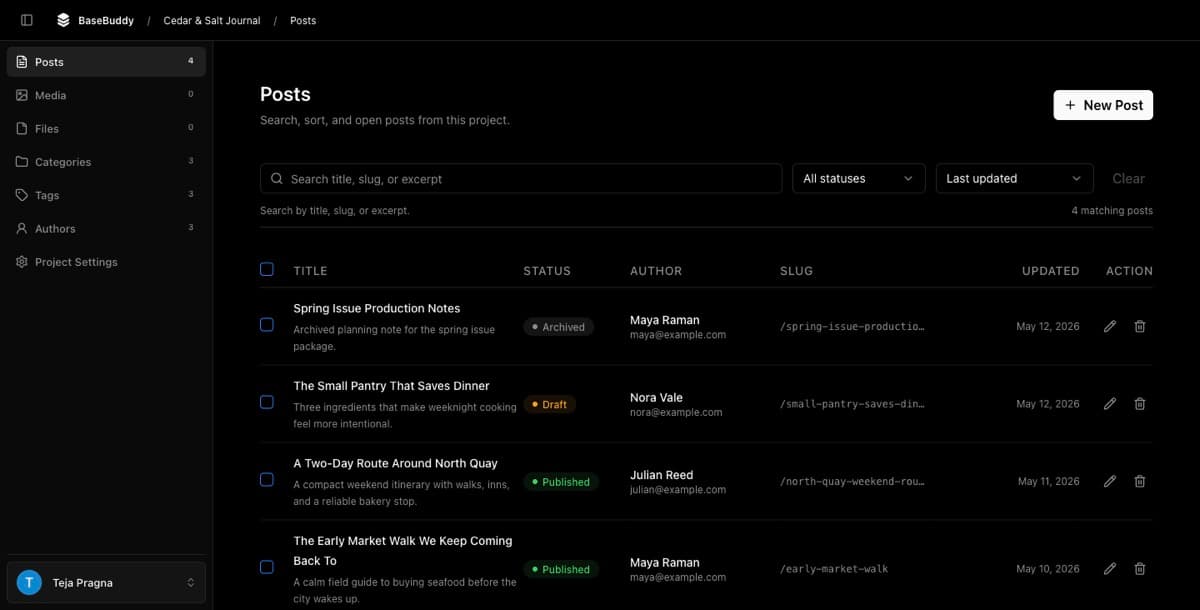
- Open Posts and confirm mapped content still loads.
- Open one content item and confirm its fields are still present.
- If you changed Project address, open the new project URL and update any saved links that still use the old address.
If something looks wrong
If the new name does not appear, refresh the project list and reopen the project.
If Save changes is disabled, check that you changed at least one field and that Project Name and Project address are not empty.
If the save fails with an address error, the Project address may already be taken or invalid. Lock the address again or restore the previous value if you only meant to rename the project.
If content does not load after this change, check whether Project address, mapping, or database setup was changed at the same time. A project-name-only rename should not affect schemas, tables, mapped fields, content rows, members, permissions, or workflow state.