How to update the project website URL
Change the external website URL saved on a BaseBuddy project without changing the project address, mapping, or database tables.
When this helps
Use this when the public website or publication connected to a BaseBuddy project has moved to a new URL.
The Website URL is optional project metadata. It helps BaseBuddy know the external site connected to the project, but it does not publish content, deploy a site, or change where the BaseBuddy app is hosted.
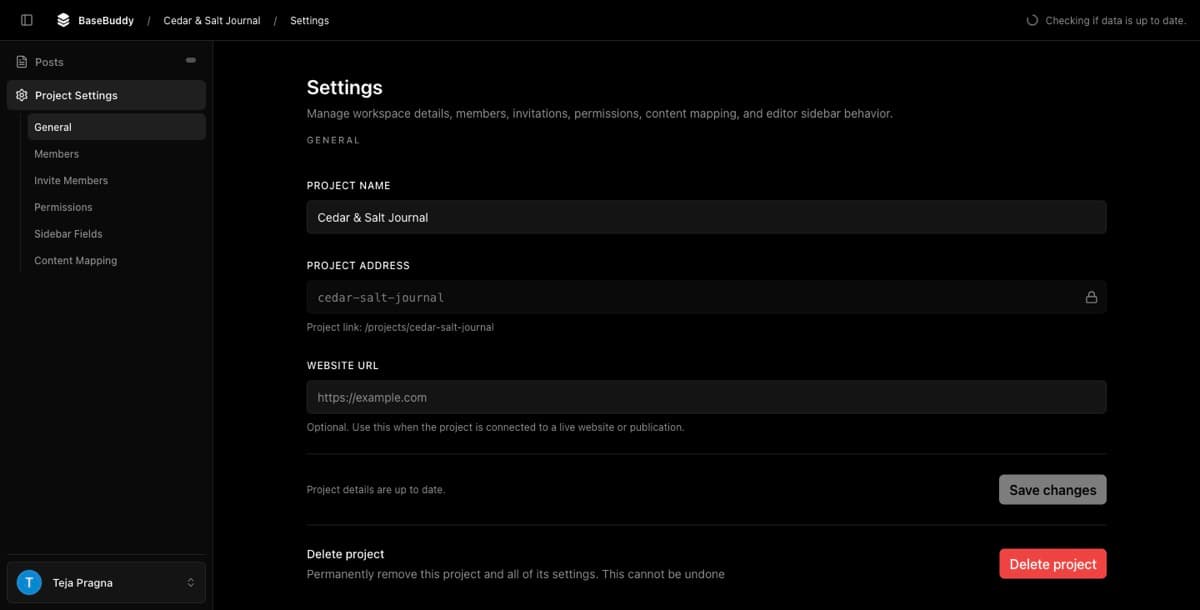
What this URL is
The Website URL should be the public site URL for the project, such as https://example.com.
BaseBuddy validates and normalizes the value when you save. The URL must use http or https. If you enter a domain without a protocol, BaseBuddy treats it as an HTTPS URL.
Clearing the field removes the saved website URL from the project.
What this URL is not
Keep the Website URL separate from the other URLs around your install.
| URL or field | What it controls |
|---|---|
| Website URL | The external site or publication connected to this project |
| Project address | The BaseBuddy project path, such as /projects/marketing-site |
| BaseBuddy app hosting URL | Where your self-hosted BaseBuddy app runs |
| Sign-in and invite return paths | Internal BaseBuddy paths such as /projects or /invite/<token> |
| Database URL | The server-side Postgres connection string used by the install |
If you need to check sign-in or invite return behavior, use How to verify BaseBuddy sign-in setup. If you need to change the project address, treat that as a separate project settings change because existing BaseBuddy links may need updating.
Update the website URL
- Sign in to BaseBuddy.
- Open the project you want to update.
- Go to Project Settings.
- Open General.
- Find Website URL.
- Enter the new public site URL, or clear the field if the project should not store one.
- Leave Project address locked unless you intentionally want to change the BaseBuddy project path.
- Click Save changes.
After the save finishes, BaseBuddy should show Project settings saved. The settings screen should return to Project details are up to date.
What changes
Saving a new Website URL updates the project metadata stored by BaseBuddy.
It does not change:
| Area | What to expect |
|---|---|
| Project address | The BaseBuddy project path stays the same unless you also change it |
| BaseBuddy app hosting | Your deployed app URL stays the same |
| Sign-in and invites | Local password sign-in and invite return paths are unchanged |
| Database connection | Database URLs and credentials are unchanged |
| Mapping | Saved field mapping still points at the same storage targets |
| Content rows | Existing posts, pages, media, files, and related records stay unchanged |
Some BaseBuddy features may use the saved Website URL when they need to understand the connected site, such as site-aware SEO checks. The URL itself does not publish, preview, rebuild, or deploy your website.
How to verify
After saving:
- Refresh Project Settings.
- Confirm Website URL shows the normalized URL you expect.
- Open the project address shown under Project address and confirm the BaseBuddy project still opens.
- Open your content list and confirm mapped content still loads.
If content no longer loads, check whether another setting changed at the same time. Updating only the Website URL should not affect mapping, database connections, permissions, or content storage.
If the URL will not save
If BaseBuddy asks for a valid website URL, check that the value is a normal http or https URL.
Use https://example.com, not a database connection string, Supabase project URL, Auth callback URL, or local file path.
If the fields are disabled, your account may not be allowed to update project settings. Ask a project owner or admin to make the change.
Related guides
- How to create a BaseBuddy project
- How to change the name of a BaseBuddy project
- How mapping works on BaseBuddy
- How to verify BaseBuddy sign-in setup