How to upload and manage images in the Media library
Upload images, browse folders, search the Media library, and manage image files safely.
Use this guide when you want to add images to a project's Media library or find images that are already there.
Media is for images only. Upload documents, PDFs, spreadsheets, archives, and other non-image downloads from Files instead.
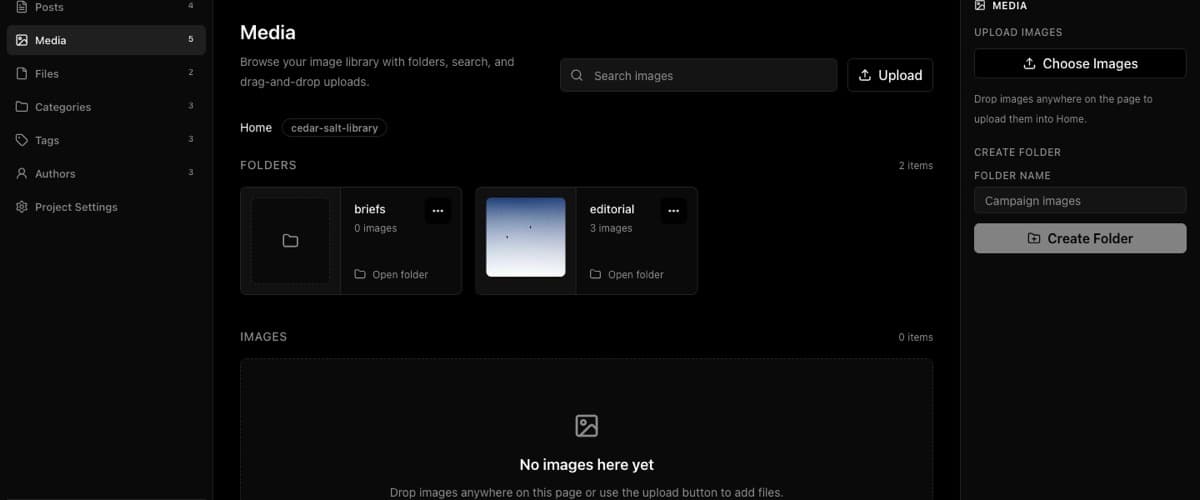
Open Media
- Open the project in BaseBuddy.
- Select Media in the project sidebar.
You should see the Media library with a search field, folder breadcrumbs, image cards, and the current storage bucket name.
If Media does not open, the project may not have a saved media storage mapping yet. Review Media and files before trying to upload around it.
Upload images
You can upload images in two places:
- Click Upload near the top of the Media page.
- Or click Choose Images in the right sidebar.
Choose one or more images from your computer. BaseBuddy uploads them into the folder you are currently viewing. If you are at the top level, the images upload into Home.
You can also drag images onto the Media page. When the drop area appears, release the files to upload them into the current folder.
Media accepts AVIF, GIF, JPEG, JPG, PNG, and WebP images. SVG is blocked because SVG files can contain script-like behavior and external references.
Upload limits:
| Area | Limit |
|---|---|
| Image size | 10 MB per image |
| Batch size | 10 images at a time |
| Media multipart API body | 60 MB when that API path is used |
BaseBuddy prepares signed upload URLs for the primary upload path, so your storage provider and browser upload path must allow the image size. Your hosting provider or reverse proxy still needs a compatible request body limit for BaseBuddy API requests. See Caps and rate limits for the broader limits reference.
Browse and search
Use the breadcrumbs to return to Home or a parent folder.
To browse folders, open a folder card. Folder cards show the folder name and image count.
To find an image by name or path, use the search field:
- At the top level, use Search images.
- Inside a folder, use Search this folder.
Search results hide the folder cards and show matching images. Clear the search field to return to normal folder browsing.
Create folders
Use folders when you want to group images by campaign, section, author, product, or another project-specific pattern.
- In the right sidebar, find Create Folder.
- Enter a name in Folder Name.
- Click Create Folder.
The new folder is created inside the folder you are currently viewing. For a deeper folder workflow, see How to organize images with folders.
Open, move, or delete an image
Each image card has an image options menu.
Use Open image to view the image URL in a new tab.
Use Move image to choose another destination folder. BaseBuddy keeps the action separate from post editing; moving an image in the library does not save or update a post body by itself.
Use Delete image only when the image should be removed from the media library. If a post or your frontend still references that image, deleting it may leave a broken image wherever that URL is used. For the safer checklist, see How to move or delete images safely.
What BaseBuddy protects
Uploads use the project's saved media mapping and environment-backed storage credentials. The browser does not receive storage secrets.
Library actions are separate from post Save or Update. Uploading, moving, or deleting an image in Media does not publish, unpublish, archive, or save a post. When you insert an image into a post body, the post still changes only when you click Save or Update. See How to insert images into a post for that workflow.
If your media storage uses private or signed URLs, treat URLs opened from the library as temporary. Do not paste signed URLs into public docs, issues, screenshots, or long-lived content unless your site is designed to refresh or proxy them.
If upload or management is unavailable
| Symptom | What to check |
|---|---|
| Upload or Choose Images is missing | Your account may have read-only access, or media storage may not be manageable right now |
| Upload fails | Check image type, image size, batch size, storage mapping, storage credentials, provider limits, and host request body limits |
| Search does not find an image | Try part of the file name or path, then clear the search and browse folders manually |
| A non-image file will not upload | Use Files for documents, PDFs, spreadsheets, archives, and other downloads |
| A private image URL stops working | Signed URLs are temporary; use your site's protected delivery path when private images need stable access |
BaseBuddy should only write to a media storage target when the saved mapping and credentials make that action safe.